

- Learned to Read: It can search a Knowledge Base
- Learned to Choose: It uses Conditions to make decisions
- Learned to Multitask: It handles multiple questions via Iteration
- Learned to Use Tools: It can access the Internet via Google Search
Agentic Workflow
An Agentic Workflow isn’t just Input > Process > Output. It involves thinking, planning, using tools, and adjusting based on results. It transforms the AI from a simple Executor (who just follows orders) into an intelligent Agent (who solves problems autonomously).Agent Strategies
To make Agents work smarter, researchers designed Strategies—think of these as different modes of thinking that guide the Agent.- ReAct (Reason + Act) The Think, then Do approach. The Agent thinks (What should I do?), acts (calls a tool), observes the result, and then thinks again. It loops until the job is done.
- Plan-and-Execute Make a full plan first, then do it step-by-step.
- Chain of Thought (CoT) Writing out the reasoning steps before giving an answer to improve accuracy.
- Self-Correction Checking its own work and fixing mistakes.
- Memory Equipping the Agent with short-term or long-term memory allows it to recall previous conversations or key details, enabling more coherent and personalized responses.
Agent Node
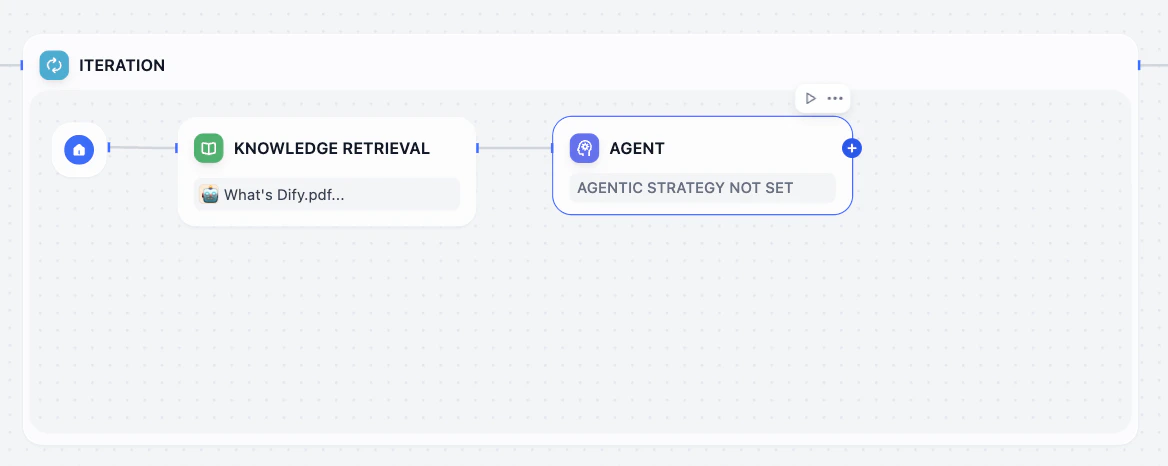
The Agent Node is a highly packaged intelligent unit. You just need to set a Goal for it through instructions and provide the Tools it might need. Then, it can autonomously think, plan, select, and call tools internally (using the selected Agent Strategy, such as ReAct, and the model’s Function Calling capability) until it completes your set goal. In Dify, this greatly simplifies the process of building complex Agentic Workflows.Hands-on 1: Build with Agent Node
Our goal is to replace that complex manual logic inside our Iteration loop with a single, smart Agent Node.Clean up the Iteration
Go to the sub-process of the Iteration. Keep knowledge retrieval node, and delete other nodes in side it.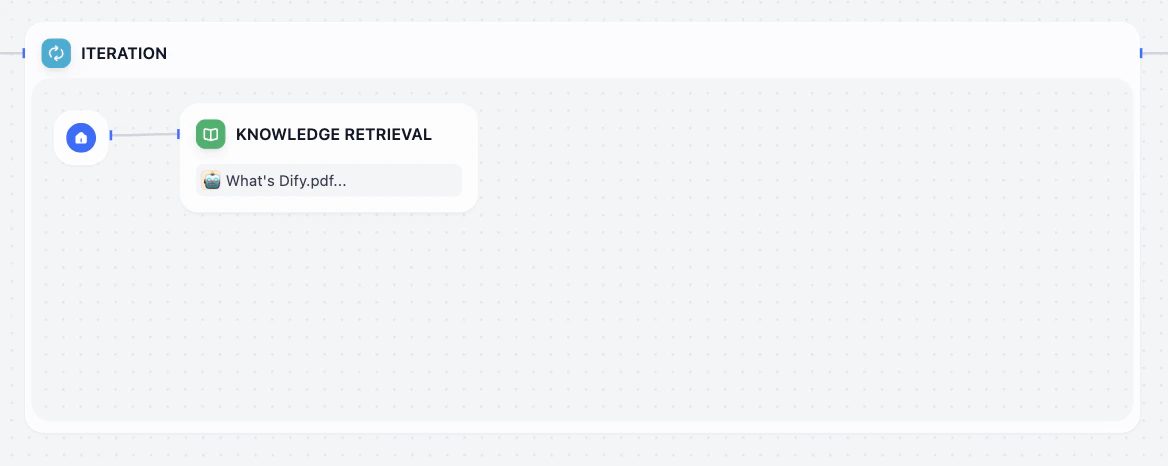
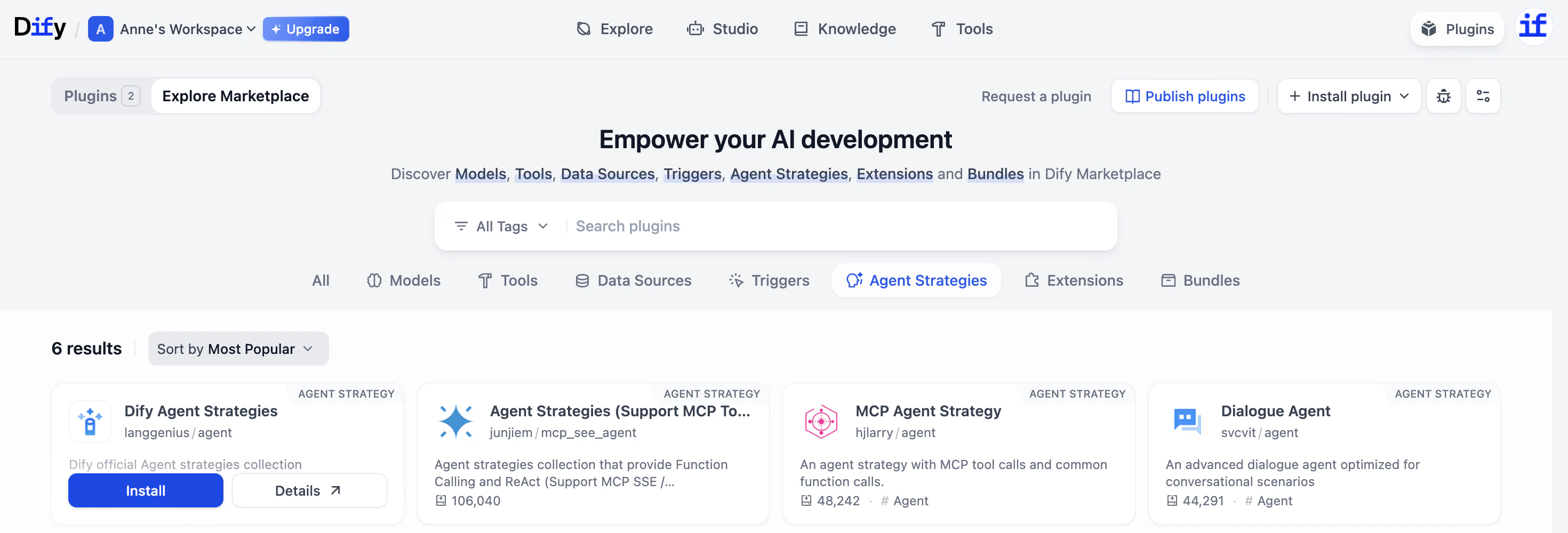
Install Agent Strategy
Since we haven’t used this before, we need to install a strategy from the Marketplace.Click the Agent node. In the right panel, look for Agent Strategy. Click Find more in Marketplace.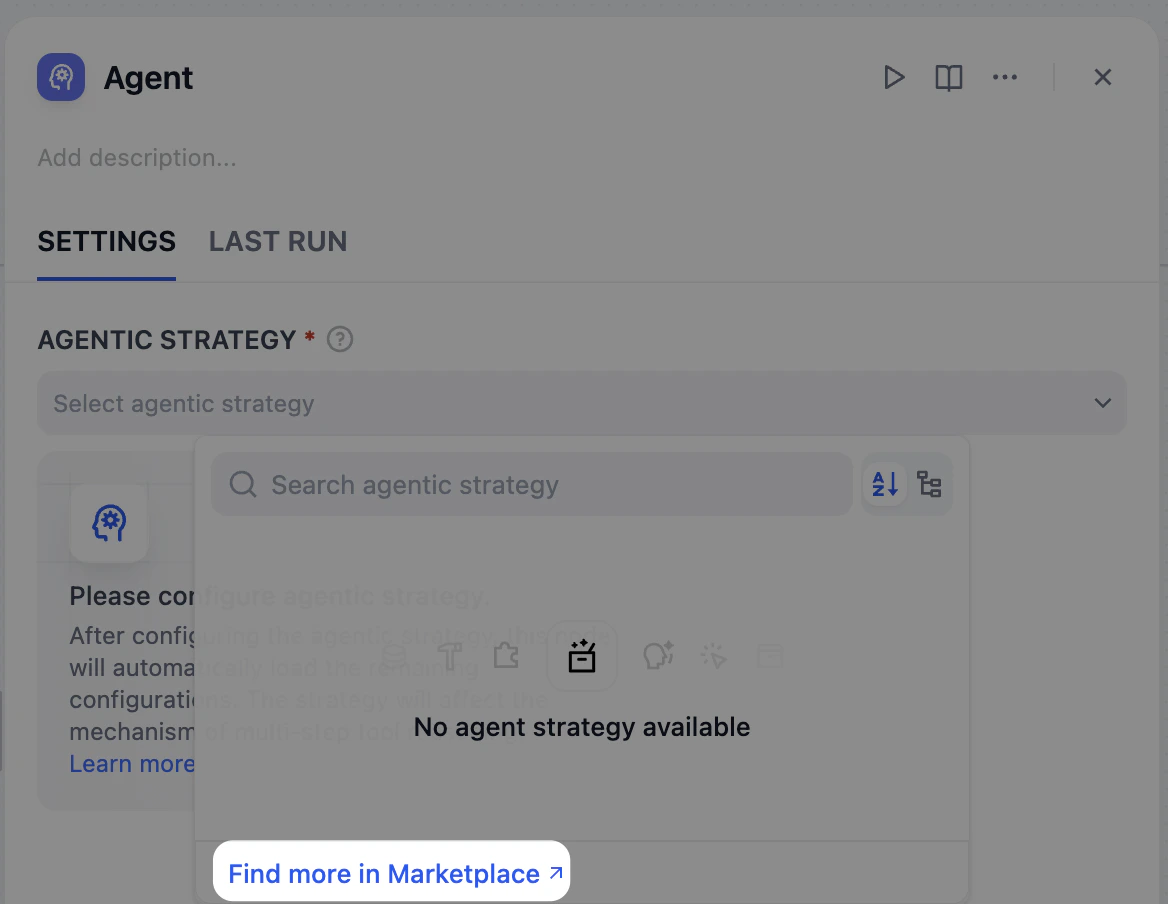
Select ReAct
Back in your workflow (refresh if needed), select ReAct under Agent Strategy.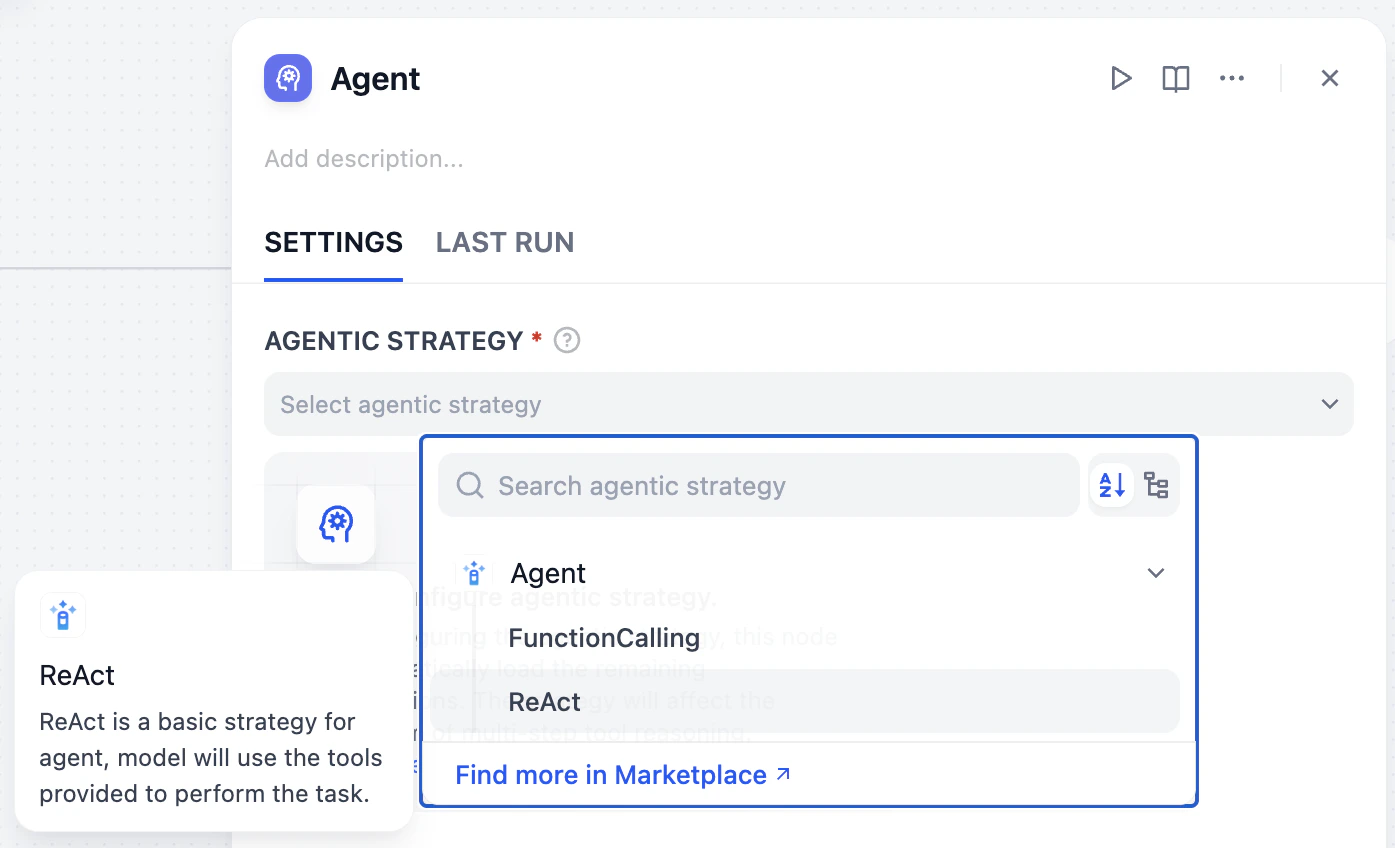
- Reason: The Agent thinks, What should I do next? (e.g., Check the Knowledge Base).
- Act: It performs the action.
- Observe: It checks the result. If the answer isn’t found, it repeats the cycle (e.g., Okay, I need to search Google).
Choose a Model
ReAct is a thinking strategy, but to actually pull off the action part, AI needs the right “physical” skills which is called Function Calling. Select a model that supports Function Calling. Here, we choose gpt-5.Why Function Calling?One of the core capabilities of an Agent Node is to autonomously call tools. Function Calling is the key technology that allows the model to understand when and how to use the tools you provide (like Google Search).If the model doesn’t support this feature, the Agent cannot effectively interact with tools and loses most of its autonomous decision-making capabilities.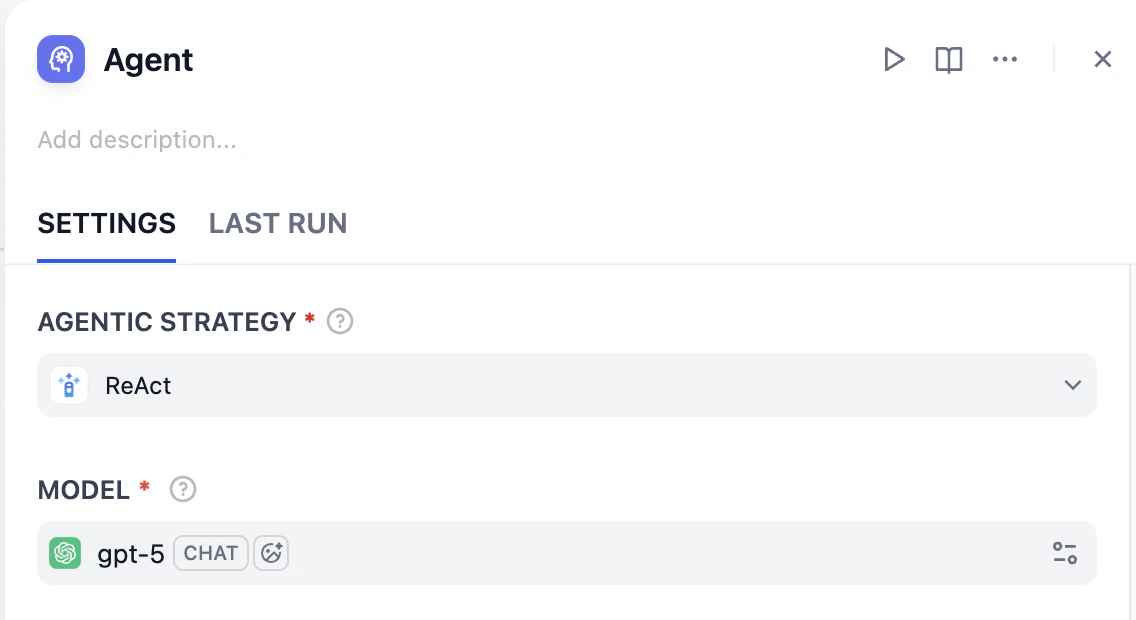
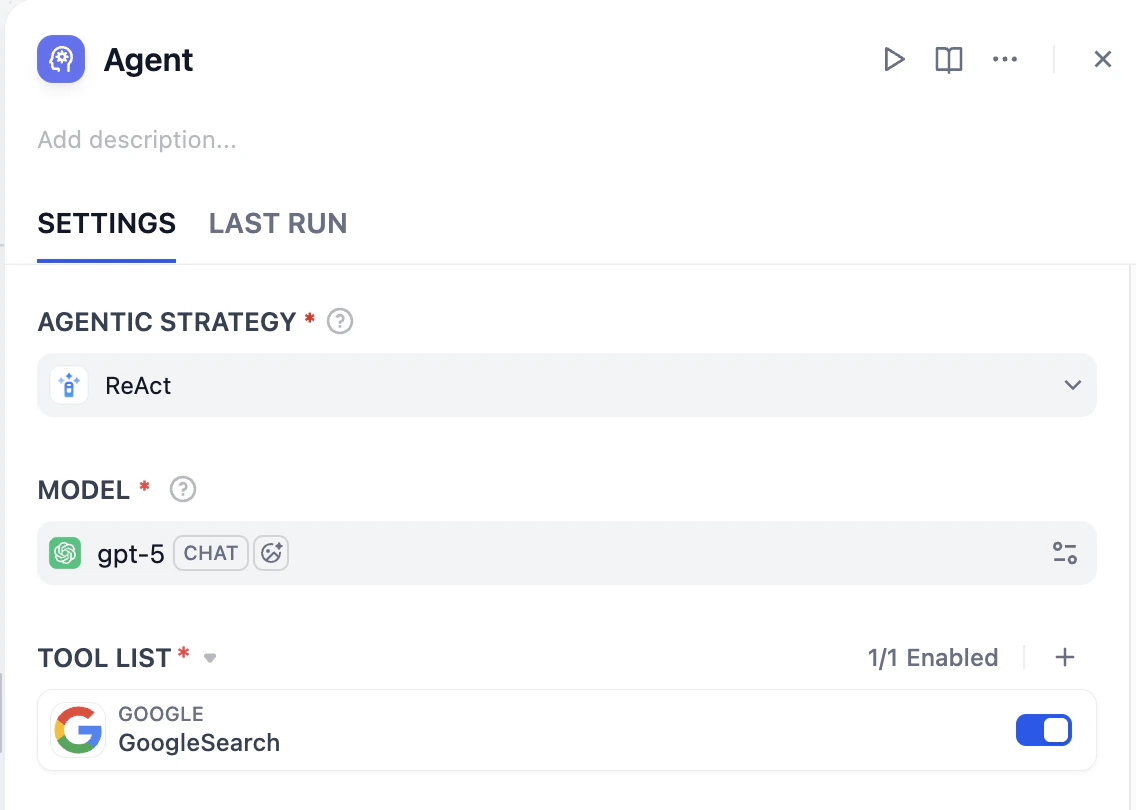
Add Instructions
We need to tell the Agent specifically what to do with the tools and context we are giving it. Use and paste the instructions into the Instruction field: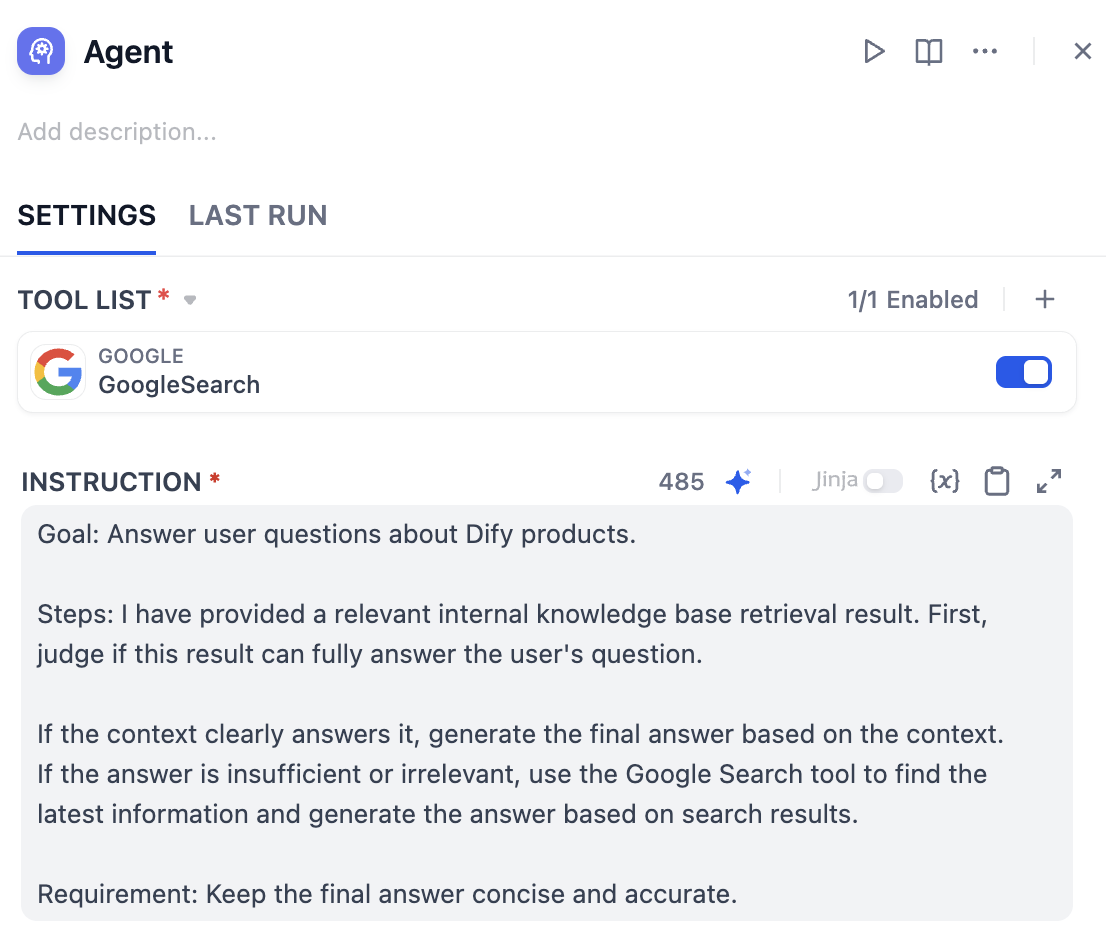
Context and Query
Your configuration here is crucial for the Agent to see the data.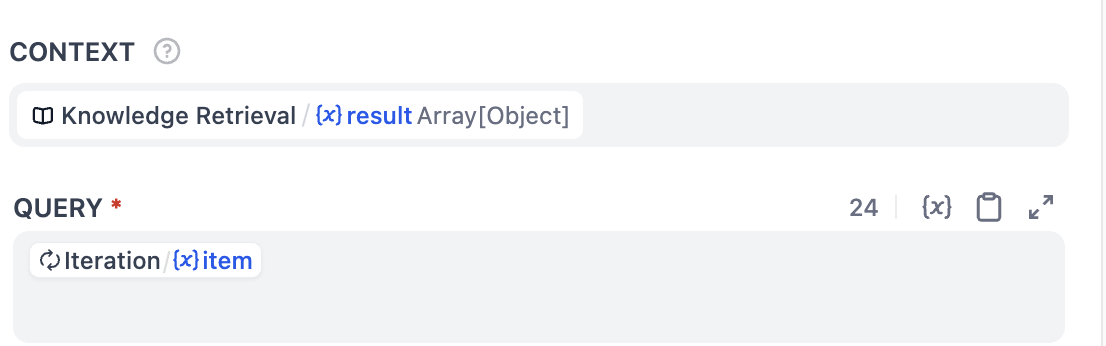
- Context: Select
Knowledge Retrieval / (x) result Array[Object]from the Knowledge Retrieval node (This passes the knowledge base content to the Agent). - Query: Select
Iteration/{x} itemfrom the Iteration node.
question_list) from the email_content. The Iteration node is processing this list one by one, where item represents the specific question currently being handled.Using item as the query input allows Agent to focus on the current task, improving the accuracy of decision-making and actions.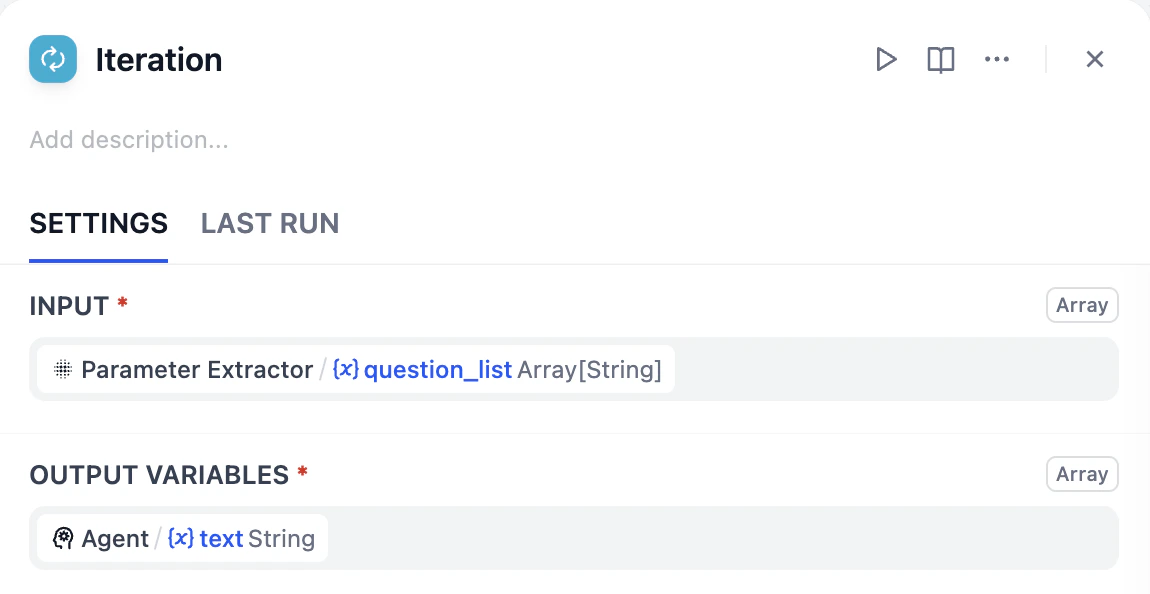
🎉 The Iteration node is now upgraded.
Hands-on 2: Final Assembly
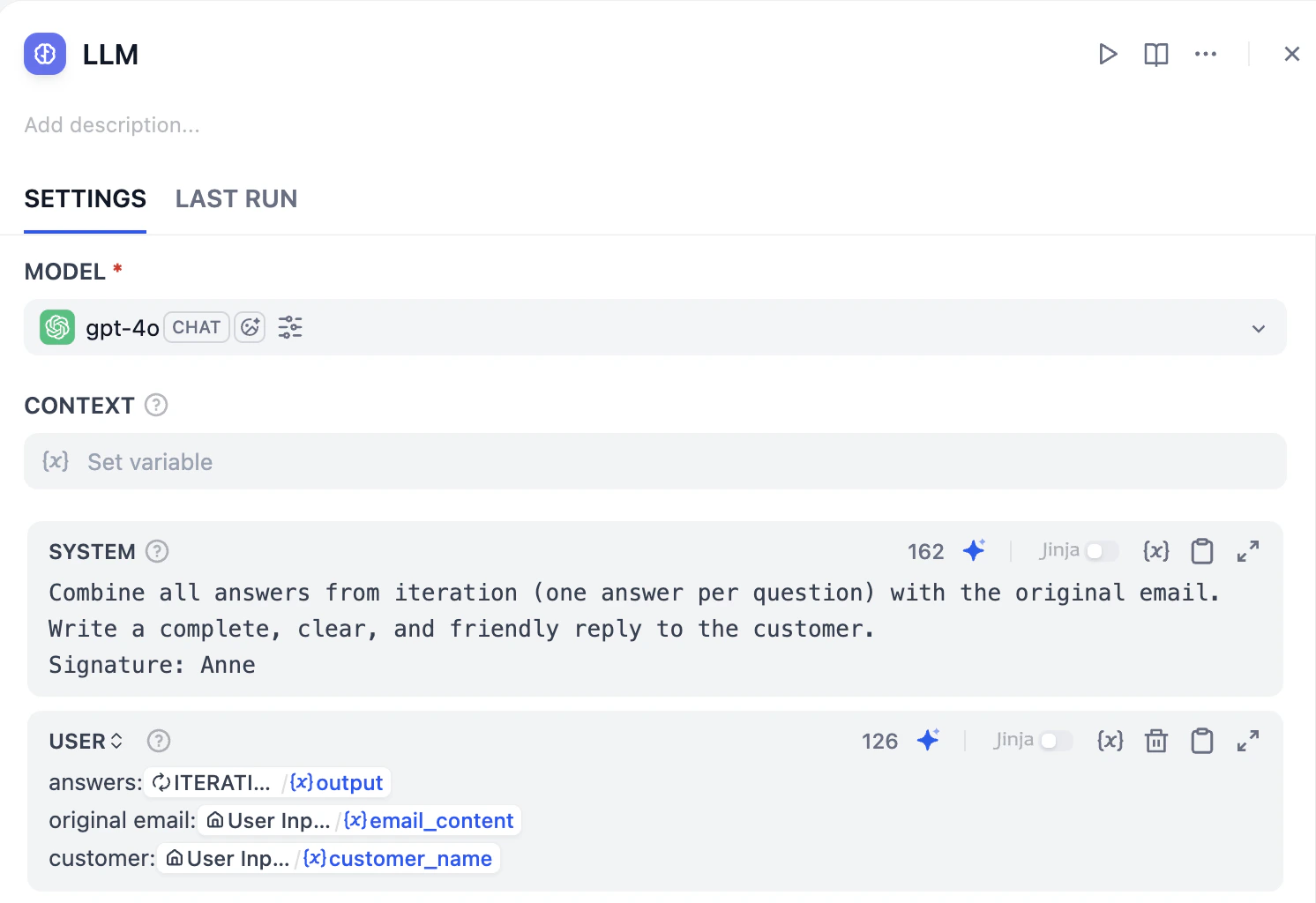
The Final Editor (LLM)
- Add an LLM node after the Iteration node.
-
Click on it and add prompt into the system. Feel free to check on the prompt below, or edit by yourself.
-
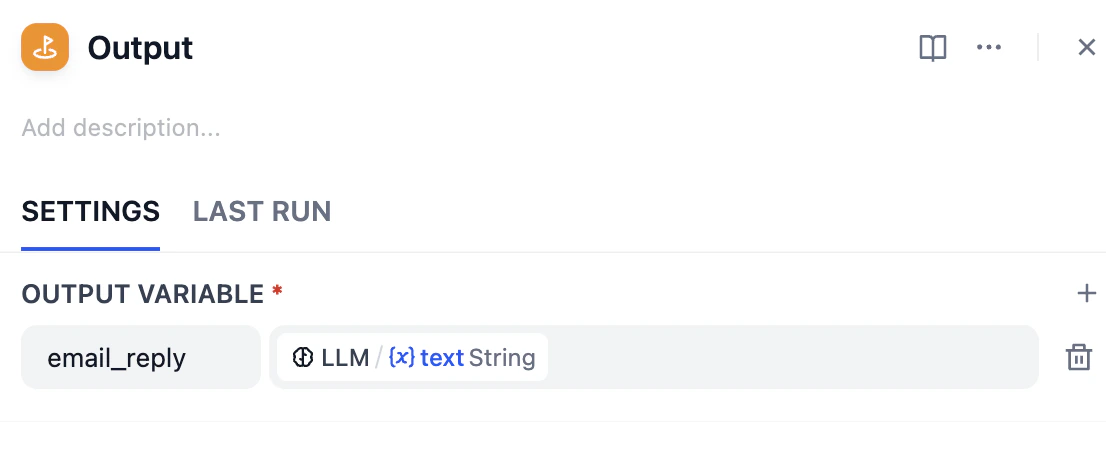
Add user message to replace answers, email content and customer name with variables respectively. Here’s how the LLM looks like right now.

Mini Challenge
- Could we use an Agent Node to replace the entire Iteration loop? How would you design the prompt to handle a list of questions all at once?
- What other information could you feed into the Agent’s Context field to help it make better decisions?