

Tools

Hands-On 1: Upgrade the Sub-process Area in Iteration
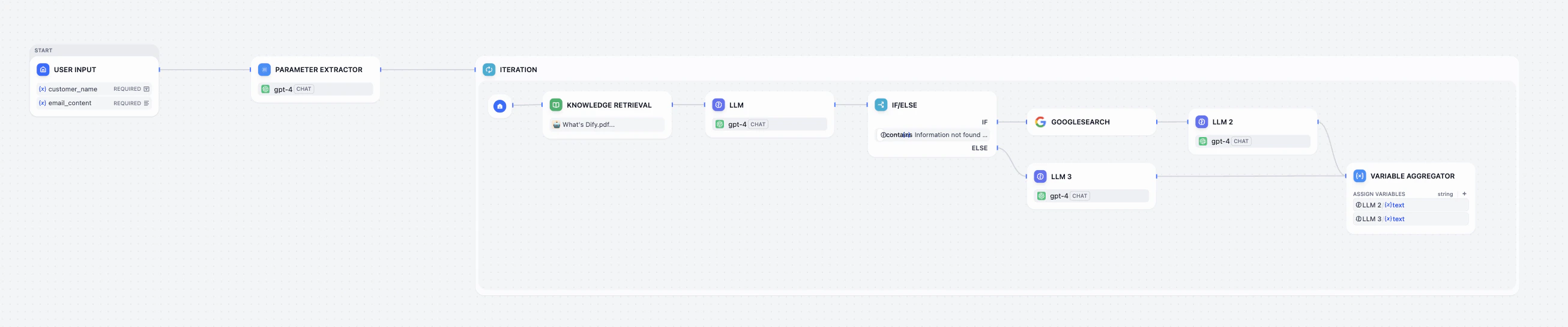
We are going to add a new logic to our assistant: Check the Knowledge Base first; if the answer isn’t there, go search Google. To focus on the new logic, let’s keep only these nodes: User input, Parameter Extractor, and Iteration.Step 1: Knowledge Query and the Judge
1
Enter the Iteration
- Click to enter the sub-process area of the Iteration node.
- Keep Knowledge Retrieval node, and make sure the query variable is
{x} item. - Delete the previous LLM node.
2
Add the Judge (LLM Node)
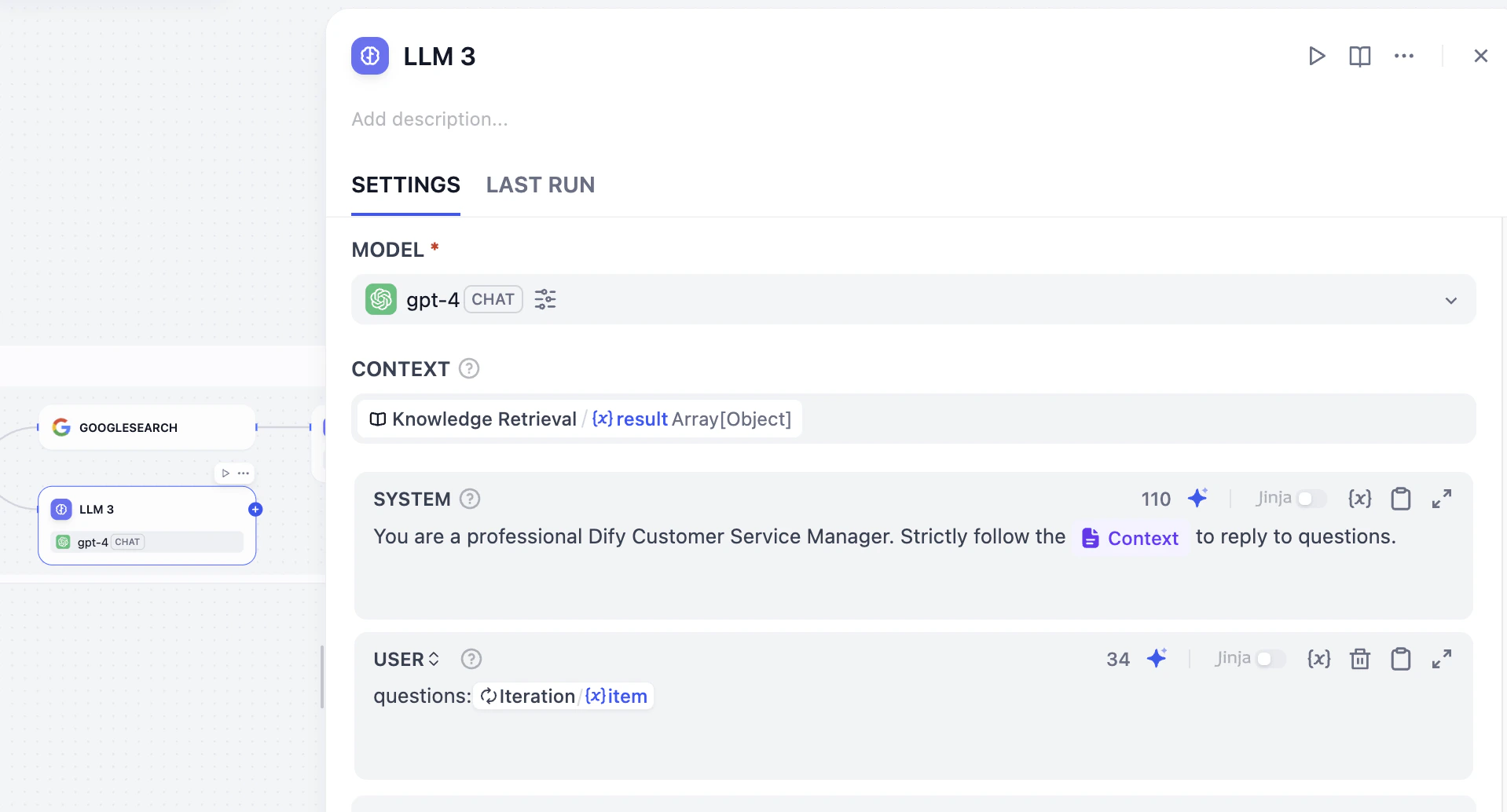
Add an LLM node right after Knowledge Retrieval node. Its job is to decide if the Knowledge Base info can actually respond to the questions.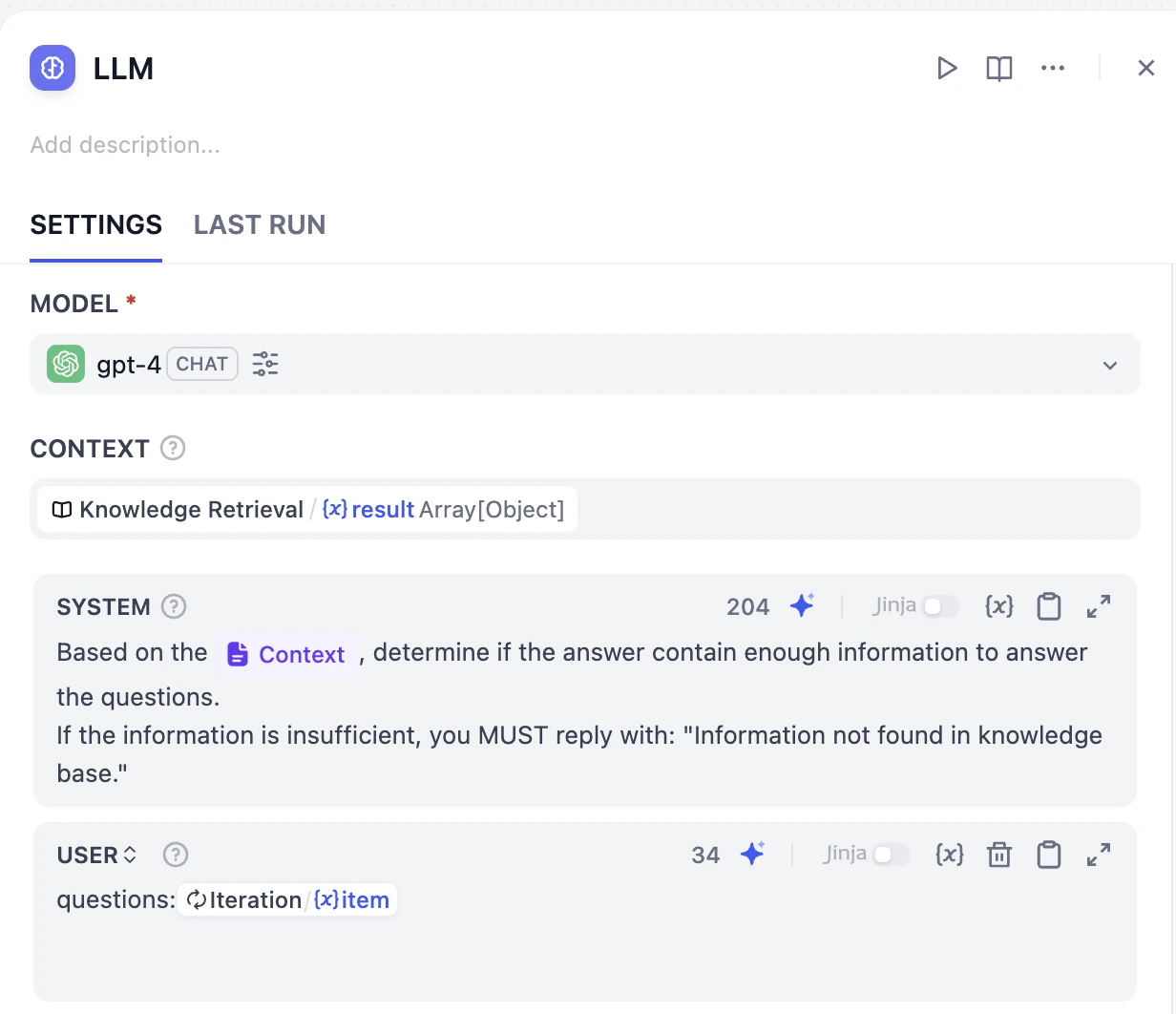
- For Context session: Select the
Knowledge Retrieval / {x} result Array [Object]from Knowledge Retrieval - System Prompt:
- User Message:

Step 2: Setting the Crossroads
1
Add If/Else Node
After LLM node, let’s add If/Else node. Set the rule: If LLM Output Contains Information not found in knowledge base.This means, when we can’t respond with the information in knowledge base.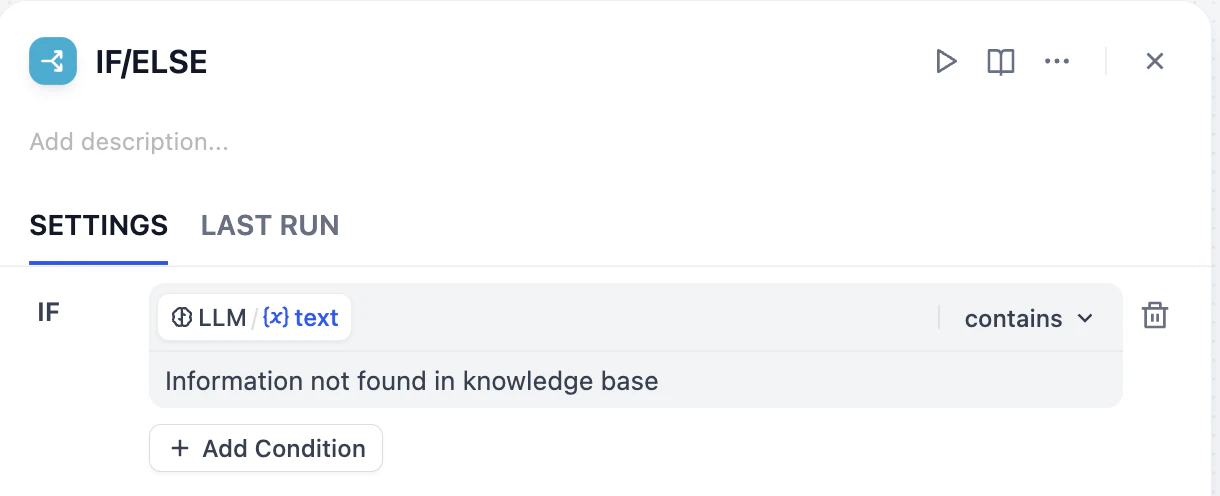
2
Add Tool for Searching
Let’s connect a search tool after the IF branch. This indicates that when the knowledge base cannot find relevant answer information, we use web search to find the answers.
- After the IF node, click plus(+) icon and select Tool.
- In the search box, type Google. Hover over Google, click Install on the right, and then click Install again in the pop-up window.
3
Install Google Search
Click Google Search in Google.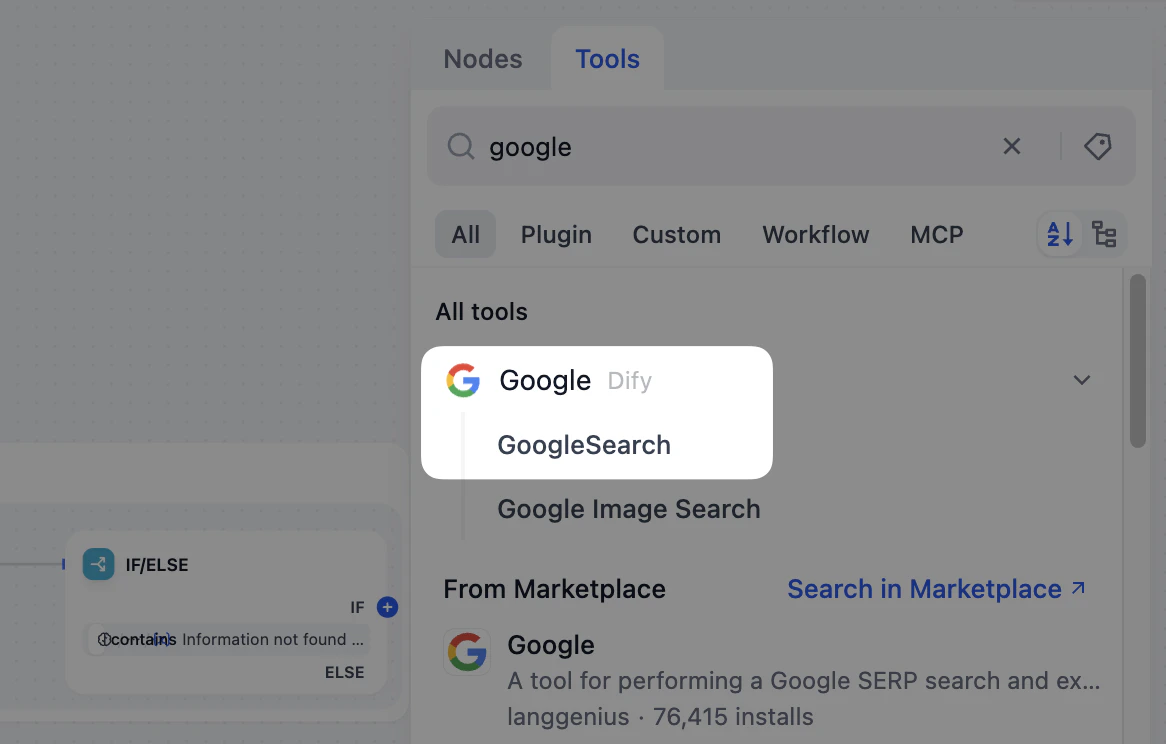
4
Get Your API Key
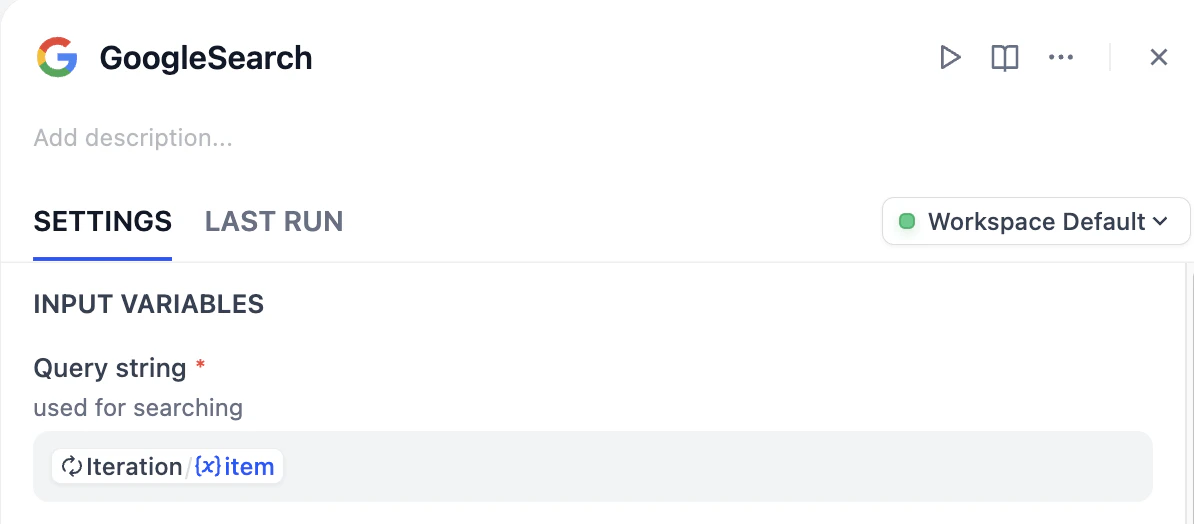
Using Google Search for the first time requires authorization—it’s like needing a Wi-Fi password.
-
Click API Key Authorization Configuration, then click Get your SerpApi API key from SerpApi. Sign in to get your private API key.
Your API Key is your passport to the outside world. Keep it safe and avoid sharing it with others.
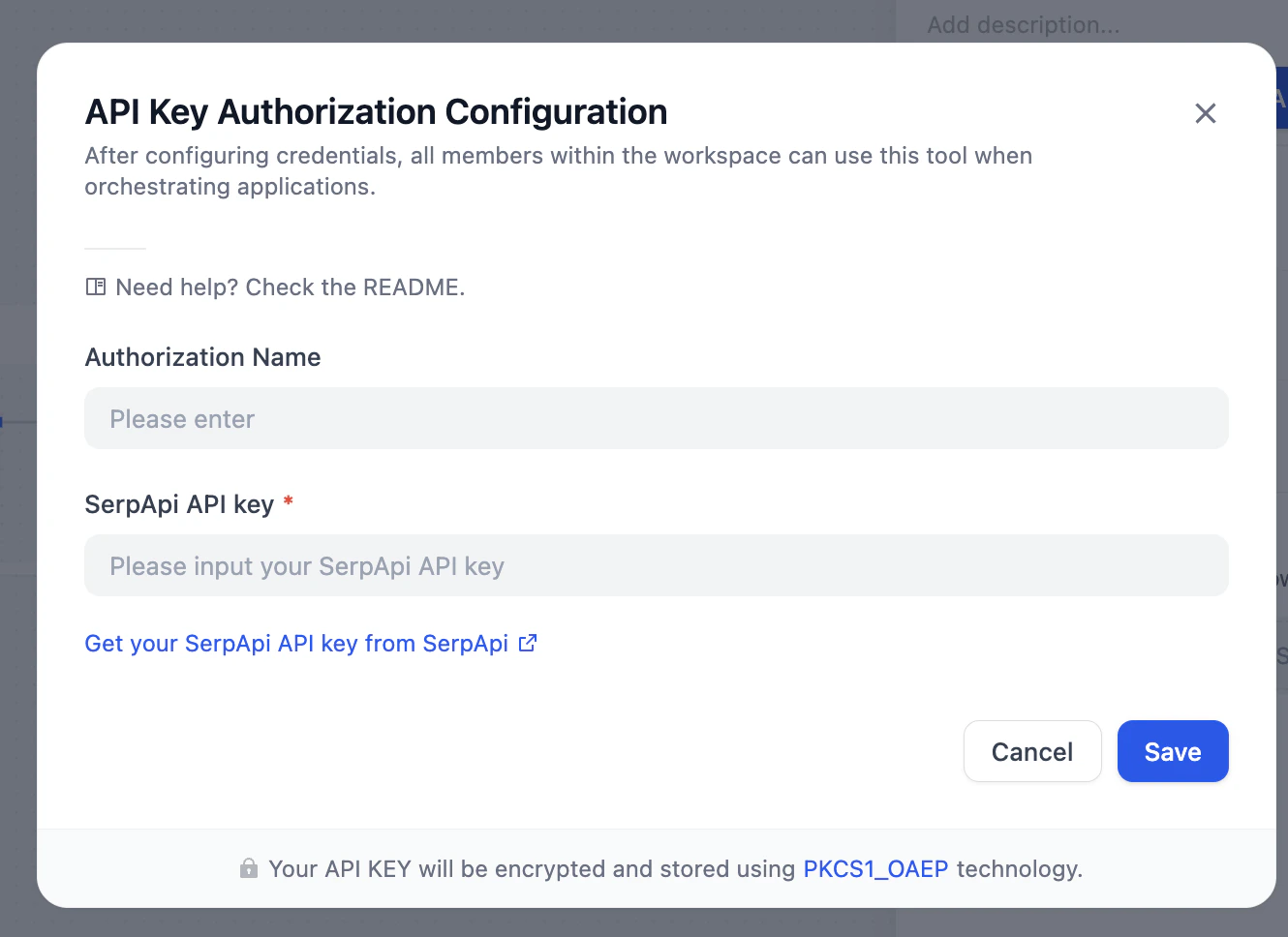
- Copy and paste the API key in SerpApi API key. Click Save.
-
Once the API key is successfully authorized, the settings panel shows up immediately. Head to Query string field, and select
Iteration/{x} item.
5
Configure the Two Paths
Now, we need different ways to answer depending on which path we’re looking at.The Search Answer PathAdd a new LLM node to answer the question based on the search results. Connect it to the Google Search node.System:User Message: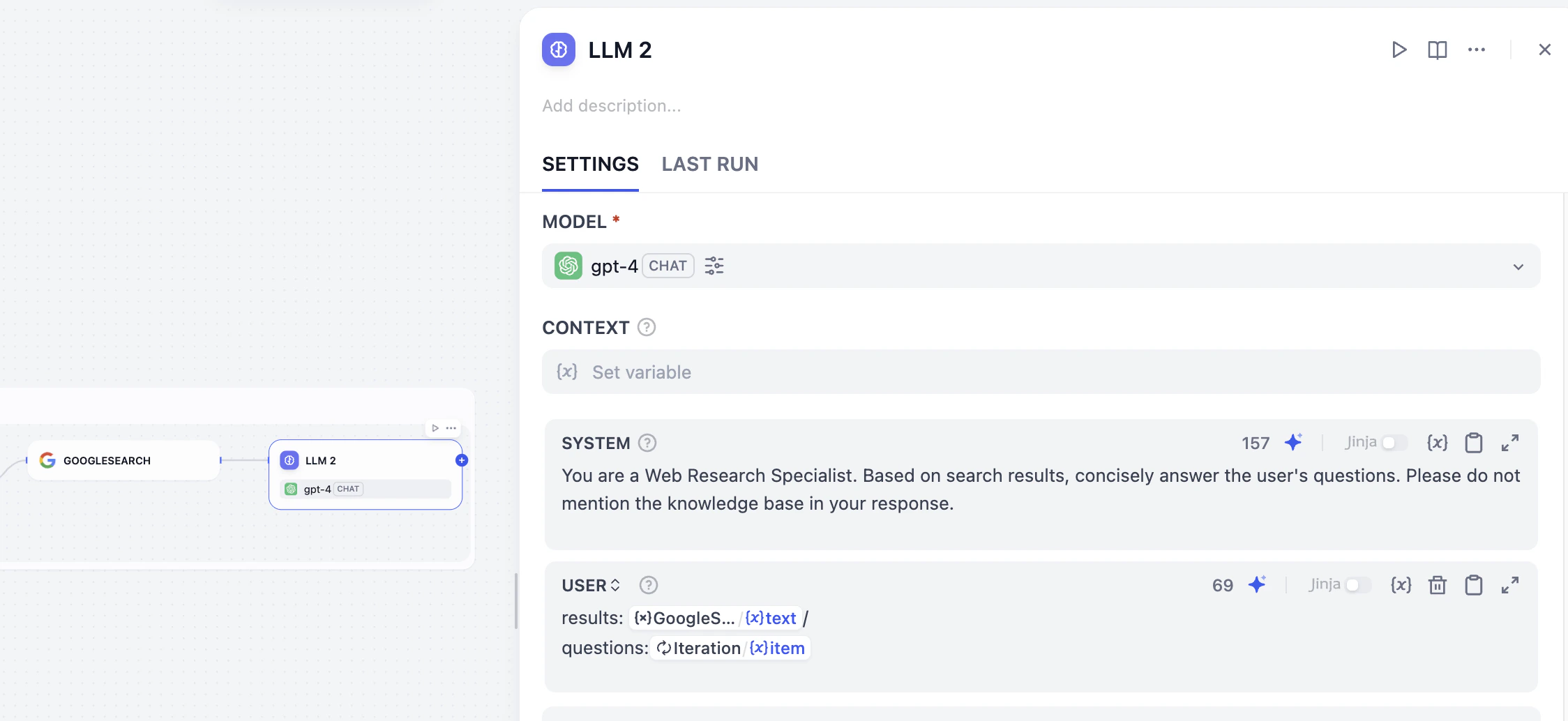
6
Combine the Information
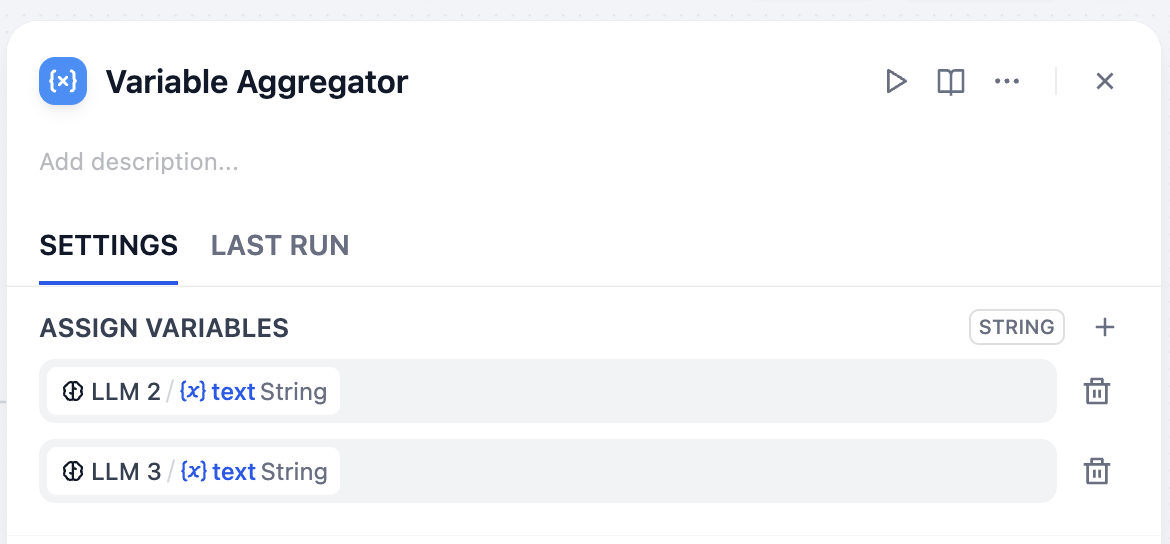
- In the sub-process (inside the Iteration box), add a Variable Aggregator node that connects both LLM 2 and LLM 3 at the very end.
- In the Variable Aggregator panel, select the variables
LLM 2/{x}text StringandLLM 3/{x}text Stringas the Assign Variables.
Step 3: The Final Email Assembly
Now that our logic branches have finished processing, let’s combine all the answers into a single, polished email.1
Configure Iteration Output
Click on the Iteration node, and set 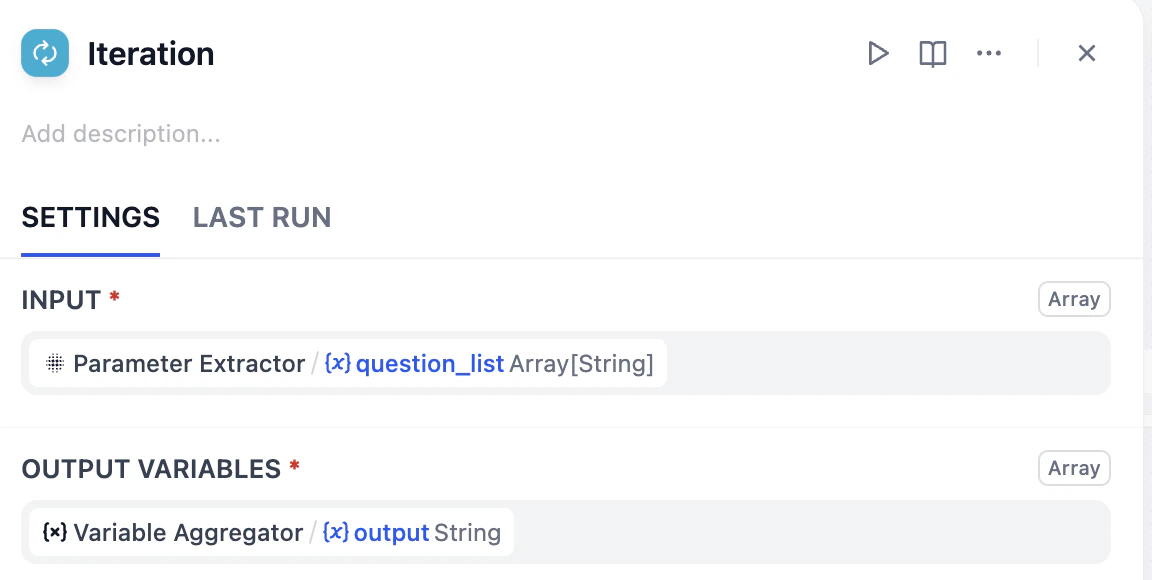
{x}Variable Aggregator/{x}output String as the output variables.2
Connect the Summary LLM
After the Iteration node, connect a new LLM node to summarize all outputs. Feel free to use the prompt below.System:User Message: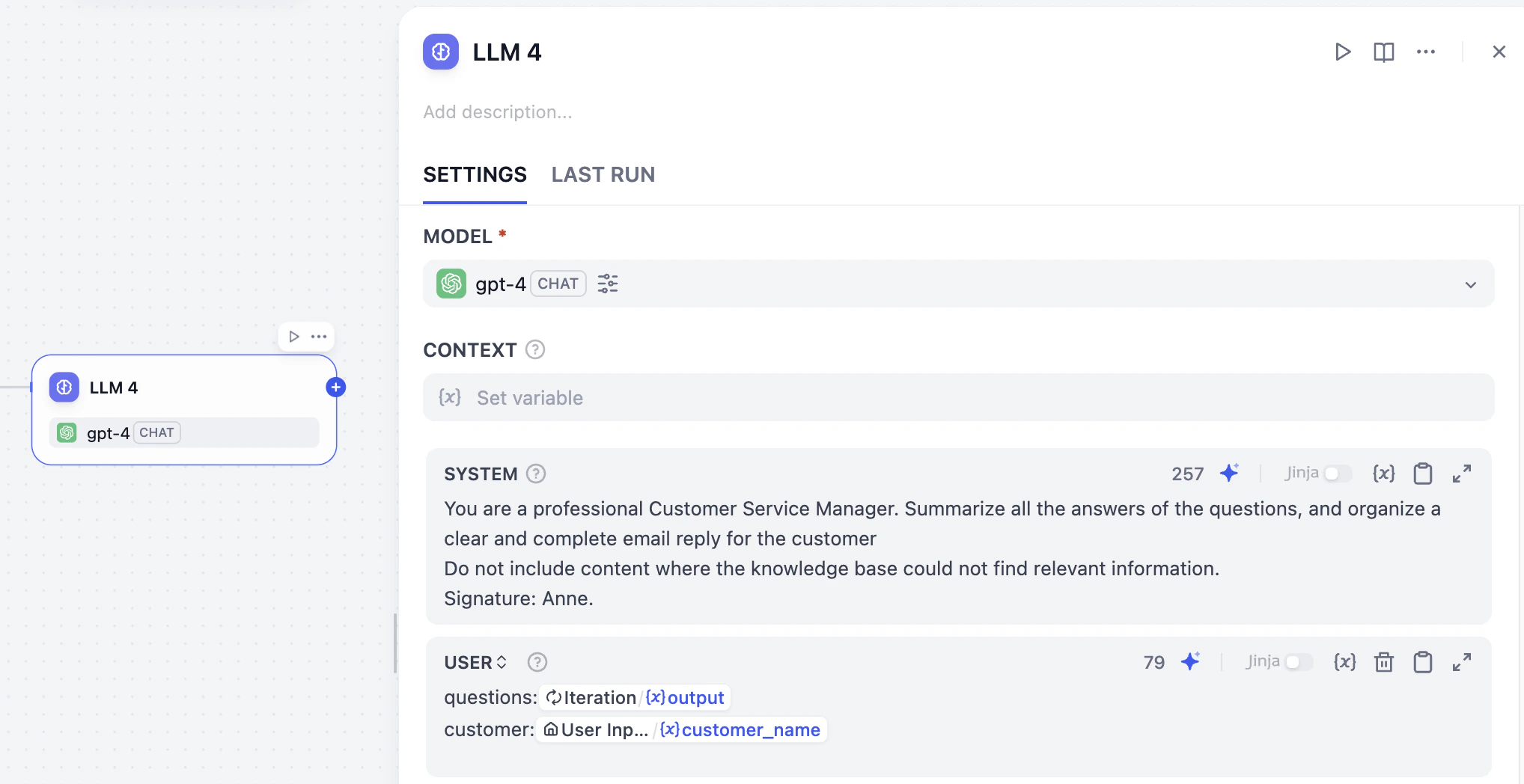
3
Finalize with the Output Node
After the LLM node, add an End node. Set the output variable as 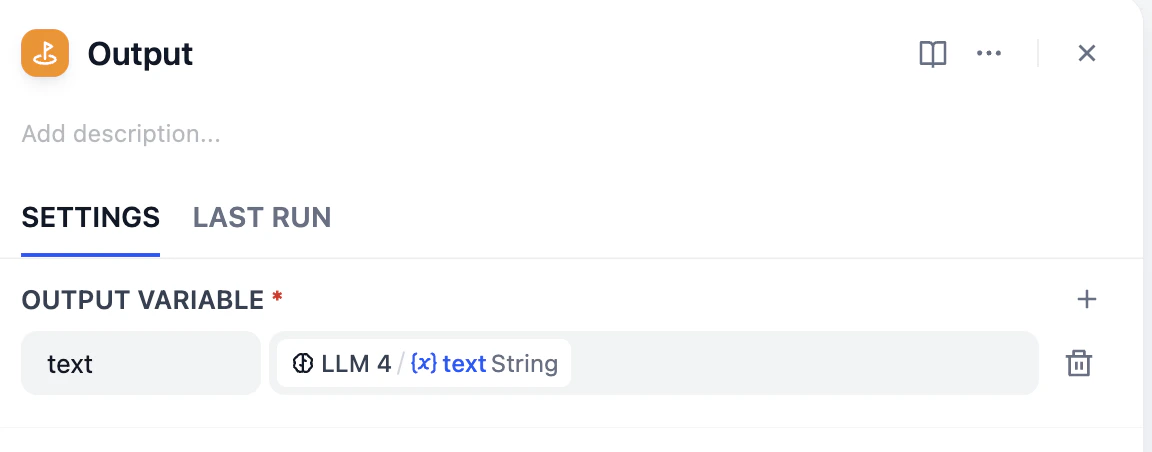
LLM 4/{x}text String.
Mini Challenge
- What are other conditions you can choose in If/Else node?
- Browse marketplace to see if you can add another tool for this workflow?