

What is Retrieval Augmented Generation (RAG)
The technical name for this is RAG (Retrieval-Augmented Generation). Think of it as turning the AI from a chef who memorizes general recipes into a chef who has a Specific Cookbook right on the counter. It happens in three simple steps: 1. Retrieval (Find the Recipe) When a user asks a question, the AI flips through your Cookbook (the files you uploaded) to find the most relevant pages. Example: Someone asks for Grandma’s Special Apple Pie. You go find that specific recipe page. 2. Augmentation (Prepare the Ingredients) The AI takes that specific recipe and puts it right in front of its eyes so it doesn’t have to rely on memory. Example: You lay the recipe on the counter and get the exact apples and cinnamon ready. 3. Generation (The Baking) The AI writes the answer based only on the facts it just found. Example: You bake the pie exactly as the recipe says, ensuring it tastes like Grandma’s, not a generic store-bought version.The Knowledge Retrieval Node
Think of this as placing a stack of reference materials right next to your AI Assistant. When a user asks a question, the AI first flips through this Cheat Sheet to find the most relevant pages. Then, it combines those findings with the user’s original question to think of the best answer. In this practice, we will use the Knowledge Retrieval node to provide our AI Assistant with official Cheat Sheets, ensuring its answers are always backed by facts!Hands-On 1: Create the Knowledge Base
1
Enter the Library
Click Knowledge in the top navigation bar and click Create Knowledge.
2
Upload the File
Click Import from file. Then, select the file we just downloaded for upload.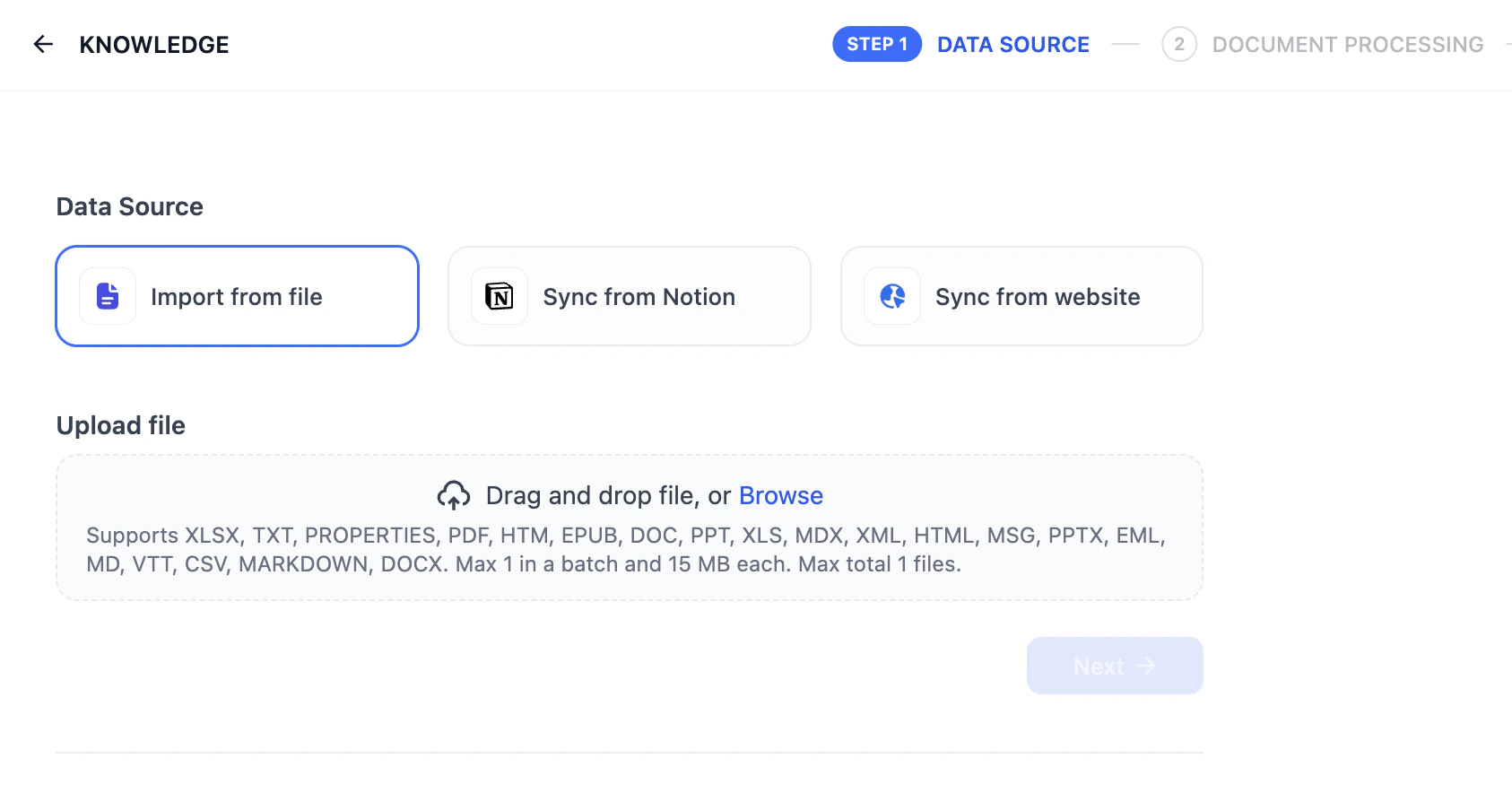
3
The 'Chopping' Step (Text Segmentation)
High-relevance chunks are crucial for AI applications to provide precise and comprehensive responses. Imagine a long book. It’s hard to find one sentence in 500 pages. Dify chops the book into different Knowledge Cards so it can find the right answer faster.Chunk StructureHere, Dify automatically splits your long text into smaller, easier-to-retrieve chunks. We’ll just stick with the General Mode here.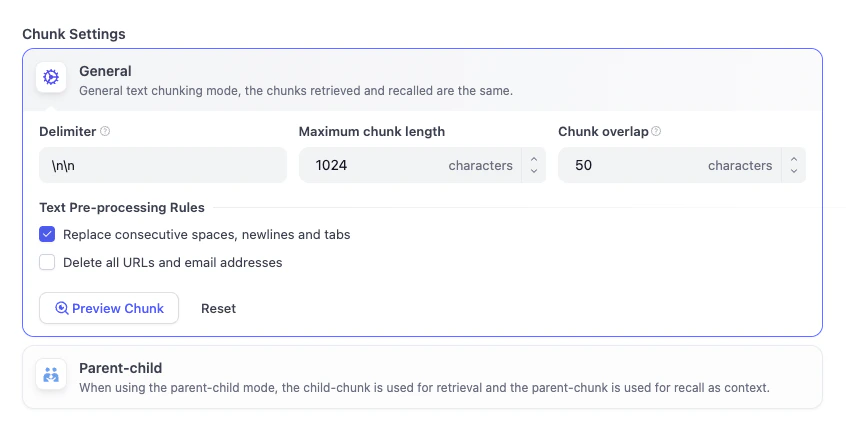

- High Quality: Use LLM model to process documents for more precise retrieval helps LLM generate high-quality answers
- Economical: Using 10 keywords per chunk for retrieval, no tokens are consumed at the expense of reduced retrieval accuracy
4
Retrieval Settings
After the document has been processed, we need to do one final check on the retrieval settings. Here, you can configure how Dify looks up the information.In Economical mode, only the inverted index approach is available.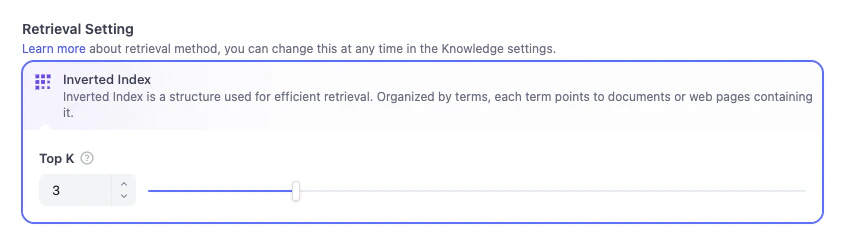
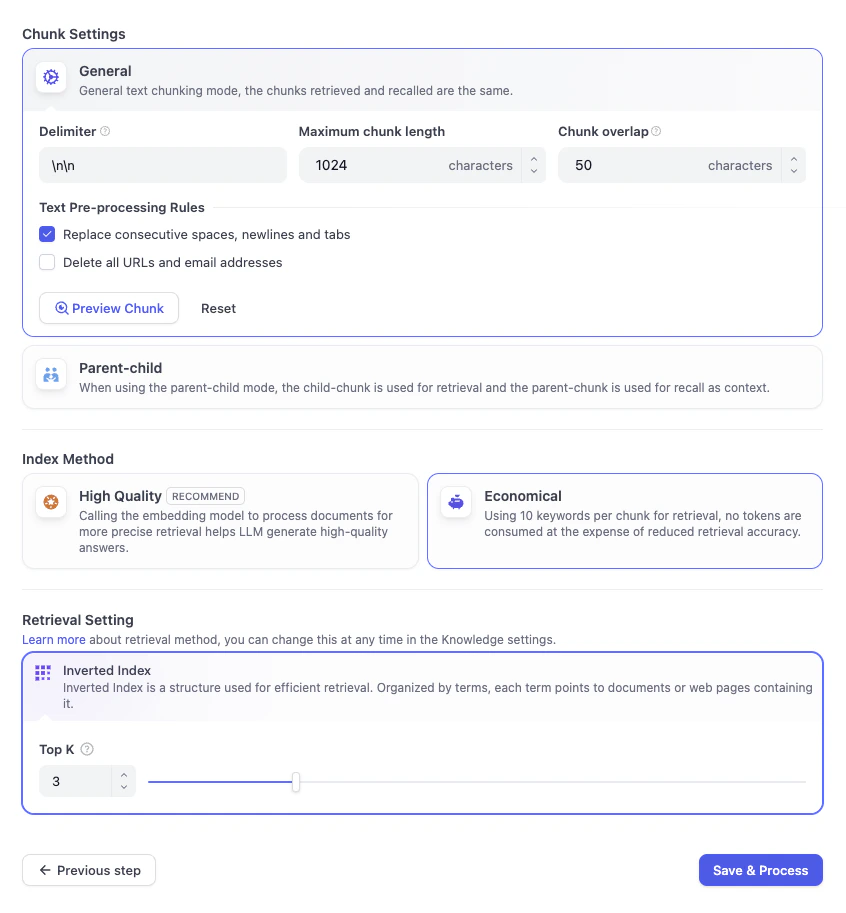
- Inverted Index This is the default structure Dify uses. Think of it like the Index at the back of a book—it lists key terms and tells Dify exactly which pages they appear on. This allows Dify to instantly jump to the right knowledge card based on keywords, rather than reading the whole book from start.
- Top K You’ll see a slider set to 3. This tells Dify: When the user asks a question, find the top 3 most relevant Knowledge Cards from the cookbook to show the AI. If you set it higher, the AI gets more context to read, but if it’s too high, it might get overwhelmed with too much information.
5
Save and Process
Click Save and Process. Your knowledge base is ready!
Awesome!You have successfully created your first Knowledge Base. Next, we’ll use this Knowledge Base to upgrade our AI Email Assistant.
Hands-On 2: Add the Knowledge Retrieval Node
1
Add the Node
- Go back to your Email Assistant Workflow.
- Hover over the line between the Start and LLM nodes.
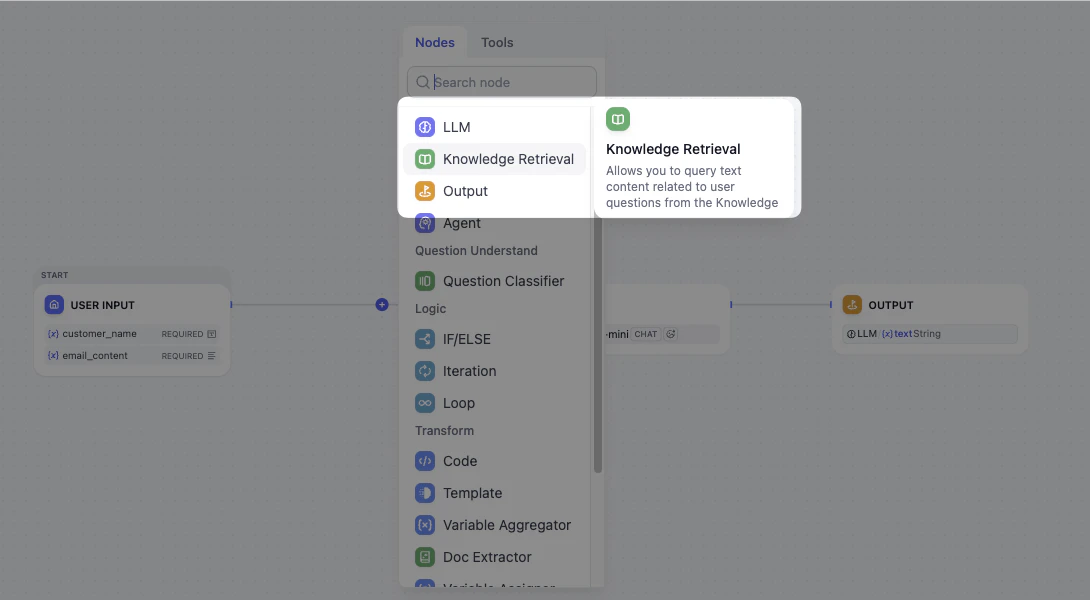
- Click the Plus (+) icon and select the Knowledge Retrieval node.
2
Connect Knowledge Base
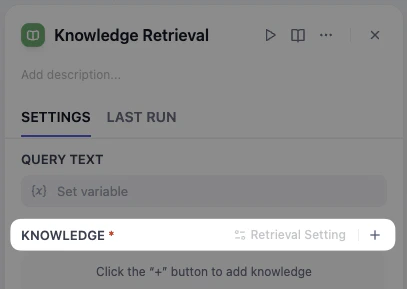
- Click the node, and head to the right panel.
-
Click the plus (+) button next to Knowledge Base to add knowledge.
-
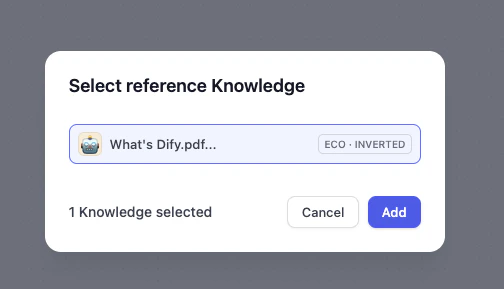
Choose What’s Dify, and click Add.
3
Configure Query Text
Now the knowledge base is ready, how can we make sure that AI is looking through the knowledge base to search the answer with the email?Stay at the panel, navigate to Query text above, and select 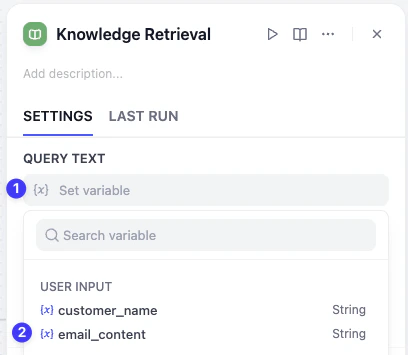
email_content.By doing this, we are telling AI: Take the customer’s message and use it as a search keyword to flip through our cookbook and find the matching info. Without a query, the AI is just staring at a closed book.Hands-On 3: Upgrade the Email Assistant
Now, the knowledge base is ready. We need to tell the LLM node to actually read the knowledge as context before generating the reply.1
Add Context
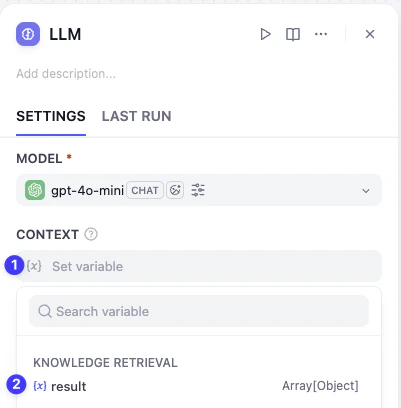
- Click the LLM Node. You’ll see a new section called Context.
-
Click it and select result from the Knowledge Retrieval node.
2
Update the Prompt
We need to tell the AI to generate reply based on the context.In System, add additional requirement Generate response based on 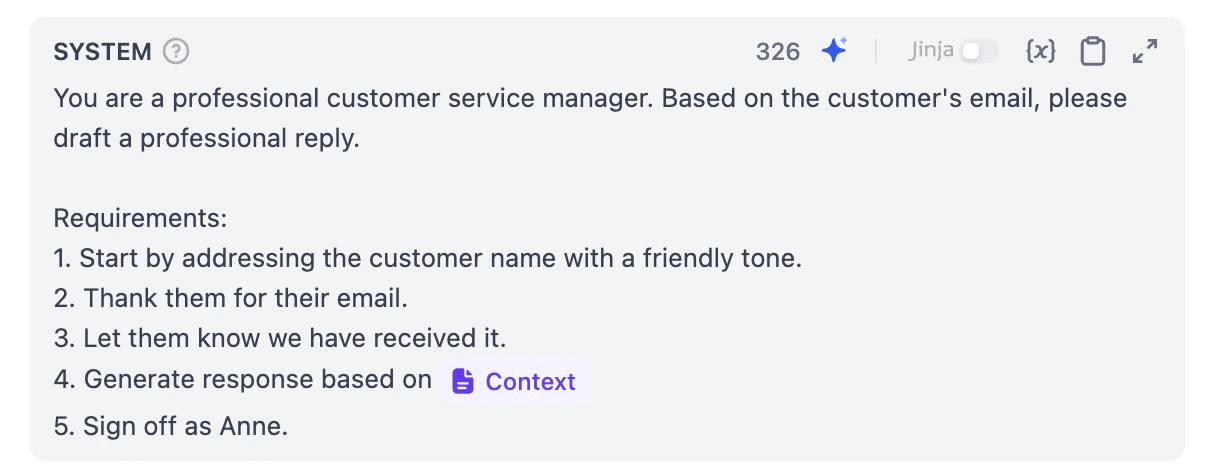
/ and select Context.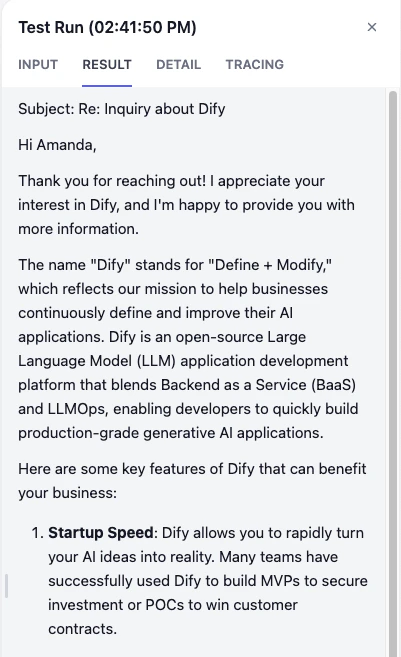
Mini Challenge
- What happens if a customer asks a question that isn’t in the knowledge base?
- What kind of information could you upload as a knowledge base?
- Explore Chunk Structure, Index Method, and Retrieval Setting.