Hi! What exactly is Dify? Also, which models does it support? And do you have a free plan?If we send this to our current AI assistant, it might only answer the first question or give a vague response to both. We need a way to identify every question first, and then loop through our Knowledge Base to answer them one by one.
Parameter Extractor

Hands-On 1: Add Parameter Extractor
Before we upgrade the email assistant, let’s remove these nodes: Knowledge Retrieval, If/Else, LLM, LLM 2, and Variable Aggregator.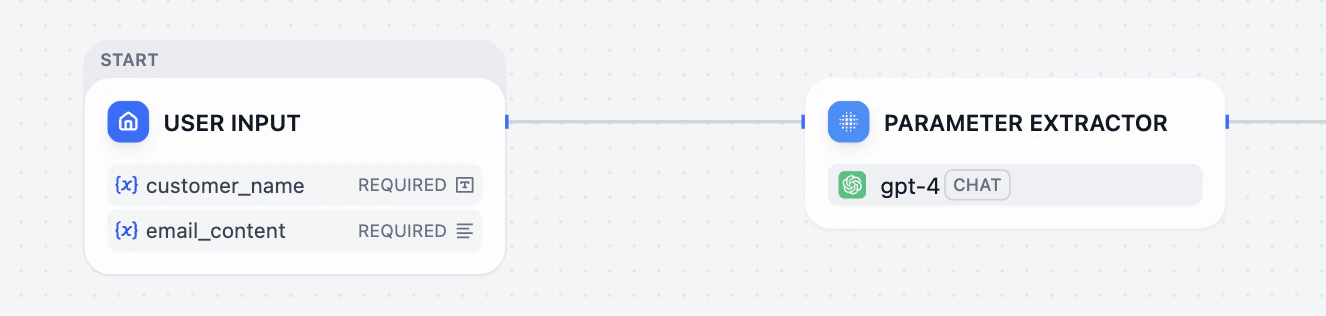
Set the Input
Click Parameter Extractor, and in the Input Variable section on the right panel, choose 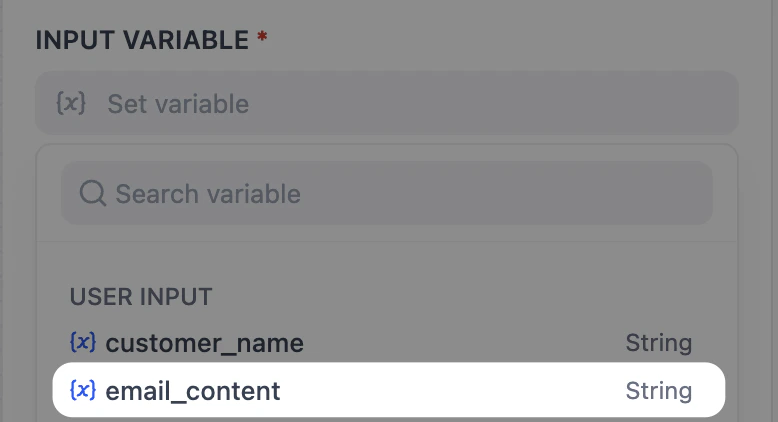
email_content.Add Extract Parameter
Click the plus (+) icon next to Extract Parameters to start defining what the AI should look for. Let’s call it 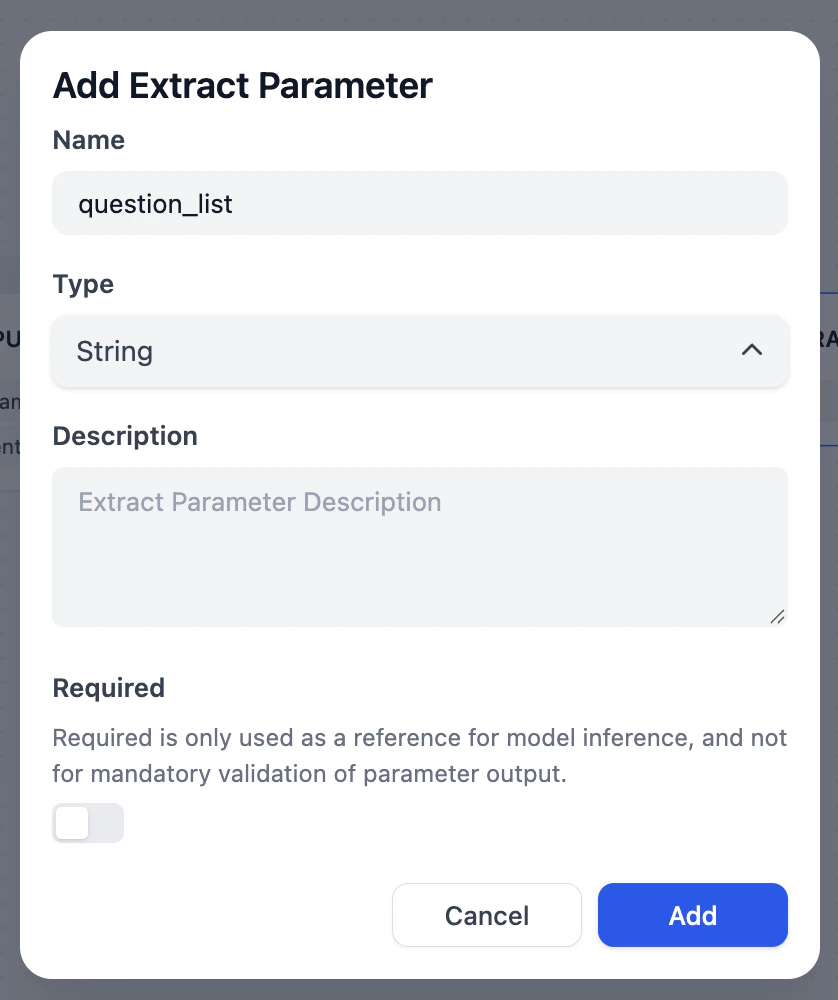
question_list.Parameter TypesIf Parameter Extractor is a scout, then Type is the bucket they use to carry the info. You need the right bucket for the right information.Single Items (The Small Buckets)
- String (Text): For a single piece of text, e.g. customer’s name
- Number: For a single digit, e.g. order quantity
- Boolean: A simple Yes or No (True/False), good for a judgement result or a decision
- Array[String]: Array means List, and String means Text. So,
Array[String]means we are using a basket that can hold multiple pieces of text—like all the separate questions in an email - Array[Number]: A container that holds different numbers, e.g. a list of prices or commodities
- Array[Boolean]: Used to store multiple Yes/No judgment results. For example, checking a list containing multiple to-do items and returning whether each item is completed, such as
[Yes, No, Yes] - Array[Object]: An advanced folder that holds sets of data (like a contact list where each entry has a Name and a Phone Number)
Finish Adding Extract Parameter
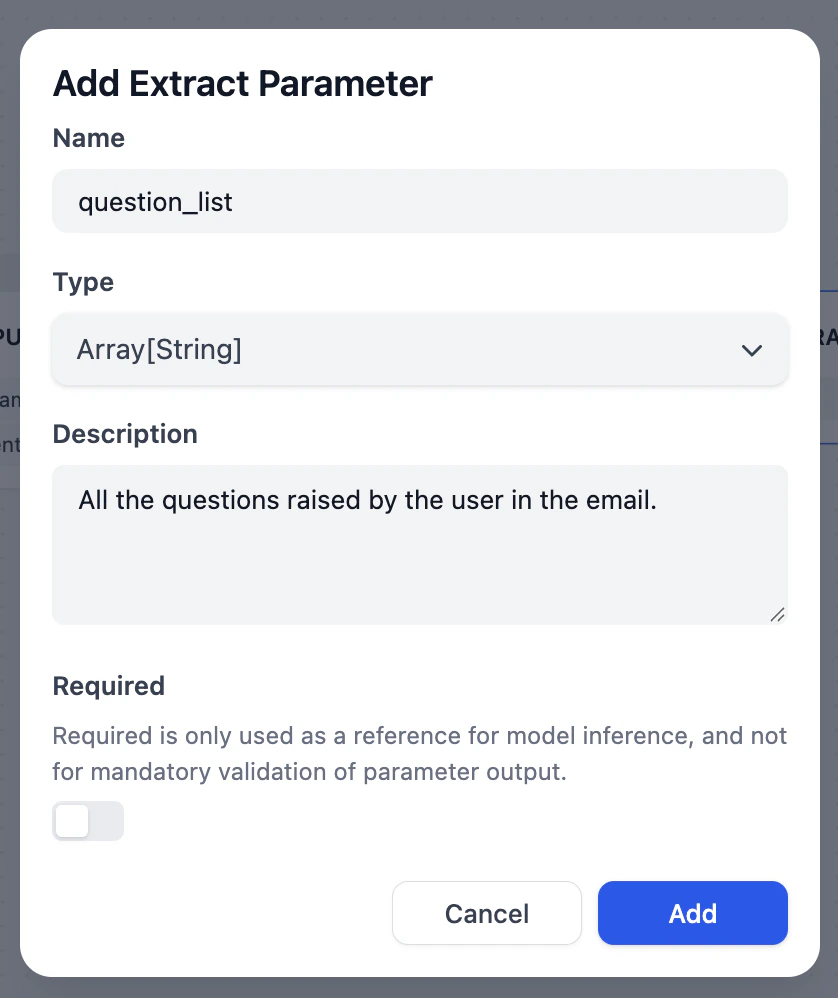
- Based on our needs, choose
Array[String]for the email content. - Add description for providing additional context. You can write: All the questions raised by the user in the email. After that, click Add.
Iteration
Hands-On 2: Set up Iteration Node
Add the Node
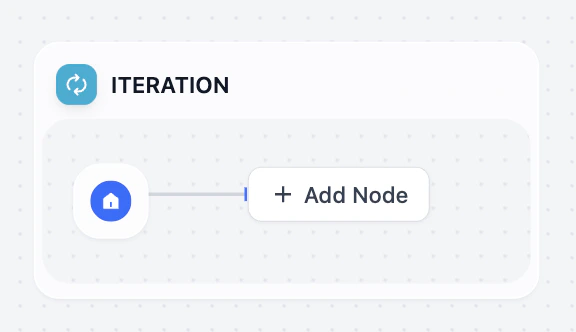
- Add an Iteration node after the Parameter Extractor.
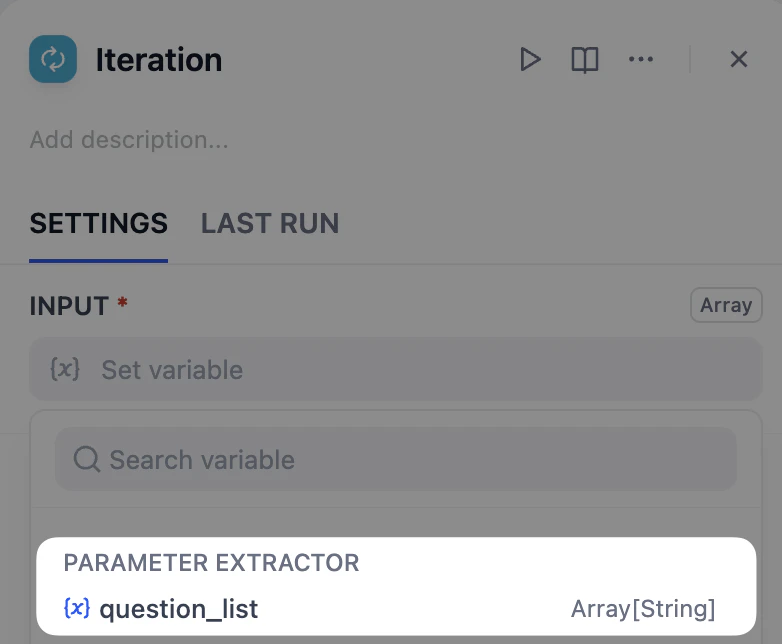
- Click on the Iteration node and navigate to the Input panel on the right.
- Select
{x} question_listfrom the Parameter Extractor. Leave the output variable blank for now.
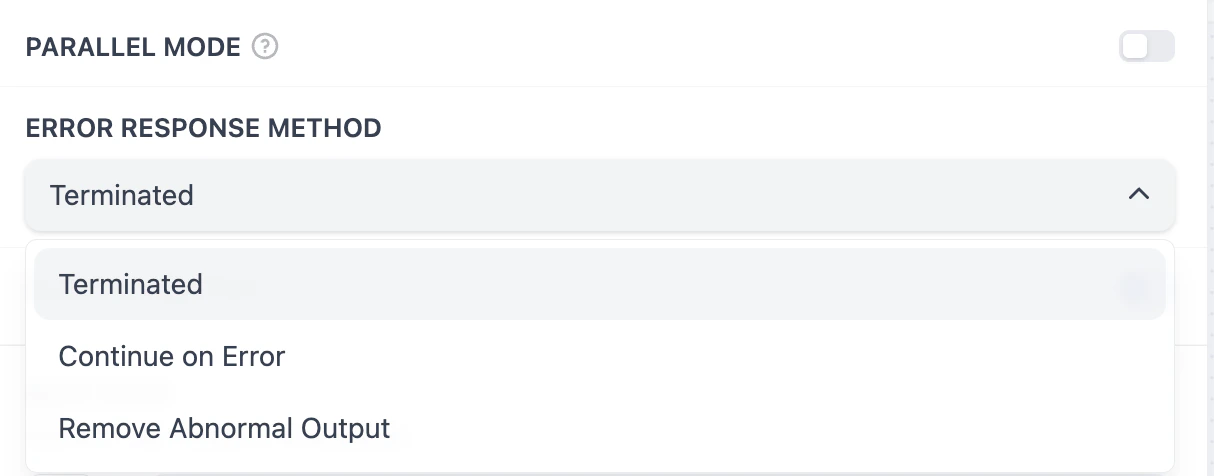
- When disabled, the workflow processes each item in the list one after another (finish Question 1, then move to Question 2).
- When enabled, the workflow attempts to process all items in the list simultaneously (similar to 5 chefs cooking 5 different dishes at the same time).
- Terminate: This means if any single item in the list (e.g., the 2nd question) fails during the sub-process, the entire workflow will stop immediately
- Ignore Error and Continue: This means even if the 2nd question fails, the workflow will skip it and move on to process the remaining questions
- Remove Abnormal Output: Similar to ignore, but it also removes that specific failed item from the final output list results
Add Knowledge Retrieval Node
- Inside the Iteration box, add a Knowledge Retrieval node.
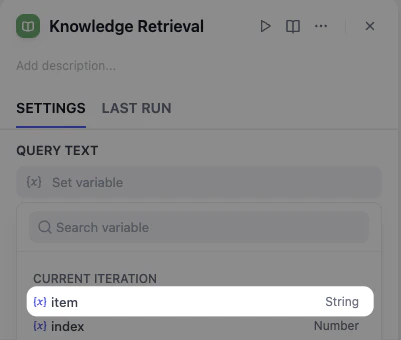
- Set the query text to
{x} item. In Iteration, item always refers to the question that is currently being processed.
Add LLM Node
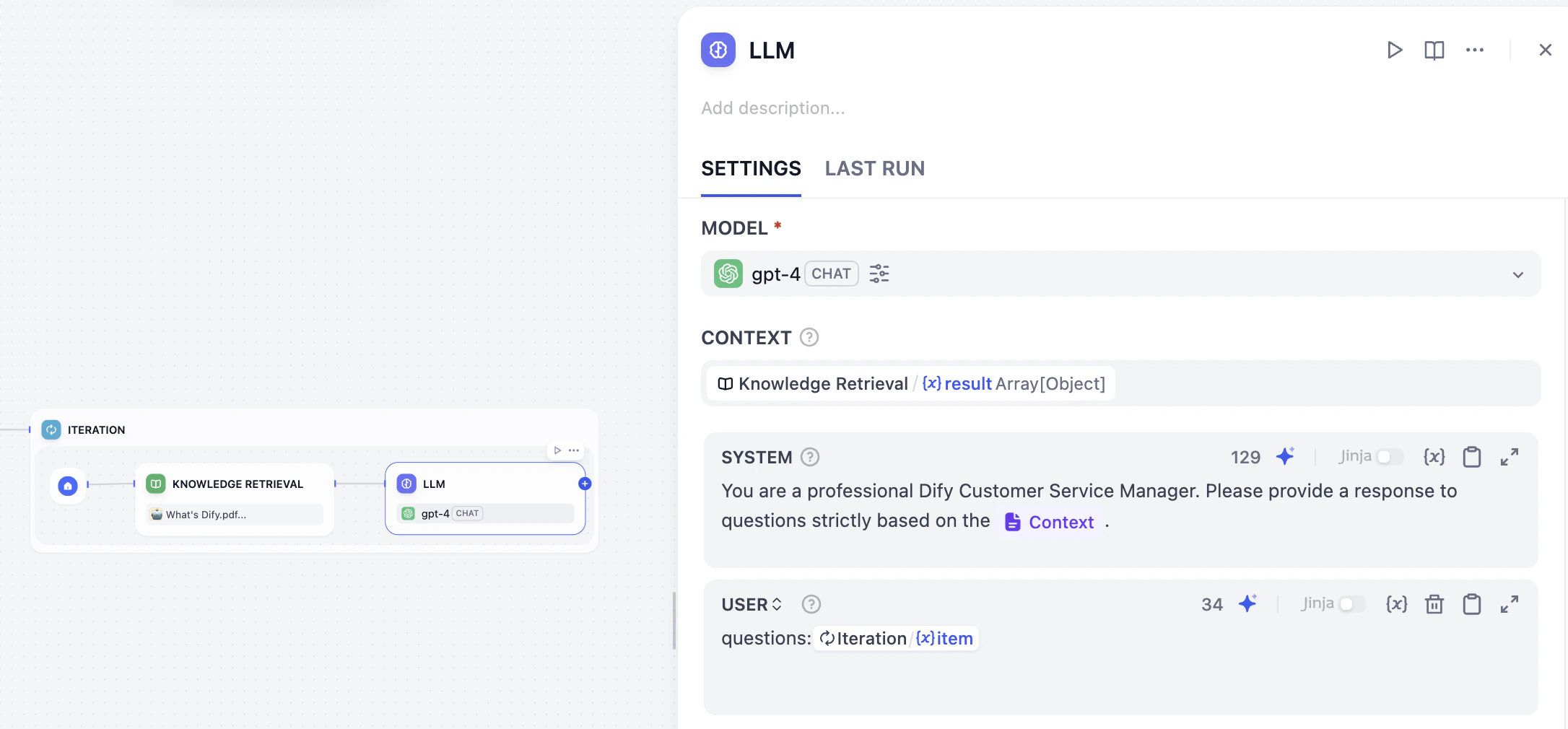
- Add an LLM node after Knowledge Retrieval.
- Configure it to answer the question based on the retrieved context.
Set Iteration Output
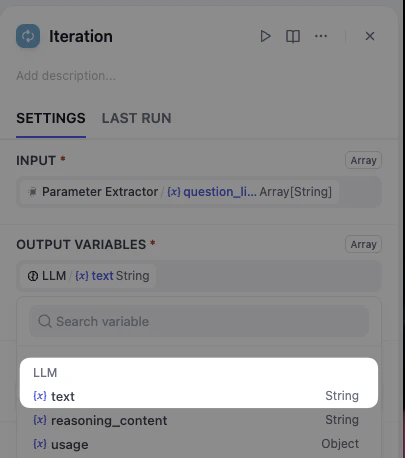
- Click the Iteration node.
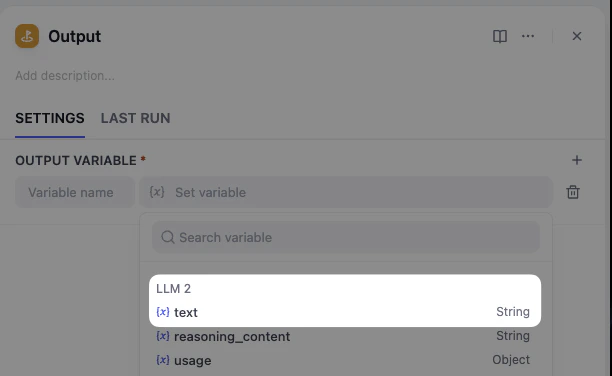
- In the Output Variable, select the variable representing the LLM’s answer inside the loop. Now, the Iteration node will collect every answer and gather them into a new list.
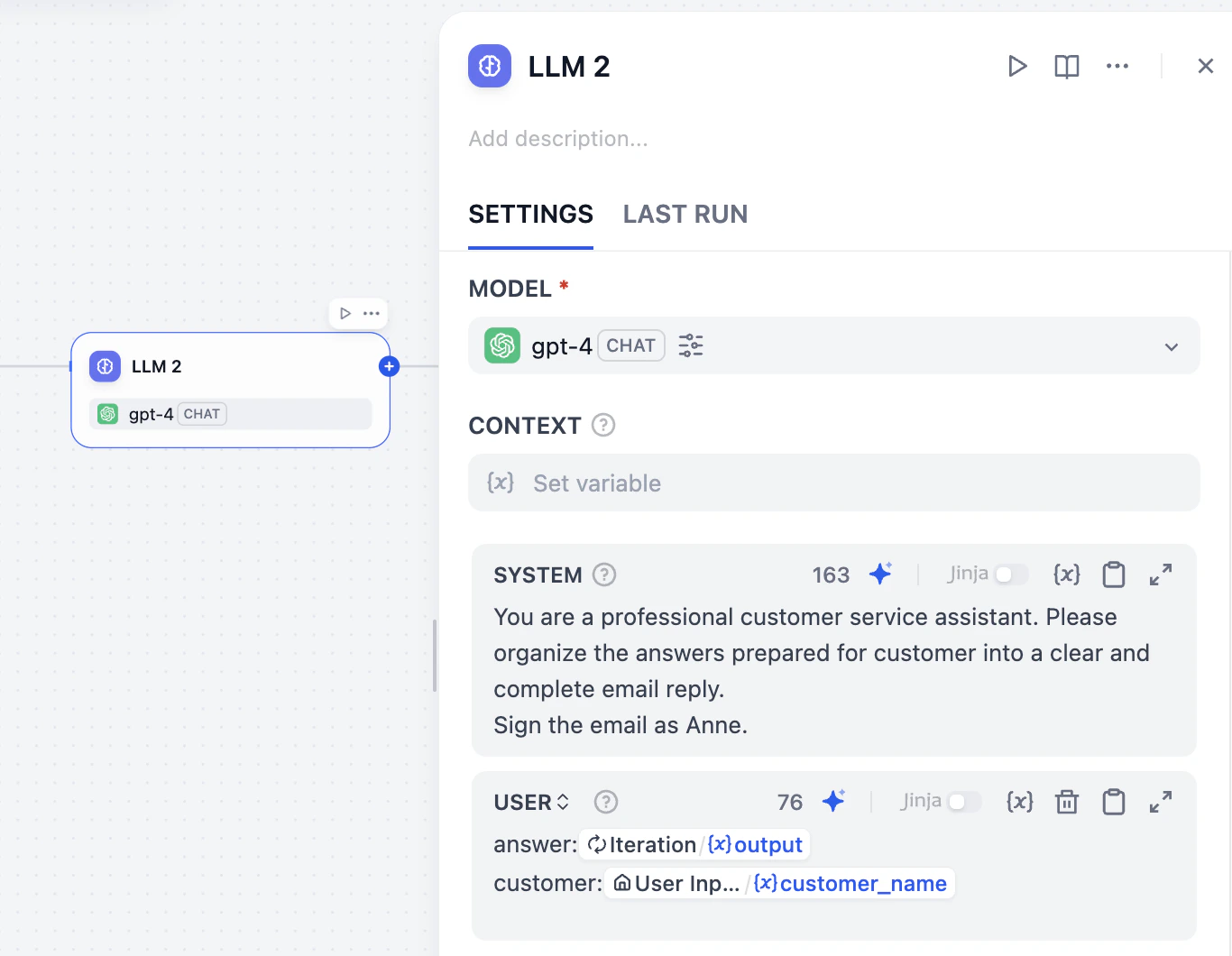
Add Final LLM Node
Finally, connect one last LLM node. This final editor will take all the collected answers and polish them into one professional email.Don’t forget to add prompt in system and user message. Feel free to refer the prompt below.User: