

- Sends requests to members, each as a text message with a link to the form in Dify.
- Lets Dify read the members allowed to use the app.
Before You Start
WeCom takes calls only from IP addresses you’ve added to the app. Before you can add one, WeCom asks you to verify a domain your company owns. Make sure that:- You’re an admin of your WeCom organization, or can work with one.
- You know the public IP address your Dify server uses for outgoing requests. That’s the address WeCom sees, and it may differ from the address your Dify domain points to. Running
curl ifconfig.meon the server shows it. - You have a domain your company owns, with its ICP filing under your company or a related one, and you can put a file at the root of its website.
CONSOLE_WEB_URLis set to an address members can open, since the link in each message points there.
Create the App
In the WeCom admin console, go to App Management > Apps, and under Self-built, click Create an app. Then:- Upload an App Logo and give the app an App Name members will recognize, such as Dify: requests arrive from an app with this name.
- Under Allowed users, click Select departments/members and pick everyone who should get requests. Then click Create an app.
Trust the Dify Server’s IP
- On the app’s page, find Company’s Trusted IP and click Settings.
-
In the dialog, click Set trusted domain name. Then:
- Enter your company’s domain in the first Trustable Domain Names box.
- At the bottom, click Domain name to be verified. Download the verification file and put it at the root of that domain’s website.
- Click OK.
- Back in Company’s Trusted IP > Settings, enter the Dify server’s public IP address and save. Wait about a minute for the change to apply before you connect in Dify.
Connect in Dify
-
In Settings > Channels, find WeCom and click Connect.
If another IM (instant messaging app) is already connected, click Replace instead. Check what replacing clears first.
-
Enter the values from WeCom:
- Corp ID: the Company ID at the bottom of the admin console’s My Company page.
- Agent ID: the AgentId on the app’s page.
- Secret: on the app’s page, click View next to Secret, then Send. WeCom sends it to you in a message from WeCom Team; open the message in WeCom and click View Now.
Whenever you change one of these values in WeCom, update it in Dify too. - Click Connect. Dify checks the connection before saving.
Sync and Bind Members
-
In Channels, click Sync now. Every member it finds lands in Not matched.
Dify doesn’t match WeCom members automatically yet.
- Bind each member by hand in Contacts, starting with yourself so you can test. If two members share a name, tell them apart by the WeCom user ID shown under each.
Send a Test Request
With your own IM identity bound, send yourself a test request:- For a quick check that messages reach you, use Test message in a Human Input node’s Message template: pick WeCom as the Test channel and click Save and test. It sends you the message without running the workflow.
- To check the whole flow, turn on Debug Mode in the node, pick WeCom, and test-run the workflow. When the message arrives, open the link, sign in, respond, and check that the run continues.
What Members See
Each request arrives as a text message from the app, built from the node’s message template: the subject, then the body with the link.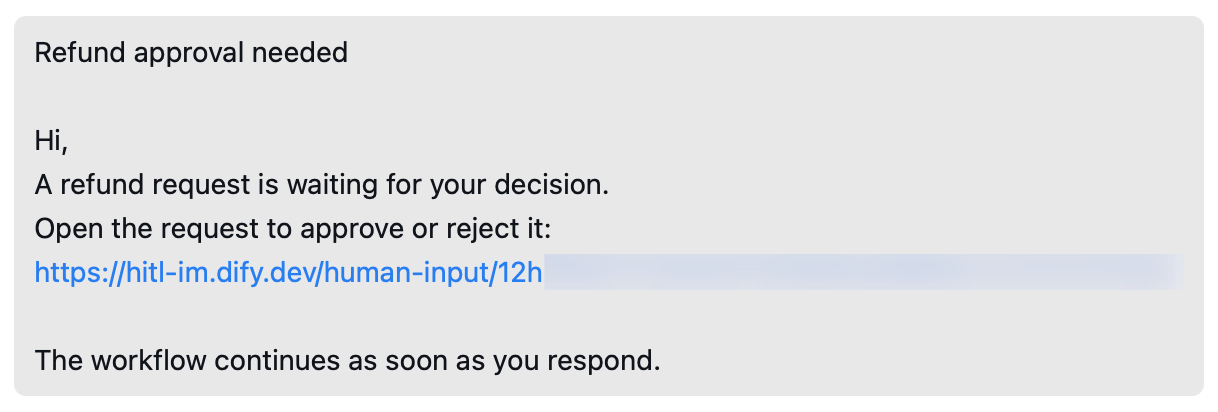
Request as a WeCom Message
Troubleshooting
Connecting fails with API error code 60020
Connecting fails with API error code 60020
WeCom doesn’t accept requests from the Dify server’s IP address. Add the server’s public IP in Company’s Trusted IP, wait about a minute, and click Connect again.If you’ve already added an address, check that it’s the one your Dify server uses for outgoing requests.
Connecting says WeCom rejected the credential test
Connecting says WeCom rejected the credential test
The Company ID or the Secret is wrong. Copy the Company ID from My Company, and the Secret from your app.
Connecting says WeCom could not verify the configured corporation directory boundary
Connecting says WeCom could not verify the configured corporation directory boundary
The AgentId is wrong, or it comes from a different app than the Secret. Copy the AgentId and Secret from the same app.
A test request fails
A test request fails
Something stops Dify from sending: Test message shows “Test failed. Check the channel configuration and try again.”, or a Debug Mode run fails with “No one can approve this step.”Check that:
- Your own IM identity is bound.
- You’re in the app’s Allowed users.
- The Dify server’s current public IP is in Company’s Trusted IP.
A sync fails, or messages stop arriving after setup worked
A sync fails, or messages stop arriving after setup worked
Often the Dify server’s public IP has changed, and WeCom no longer accepts its requests. To check, open the WeCom settings in Channels and click Test connection. If the code is 60020, add the new IP in Company’s Trusted IP.