

- Sends requests to members through its bot.
- Lets Dify read your Slack workspace’s member list and match each person to a member of your Dify workspace by email.
- Sends members’ responses back to Dify when they click a button on a request.
Before You Start
Make sure that:- You can install apps in your Slack workspace, or a Slack admin can approve the install.
TRIGGER_URLis set to an address Slack can reach over the internet, so clicks on card buttons get back to Dify.CONSOLE_WEB_URLis set to an address members can open, since a request that arrives as a link message links there.
Create the App
In the Slack Developer Console, click Create an App. Under From scratch, choose Pick features and click Continue. Then:- Give the app a name members will recognize, such as Dify: requests arrive from an app with this name. In Workspace, pick the Slack workspace your team works in.
-
Under Bot scopes, click Add Bot Scopes and add
chat:write,im:write,users:read, andusers:read.email. The scopes let the app start direct messages with members, send cards and update them after someone responds, and read the member list with each member’s email. - On the events step, add nothing and click Continue.
- Click Create and Install, then click Allow in Slack’s permission window.
- In the app’s settings, open Socket Mode and turn off Enable Socket Mode. While it’s on, button clicks never reach Dify.
Connect in Dify
-
In Settings > Channels, find Slack and click Connect.
If another IM (instant messaging app) is already connected, click Replace instead. Check what replacing clears first.
-
In App credentials, enter the values from your Slack app:
- Client ID, Client Secret, and Signing Secret: on the app’s Basic Information page, under App Credentials.
- Bot Token: the Bot User OAuth Token under OAuth & Permissions > OAuth Tokens.
Whenever you change one of these values in Slack, such as regenerating the Signing Secret, update it in Dify too. - Click Save and continue. Dify checks the connection before saving.
- In Configure callbacks, copy the Callback URL.
Set Up Callbacks
- In your Slack app, open Interactivity & Shortcuts and turn on Interactivity.
- Paste the Callback URL copied from Dify into Request URL and click Save Changes.
If
TRIGGER_URL changes later, the Callback URL changes with it.Open the Slack settings in Channels to get the new one, and update it in your Slack app.Sync and Test
- In Channels, click Sync now to bind members’ IM identities. See Sync Members for what each result means.
- Send yourself a test request. With your own IM identity bound, turn on Debug Mode in a workflow’s Human Input node, pick Slack, and test-run the workflow. Use Debug Mode rather than Test message: a test message always arrives as a link message, so it can’t show whether cards and clicks work.
- If a link message arrives instead, the form has something a card can’t show.
- If nothing arrives or the run doesn’t continue, see Troubleshooting.
What Members See
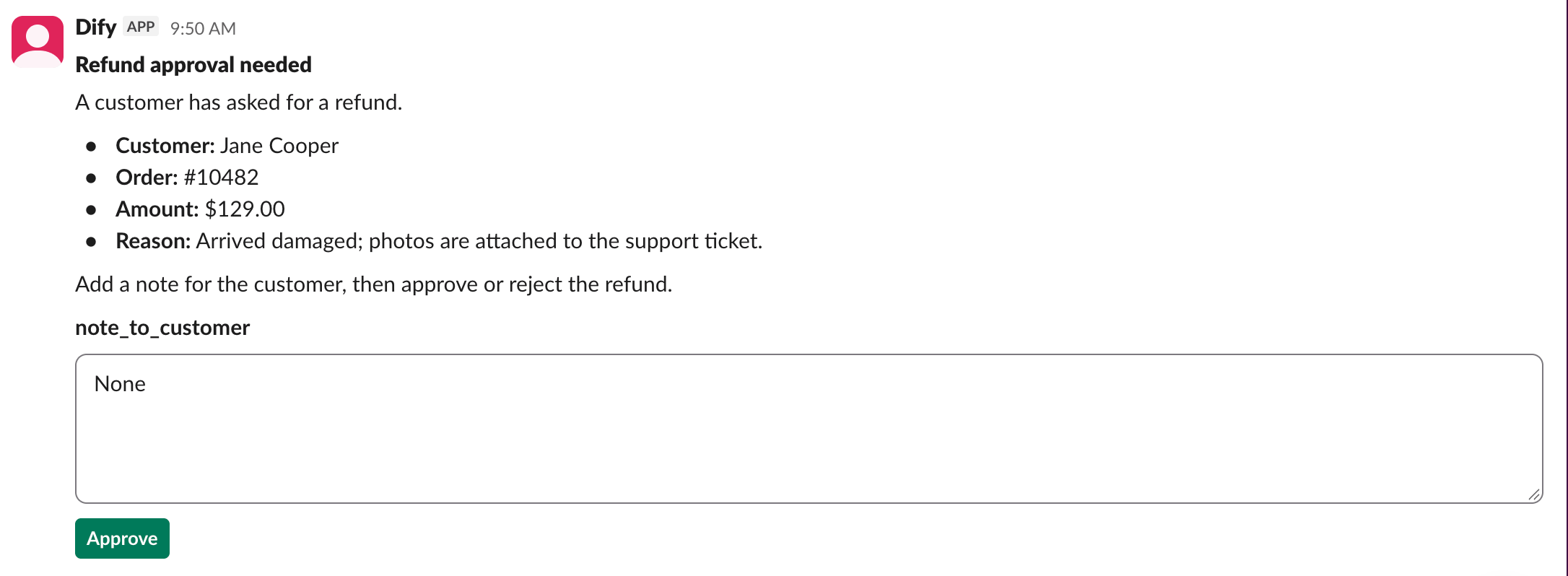
Request as a Slack Card
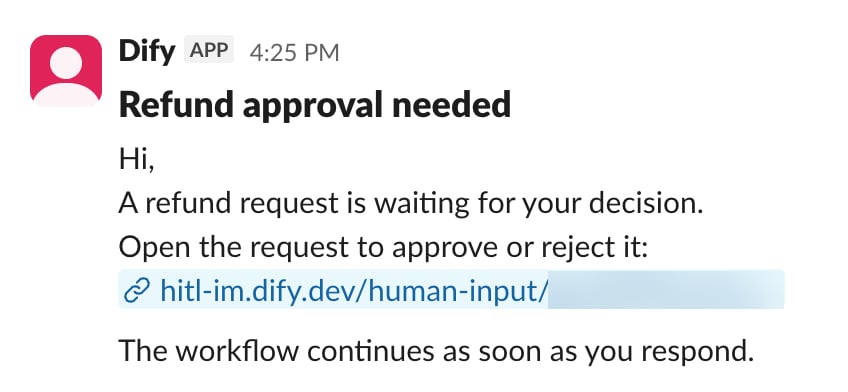
Request as a Link Message
- The card is headed by the node’s title. Give the node a title recipients will understand, such as Approve refund rather than Human Input 2.
- Members must fill in every field before they can submit the card.
- A file field (Single File or File List).
- Very long content, such as a long report inserted from a variable.
- A Select field with many options or unusually long option text.
Troubleshooting
A test request fails
A test request fails
Something stops Dify from sending: Test message shows “Test failed. Check the channel configuration and try again.”, or a Debug Mode run fails with “No one can approve this step.”Check that:
- The app is still installed in your Slack workspace, and Dify has its current Bot Token.
- Your own IM identity is bound.