

Only workspace owners and admins see Channels, and only they can connect or change the IM.
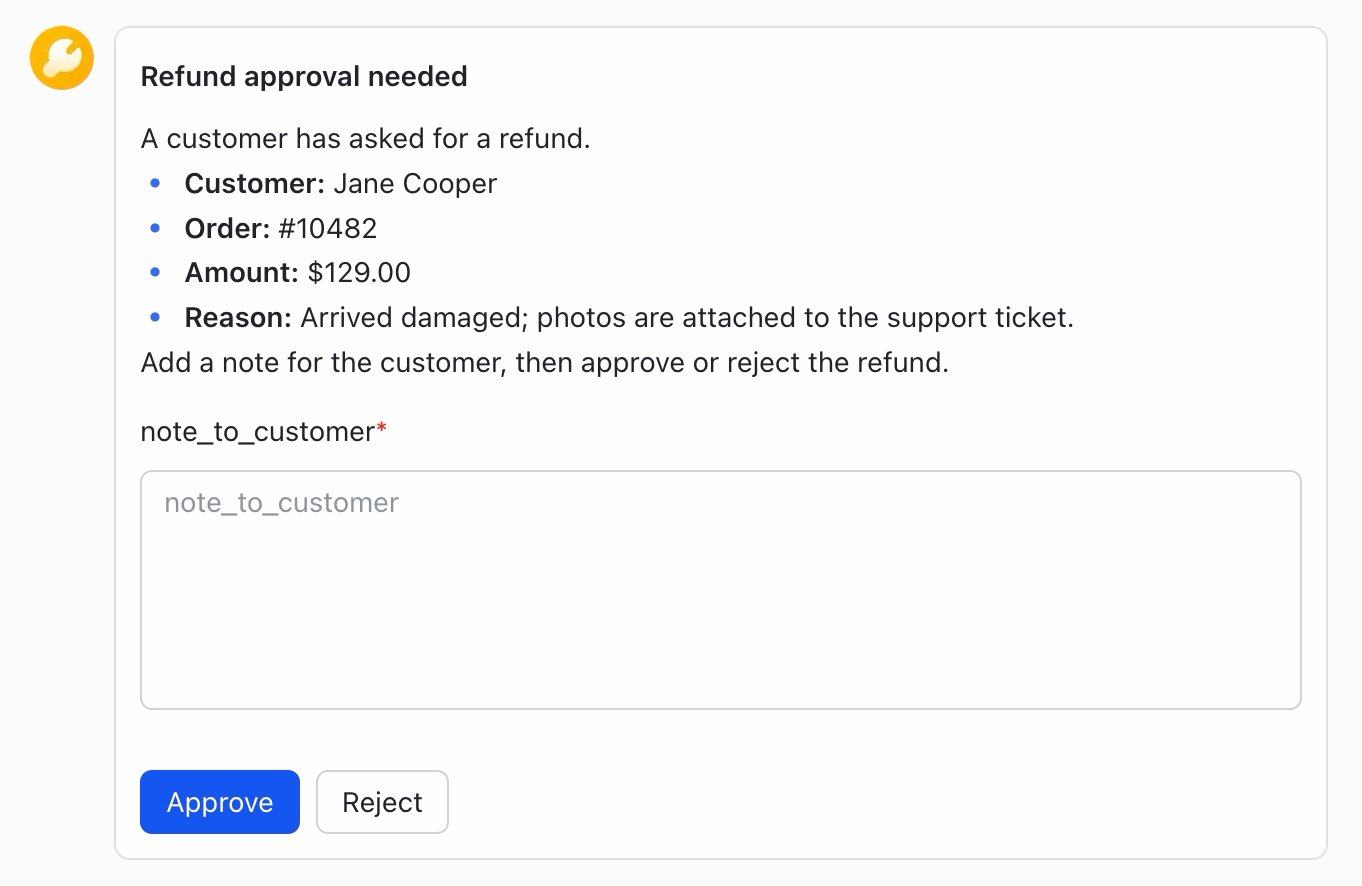
Request as an IM Card
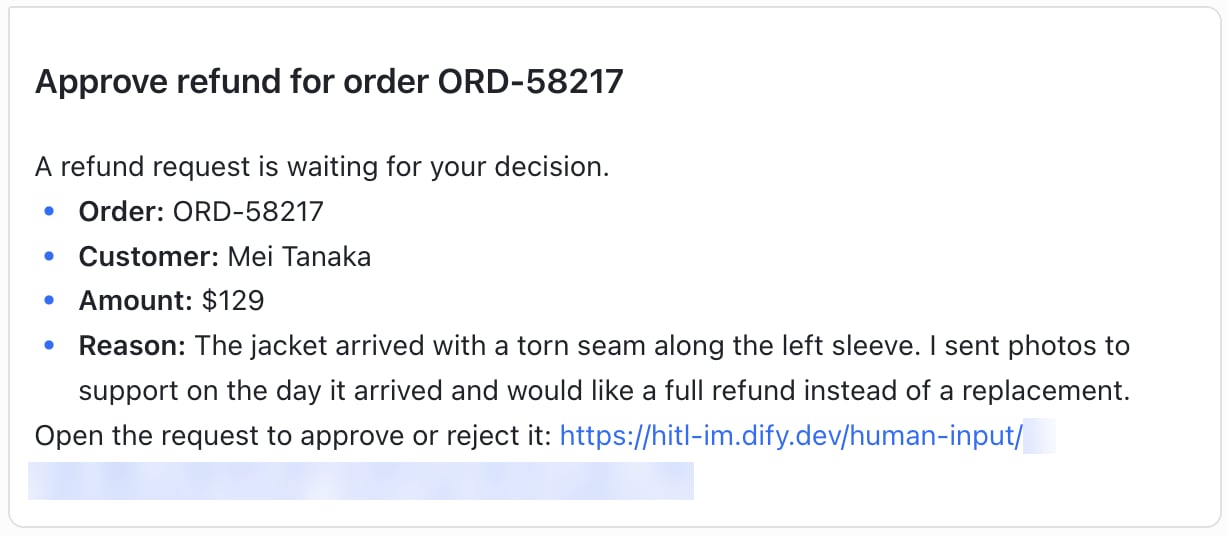
Request as a Link Message
Even in an IM with cards, some forms can’t be shown as one and arrive as a link message instead. See your IM’s guide under Connect Your IM for details.
To send requests through your IM, set:
CONSOLE_WEB_URLandAPP_WEB_URL= addresses recipients can open- For an IM that shows requests as cards,
TRIGGER_URL= an address your IM can reach over the internet, so clicks on card buttons get back to Dify
Connect Your IM
In your IM, create a custom app for Dify that can send messages as a bot and read the member directory so Dify can match members by email. Then enter the app’s credentials in Channels. In an IM that shows cards, also set the app to send button clicks back to Dify. Follow the guide for your IM:
If another IM is already connected, check what replacing clears first.
Sync Members
After connecting, click Sync now to bind members’ IM identities. Dify reads your IM’s member directory (as far as your IM app is allowed to see it) and binds each IM identity to the workspace member with the same email. Only members with a bound IM identity get requests in the IM. You can bind anyone the sync misses by hand. A sync runs only when you click Sync now, so sync again after people join your workspace or your IM, or after someone’s email changes. When a sync finishes, click View details to see what it changed:- Added: IM identities newly bound to a member.
- Not matched: IM identities the sync couldn’t pair with a member. Everyone on your IM who isn’t in the workspace lands here. For a member who should have matched, see Contacts for the causes and fixes.
- Failed: the whole sync failed, and nothing changed. Check your IM app’s credentials and its permission to read the directory, then sync again.
- Removed: bindings the sync deleted because the IM identity is no longer in the directory, such as a deactivated account or one your IM app can no longer see. Under each IM identity:
- “No longer in the directory”: no other IM identity took its place, so the member is now unbound and gets requests by email only. If they’re still on your IM, make sure your IM app can see them, sync again, and bind them by hand if the sync doesn’t match them.
- “Binding replaced”: a new IM identity with the member’s email took its place, and the member also appears under Added.
- Skipped: IM identities already bound, by an earlier sync or by hand. The sync keeps those bindings.
Replace or Remove Your IM
To switch to another IM, click Replace on it in Channels. To stop using IM, delete it. Updating credentials for the same organization, such as after resetting the App Secret, keeps the connection and its bindings. Saving credentials from another organization in the same IM, such as moving from a Feishu test organization to your company’s, replaces the connection. After replacing, sync and redo any bindings you made by hand. For an IM that shows cards, also set the new Callback URL in its app. After deleting, Human Input nodes keep their recipients and settings, and new requests go out by email only.Troubleshooting
A request never arrived in the IM
A request never arrived in the IM
Check that:
- The person’s contact shows your IM as bound. If it doesn’t, sync again or bind them by hand.
- Your IM is still connected in Channels.
- Your IM app’s credentials still work. Channels keeps showing the IM as connected after they stop working, so open the IM’s settings in Channels and click Test connection to find out.
- Your IM app has the permissions to send, and is published or installed for that person.