

- Sends requests to members through its bot.
- Lets Dify read the member directory and match each person to a workspace member by email.
- Sends members’ responses back to Dify when they click a button on a request.
Before You Start
Make sure that:- Your Feishu organization allows the app to be available to all members.
TRIGGER_URLis set to an address Feishu can reach over the internet, so clicks on card buttons get back to Dify.CONSOLE_WEB_URLis set to an address members can open, since a request that arrives as a link message links there.
Create the App
In the Feishu or Lark Developer Console, click Create Custom App and give it a name members will recognize, such as Dify: requests arrive from a bot with this name. Then:- Under Add Features, add Bot.
-
In Permissions & Scopes, click Batch Actions > Batch import/export scopes. On the Import tab, replace the example with this list:
The scopes let the app identify your organization, send cards and update them after someone responds, and read members’ names, avatars, and emails.
- Click through the Next buttons without changing anything, then click Add Scopes.
- In Version Management & Release, click Create Version and set Availability to all members. Then publish the version. If you’re not a Feishu admin, your admin may need to approve it first. Wait until it’s published before you connect next.
Connect in Dify
-
In Settings > Channels, find Feishu or Lark and click Connect.
If another IM (instant messaging app) is already connected, click Replace instead. Check what replacing clears first.
-
In App credentials, enter the values from your Feishu app:
- App ID and App Secret: on the app’s Credentials & Basic Info page.
- Verification Token (optional): under Events & Callbacks > Encryption Strategy.
- Encrypt Key (optional): on the same page, only if Feishu has one set.
Whenever you change one of these values in Feishu, such as resetting the App Secret, update it in Dify too. - Click Save and continue. Dify checks the connection before saving.
- In Configure callbacks, copy the Callback URL.
Set Up Callbacks
- In your Feishu app, open Events & Callbacks and switch to the Callback Configuration tab.
- Next to Subscription mode, click the edit icon and choose Send callbacks to developer’s server.
- Paste the Callback URL copied from Dify into Request URL and save. If Feishu won’t save it, see Troubleshooting for the causes.
-
Under Callback subscriptions, click Add callback and add Card callback communication (
card.action.trigger). - In Version Management & Release, create and publish a new version so the callback settings take effect. It may need your admin’s approval again.
If
TRIGGER_URL changes later, the Callback URL changes with it.Open the Feishu or Lark settings in Channels to get the new one, then update it in your Feishu app and publish a new version of that app.Sync and Test
- In Channels, click Sync now to bind members’ IM identities. See Sync Members for what each result means.
- Send yourself a test request. With your own IM identity bound, turn on Debug Mode in a workflow’s Human Input node, pick Feishu or Lark, and test-run the workflow. Use Debug Mode rather than Test message: a test message always arrives as a link message, so it can’t show whether cards and clicks work.
- If a link message arrives instead, the form has something a card can’t show.
- If nothing arrives or the run doesn’t continue, see Troubleshooting.
What Members See
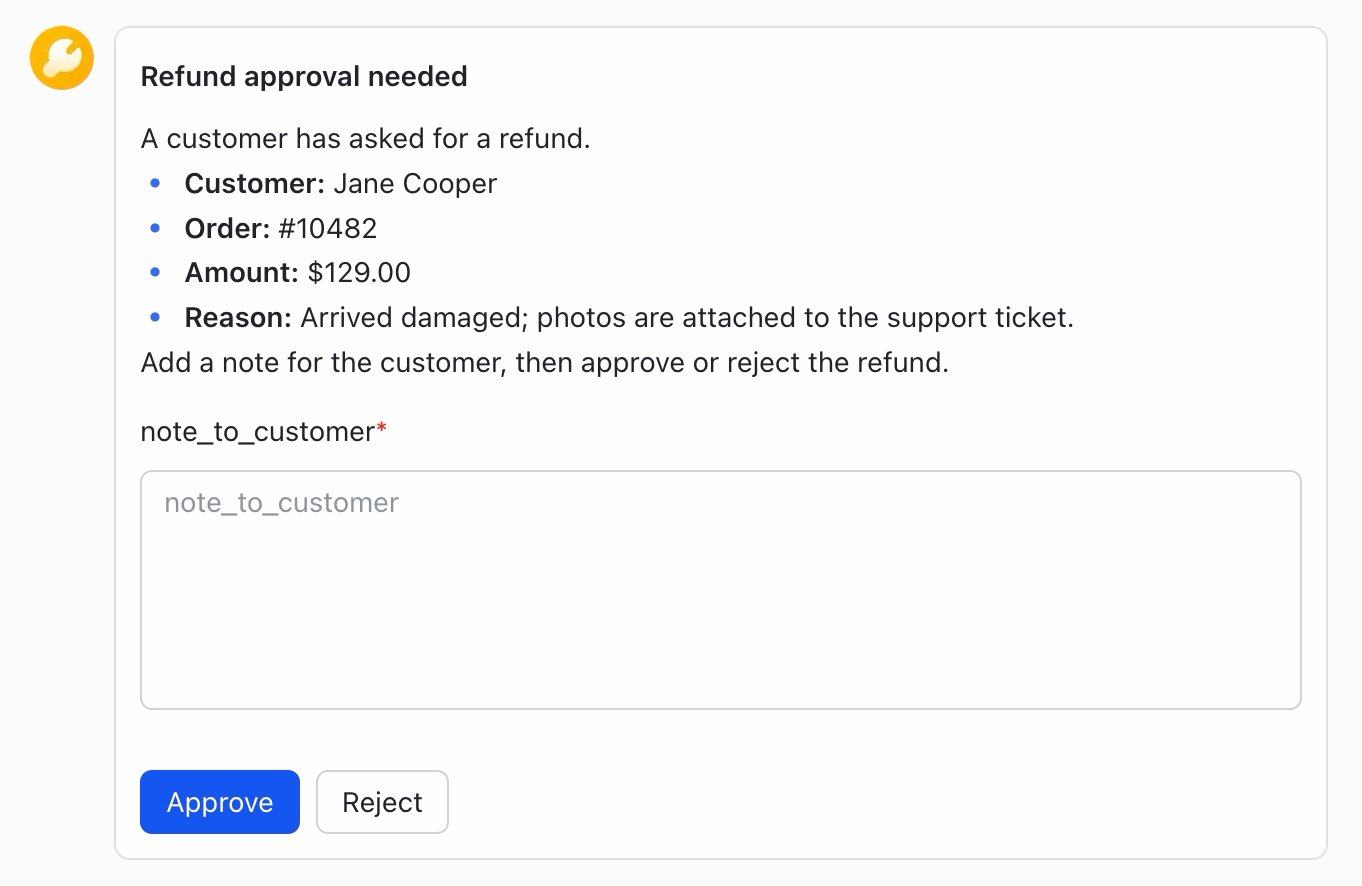
Request as a Feishu Card
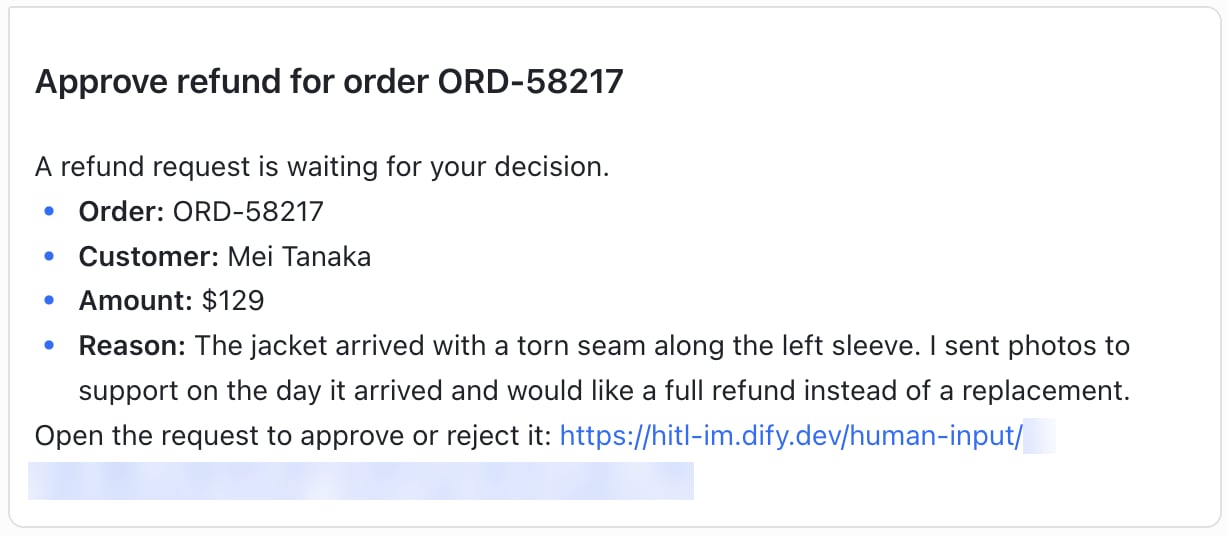
Request as a Link Message
- The card is headed by the node’s title. Give the node a title recipients will understand, such as Approve refund rather than Human Input 2.
- Members must fill in every field before they can submit the card.
- A file field (Single File or File List).
- Very long content, such as a long report inserted from a variable.
Troubleshooting
Saving in Dify fails with API error code 40004
Saving in Dify fails with API error code 40004
The app can’t read the whole member directory, usually because its Availability doesn’t cover all members. Set Availability to all members in a new version, publish it, and save again in Dify.
Saving in Dify says Feishu rejected the credential test
Saving in Dify says Feishu rejected the credential test
The App Secret is wrong, or the App ID and App Secret come from different apps, such as your app and its test version. Copy both from the same app’s Credentials & Basic Info page.
A test request fails
A test request fails
Something stops Dify from sending: Test message shows “Test failed. Check the channel configuration and try again.”, or a Debug Mode run fails with “No one can approve this step.”Check these in order:
- The app has the bot and the
im:message:send_as_botscope, and its latest version is published. - You’re within the app’s Availability.
- Your own IM identity is bound.
Feishu won't save the Request URL
Feishu won't save the Request URL
Dify’s Encrypt Key or Verification Token doesn’t match Feishu’s, or Feishu can’t reach the URL. Make the two values match. If they already do, check that
TRIGGER_URL is set to an address Feishu can reach over the internet.A member gets no card
A member gets no card
Their IM identity isn’t bound, or they’re outside the app’s Availability. Sync again or bind them by hand, or widen Availability. Meanwhile, they still get the request by email if the deployment’s mail configuration is set up.
A member stays Not matched
A member stays Not matched
Their Dify email isn’t the one Dify reads from Feishu. Change the email on one side and sync again, or bind them by hand.