

What Gets Logged
Logs capture real usage from every channel: the web app, the API, and apps opened from the WEB APPS list on Home. For Workflow apps, runs started by triggers are logged too.When another app calls a workflow tool from a Tool node, the run is logged in that app, not in the tool’s own app.
Browse Logs
Each row is one conversation or one run. Most columns explain themselves, but a few deserve context:- Title is generated from the conversation’s first message.
- End User or Account shows a session ID for web app and API usage, or the team member’s account for usage inside Dify.
- User Rate counts end users’ likes and dislikes; Op. Rate (operator rate) counts your team’s. Both aggregate across the whole conversation.
- Trigger By (Workflow apps) shows what started each run:
- WebApp: The published web app, or a call through the API
- Webhook: A webhook trigger receiving a request
- Schedule: A schedule trigger reaching its scheduled time
- Integration: An event from a connected integration
Inspect a Conversation
Click a row to open the full message thread. When you hover over an answer, you can:- See its token spend and latency.
- Open the log behind it: the raw prompt, an Agent app’s tool iterations, or a Chatflow message’s node-by-node trace.
- Rate the answer as team feedback; a dislike can carry a comment explaining what went wrong. Team ratings fill the Op. Rate column, separate from end-user feedback.
- Add an annotation pairing the question with an improved reply. See Annotation System for how annotated replies take effect.
Inspect a Run
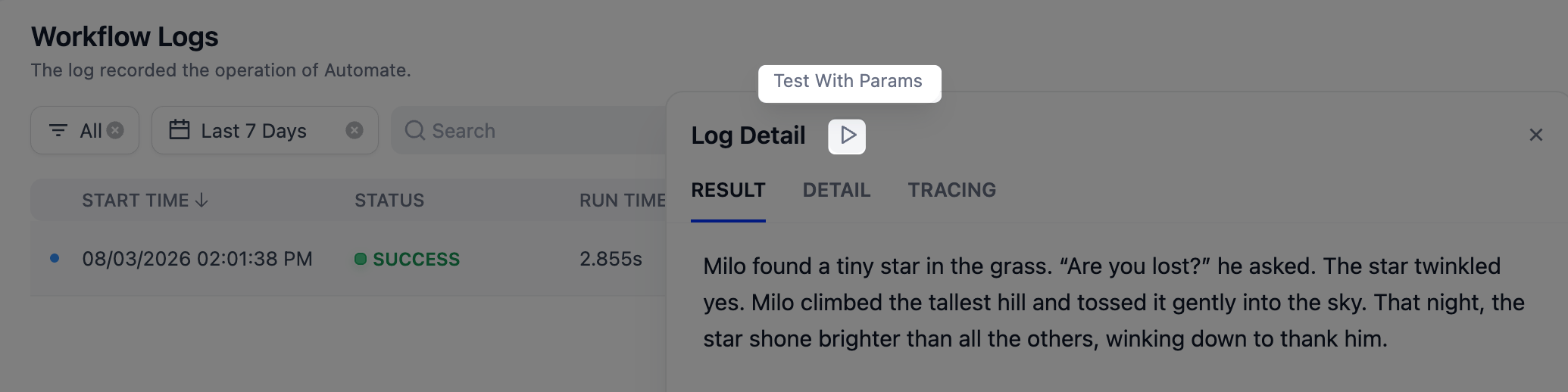
For Workflow apps, click a run to open its result, its inputs and outputs with status and token totals, and a node-by-node trace that pinpoints where a run failed or slowed down.A workflow tool called from a Tool node shows up as that one node. To see the tool’s own nodes, click TRACING on it.
Log Retention
Logs are retained indefinitely by default. To clean up old logs on a schedule:- Workflow run logs: set
WORKFLOW_LOG_CLEANUP_ENABLEDtotrue, andWORKFLOW_LOG_RETENTION_DAYSto the number of days to keep (default 30). See Workflow Log Cleanup for details. - Conversation messages: set
ENABLE_CLEAN_MESSAGEStotrue, andSANDBOX_EXPIRED_RECORDS_RETENTION_DAYSto the number of days to keep (default 30).