

Add a Provider
- In Integrations > Model Provider, browse the Install model providers section or visit the Marketplace for more options.
- After installing, click Setup on the provider card and enter your API key (and any other required credentials, such as a custom endpoint URL or organization ID). Dify validates the credentials before making the provider available.
Add a Custom Model
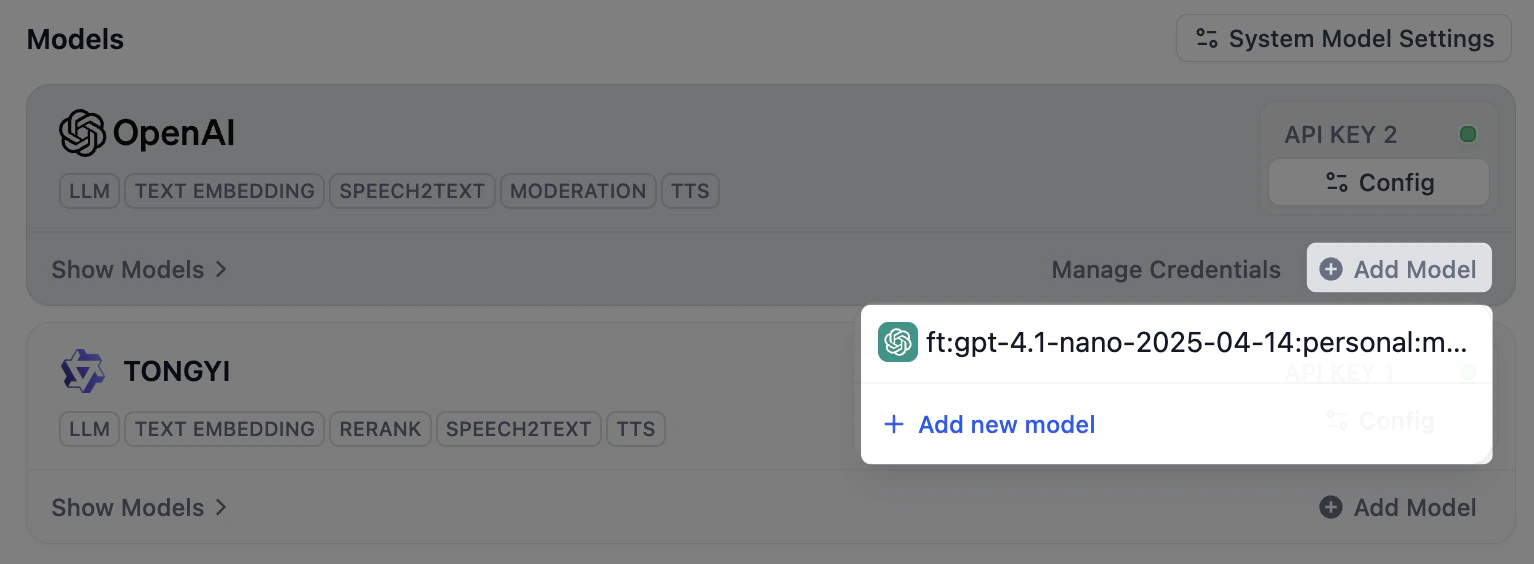
A provider’s models are ready as soon as you connect it, so you only add one by hand when the model you need isn’t listed, such as a brand-new or fine-tuned model. Click Add Model on the provider’s card, then give the model a name and its credentials. Providers that serve only a fixed set of models don’t offer this option.If the model you add matches the name and type of an existing one, Dify attaches the new key to that model instead of creating a duplicate.
Manage Your Keys
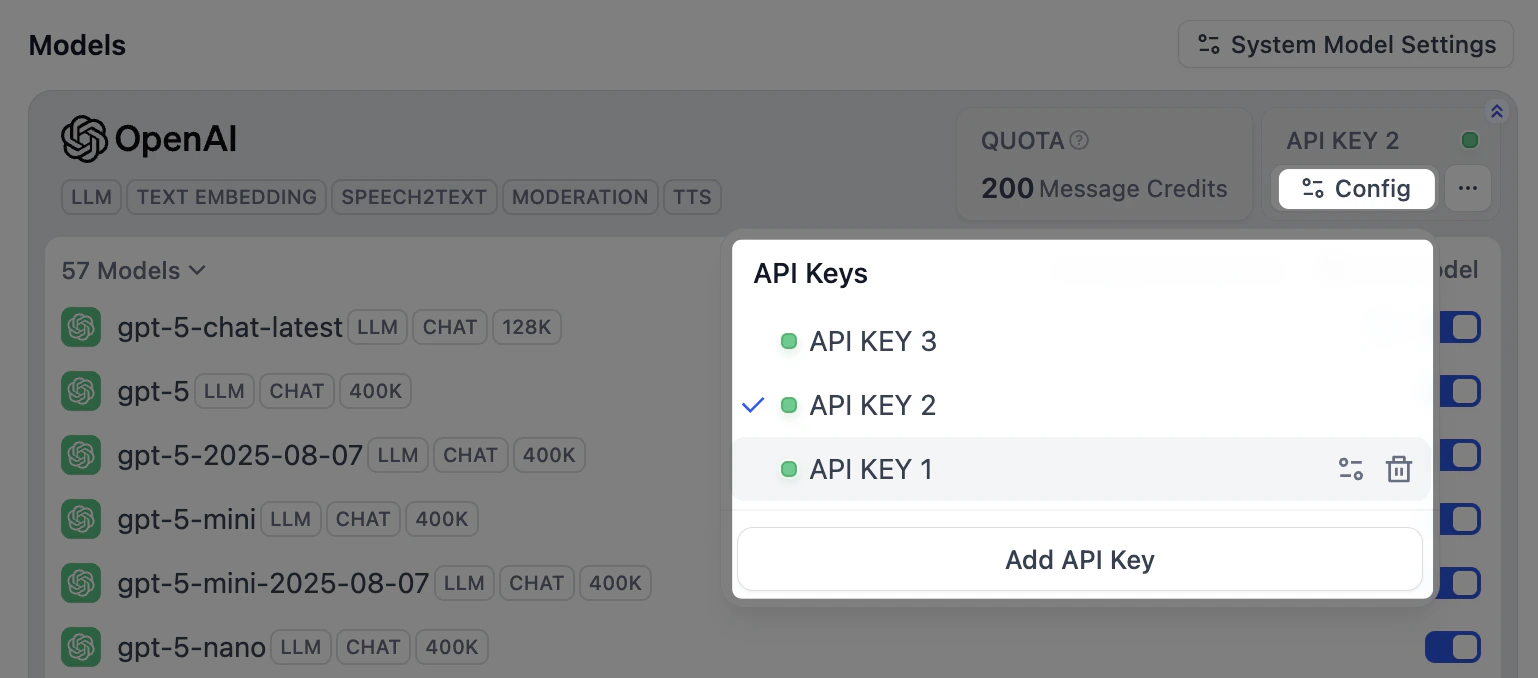
Add more than one key to a provider when you want to keep development and production apart or spread usage across several accounts.-
For a provider’s own models, click Configure on its card to manage the keys they share.
-
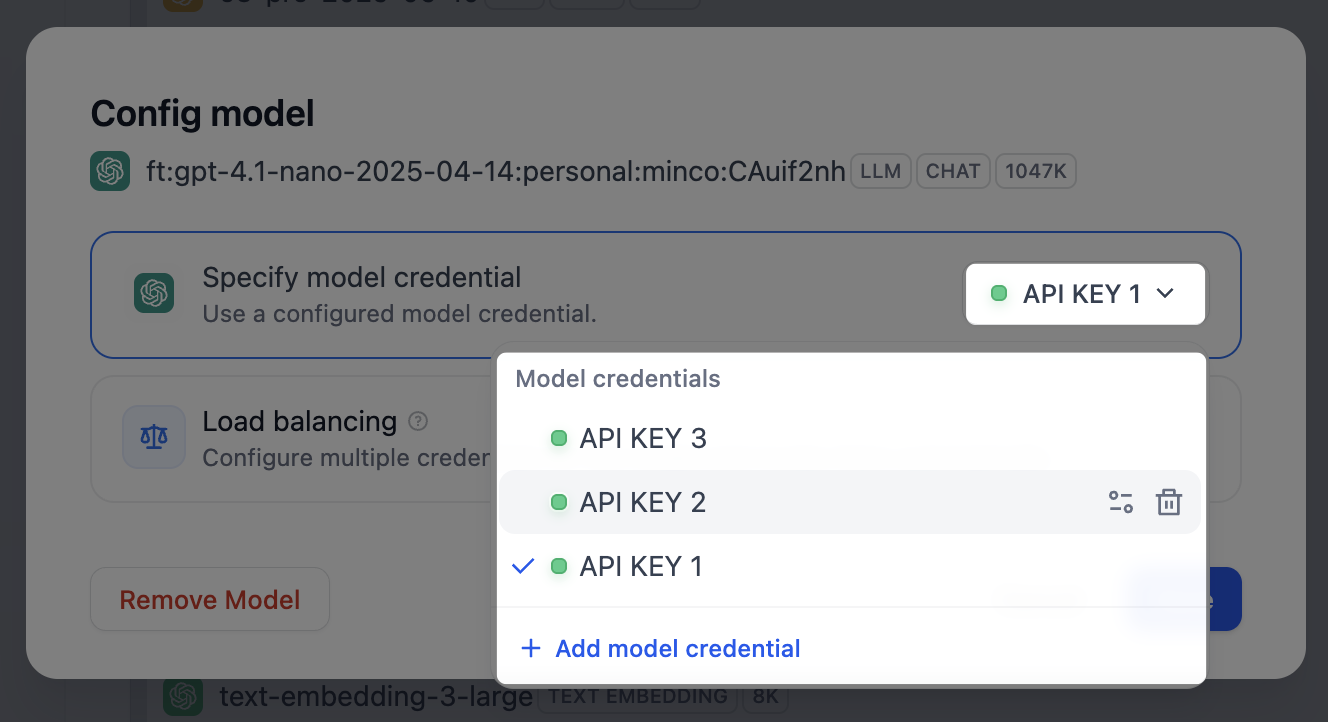
For a custom model you added, click Configure on that model to manage its own keys.
To view every custom model’s keys in one place, click Manage Credentials on the provider card.

 Keys stay here even after the custom model is removed, so you can re-add the model later without re-entering its keys.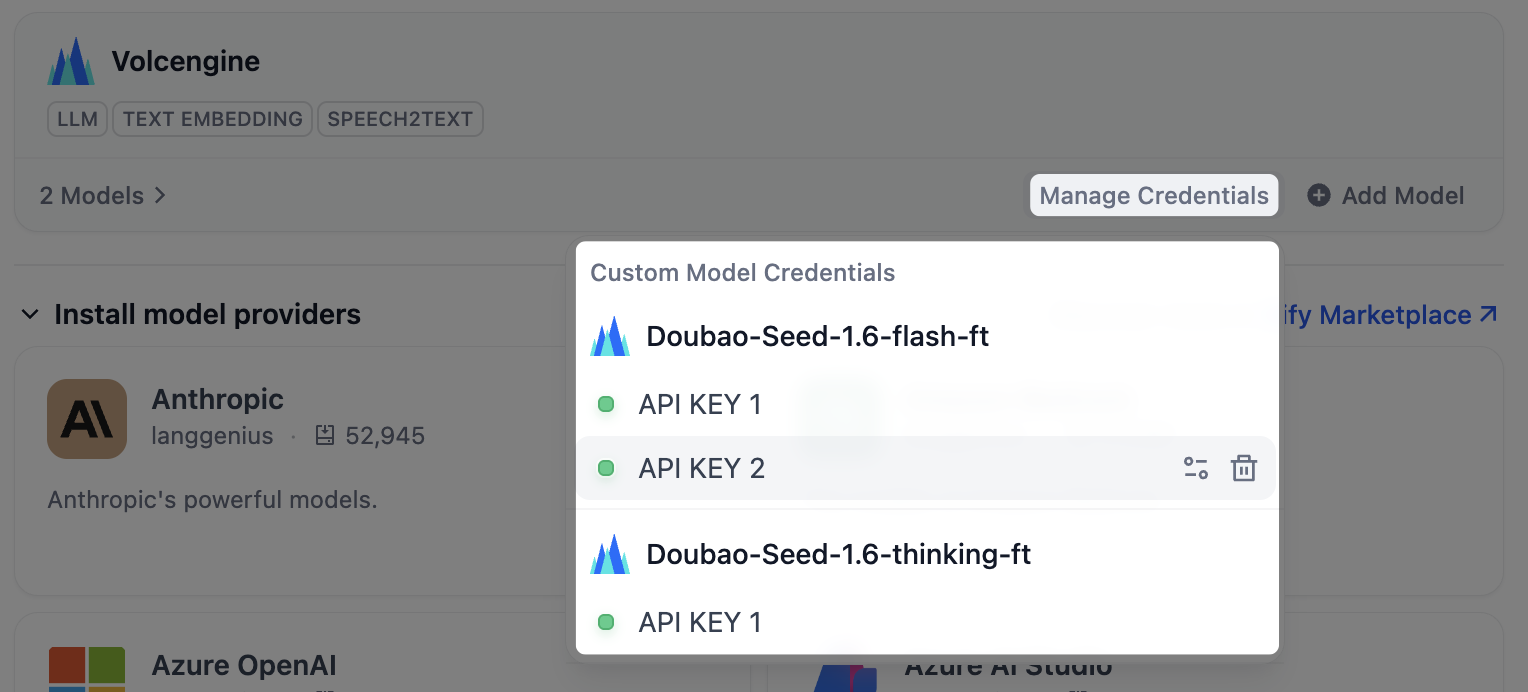
Choose the Models Apps Use by Default
Apps and nodes that don’t pick a model fall back to your workspace defaults. Click Default Models at the top-right corner to set one for each job:- System Reasoning Model: the default for general LLM tasks.
- Embedding Model: indexes and retrieves knowledge base content.
- Rerank Model: reorders retrieval results by relevance.
- Speech-to-Text Model: turns audio into text.
- Text-to-Speech Model: turns text into audio.