

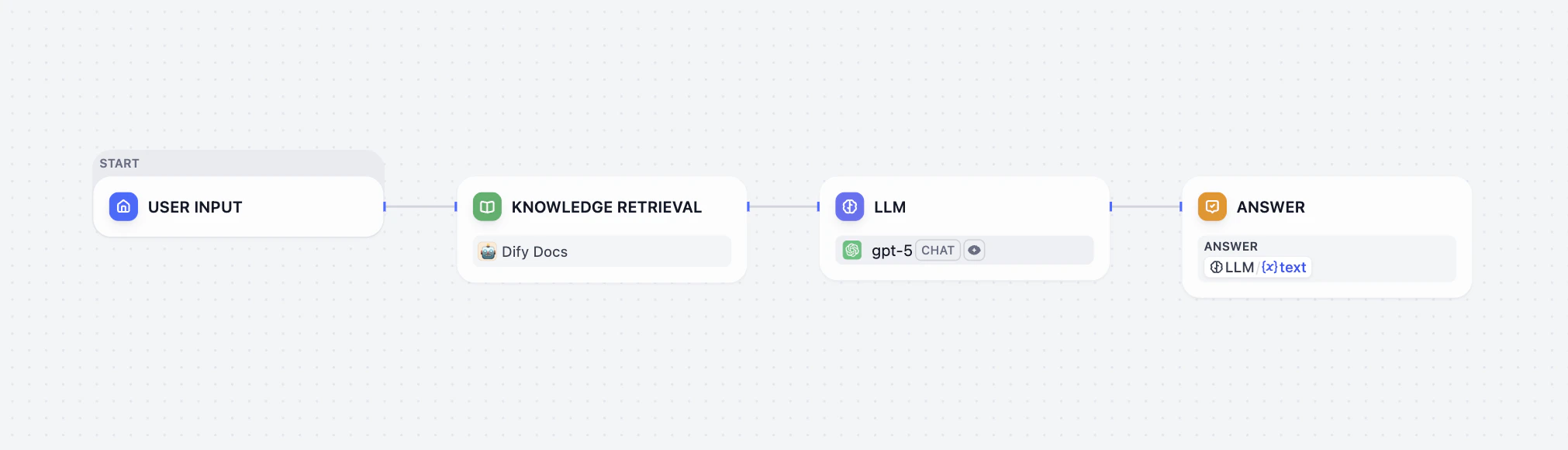
- The User Input node collects the user query.
- The Knowledge Retrieval node searches the selected knowledge base(s) for content related to the user query and outputs the retrieval results.
- The LLM node generates a response based on both the user query and the retrieved knowledge.
- The Answer node returns the LLM’s response to the user.
Knowledge retrieval operations are subject to per-minute rate limits that vary by subscription plan. See Knowledge Request Rate Limit for the per-plan numbers.
Configure the Node
To make the Knowledge Retrieval node work properly, you need to specify:- What it should search for (the query)
- Where it should search (the knowledge base)
- How to process the retrieval results (the node-level retrieval settings)
Specify the Query
Provide the query content that the node should search for in the selected knowledge base(s).-
Query Text: Select a text variable. For example, use
userinput.queryto reference user input in Chatflows, or a custom text-type user input variable in Workflows. -
Query Images: Select an image variable, e.g., the image(s) uploaded by the user through a User Input node, to search by image. Each image must be 2 MB or smaller.
The Query Images option is available only when at least one multimodal knowledge base is added.Such knowledge bases are marked with the Vision tag, indicating that they are using a multimodal embedding model.
Select Knowledge to Search
Add one or more existing knowledge bases for the node to search for content relevant to the query. When multiple knowledge bases are added, knowledge is first retrieved from all of them simultaneously, then combined and processed according to the node-level retrieval settings.Knowledge bases marked with the Vision tag support cross-modal retrieval: they return both text and images based on semantic relevance.
Configure Node-Level Retrieval Settings
To fine-tune how the node processes retrieval results after they are fetched from the knowledge base(s), click Retrieval Setting.Retrieval settings exist at two layers: the knowledge base level and the knowledge retrieval node level.Think of them as two consecutive filters: the knowledge base settings determine the initial pool of results, and the node settings further rerank the results or narrow down the pool.
-
Rerank Settings
- Weighted Score The relative weight between semantic similarity and keyword matching during reranking. Higher semantic weight favors meaning relevance, while higher keyword weight favors exact matches. Weighted Score is available only when all added knowledge bases are indexed with High Quality mode.
-
Rerank Model
The rerank model to re-score and reorder all the results based on their relevance to the query.
If any multimodal knowledge bases are added, select a multimodal rerank model (marked with a Vision tag) as well. Otherwise, retrieved images will be excluded from reranking and the final output.
- Top K The maximum number of top results to return after reranking. When a rerank model is selected, this value will be automatically adjusted based on the model’s maximum input capacity (how much text the model can process at once).
- Score Threshold The minimum similarity score for returned results. Results scoring below this threshold are excluded. Use higher thresholds for stricter relevance or lower thresholds to include broader matches.
Enable Metadata Filtering
By default, retrieval searches across the entire knowledge base. To restrict retrieval to specific documents, enable manual or automatic metadata filtering. This improves retrieval precision, especially when your knowledge base is large or contains content for different contexts. For creating and managing document metadata, see Metadata.Output
The Knowledge Retrieval node outputs the retrieval results as a variable namedresult, which is an array of retrieved document chunks containing their content, metadata, title, and other attributes.
When the retrieval results contain image attachments, the result variable also includes a field named files containing image details.
Use with LLM Nodes
To use the retrieval results as context in an LLM node:-
In Context, select the Knowledge Retrieval node’s
resultvariable. -
In the system instruction, reference the
Contextvariable. -
Optional: If the LLM is vision-capable, enable Vision so it can process image attachments in the retrieval results.
You don’t need to specify the retrieval results as the vision input. Once Vision is enabled, the LLM will automatically access any retrieved images.