

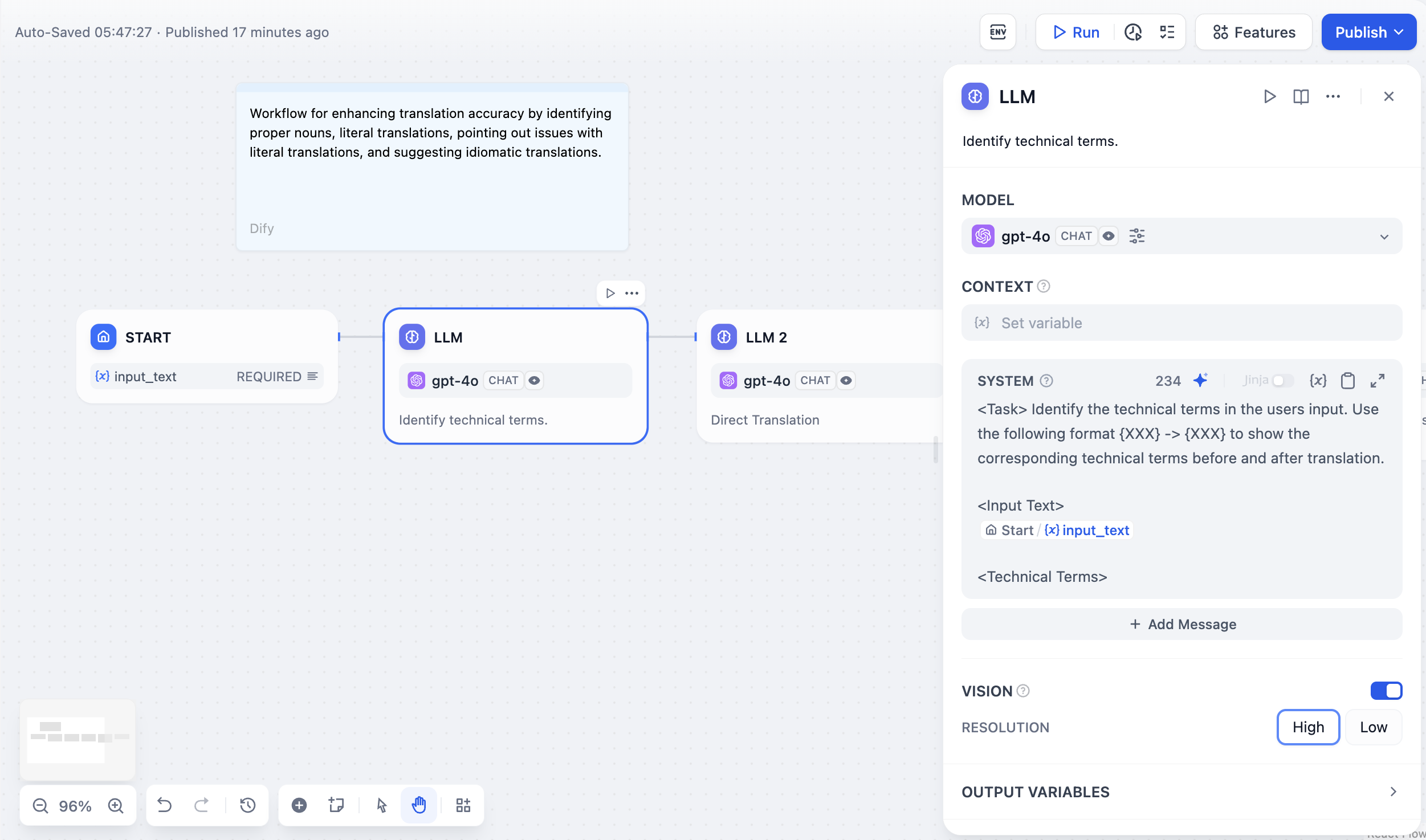
LLM Node Configuration Interface
Configure at least one model provider in Integrations > Model Provider before using LLM nodes.
Model Selection and Parameters
Choose from any model provider you’ve configured. Different models excel at different tasks - GPT-4 and Claude 3.5 handle complex reasoning well but cost more, while GPT-3.5 Turbo balances capability with affordability. For local deployment, use Ollama, LocalAI, or Xinference.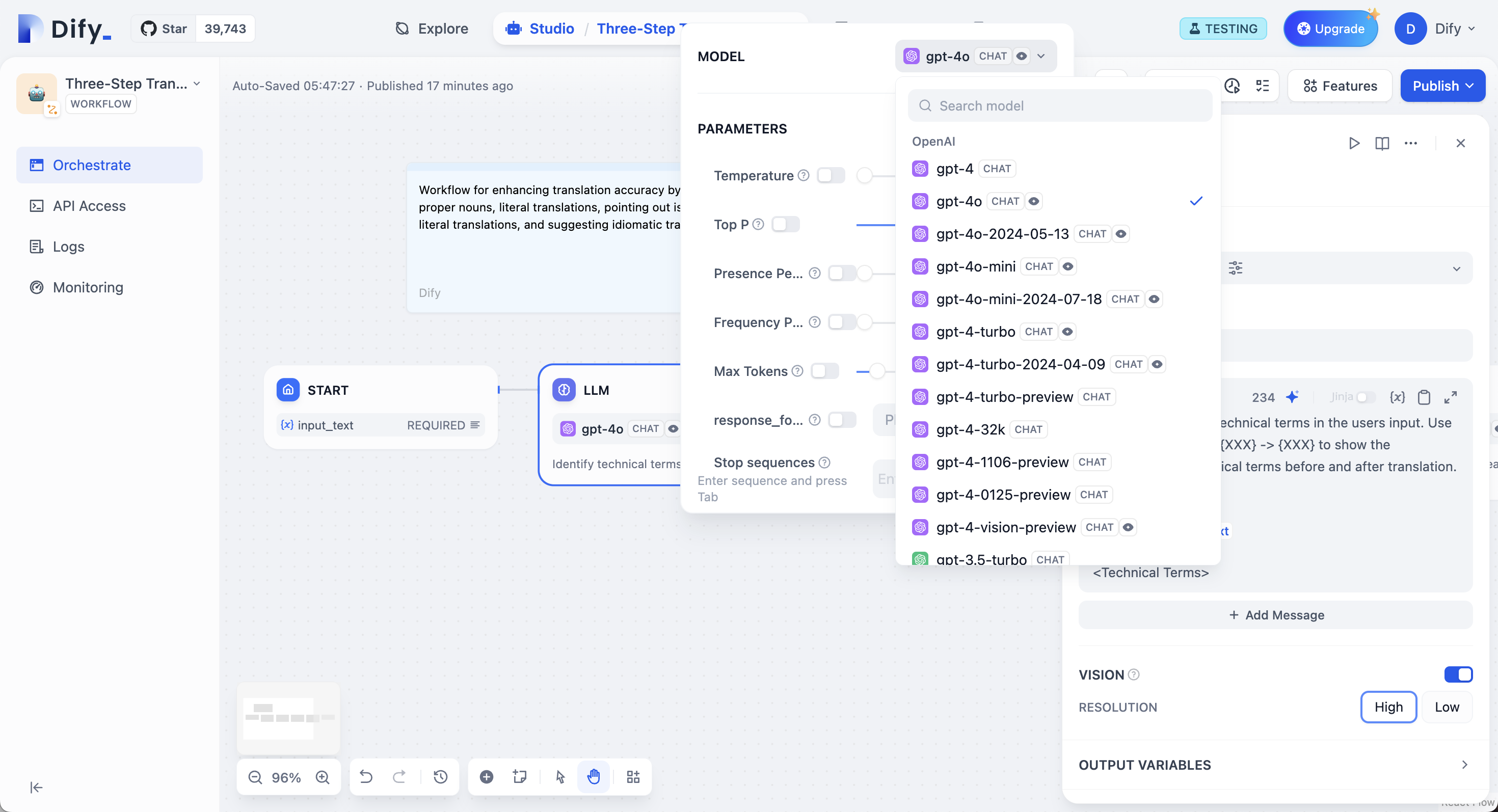
Model Selection and Parameter Configuration
Share a Model Configuration Across Nodes
When several LLM nodes should run on the same model, store the model selection in an environment variable instead of configuring each node separately. Editing the variable, such as pointing it at a different model, updates every node bound to it. Open the Environment Variables panel, add a variable of the LLM type, and choose a model with its parameters. Then, in each LLM node, switch the Model field to variable mode, and pick the variable. The variable carries the provider, model, and model parameters; prompts and other settings stay with each node.Prompt Configuration
Your interface adapts based on model type. Chat models use message roles (System for behavior, User for input, Assistant for examples), while completion models use simple text continuation. Reference workflow variables in prompts using double curly braces:{{variable_name}}. Variables are replaced with actual values before reaching the model.
Context Variables
Context variables inject external knowledge while preserving source attribution. This enables RAG applications where LLMs answer questions using your specific documents.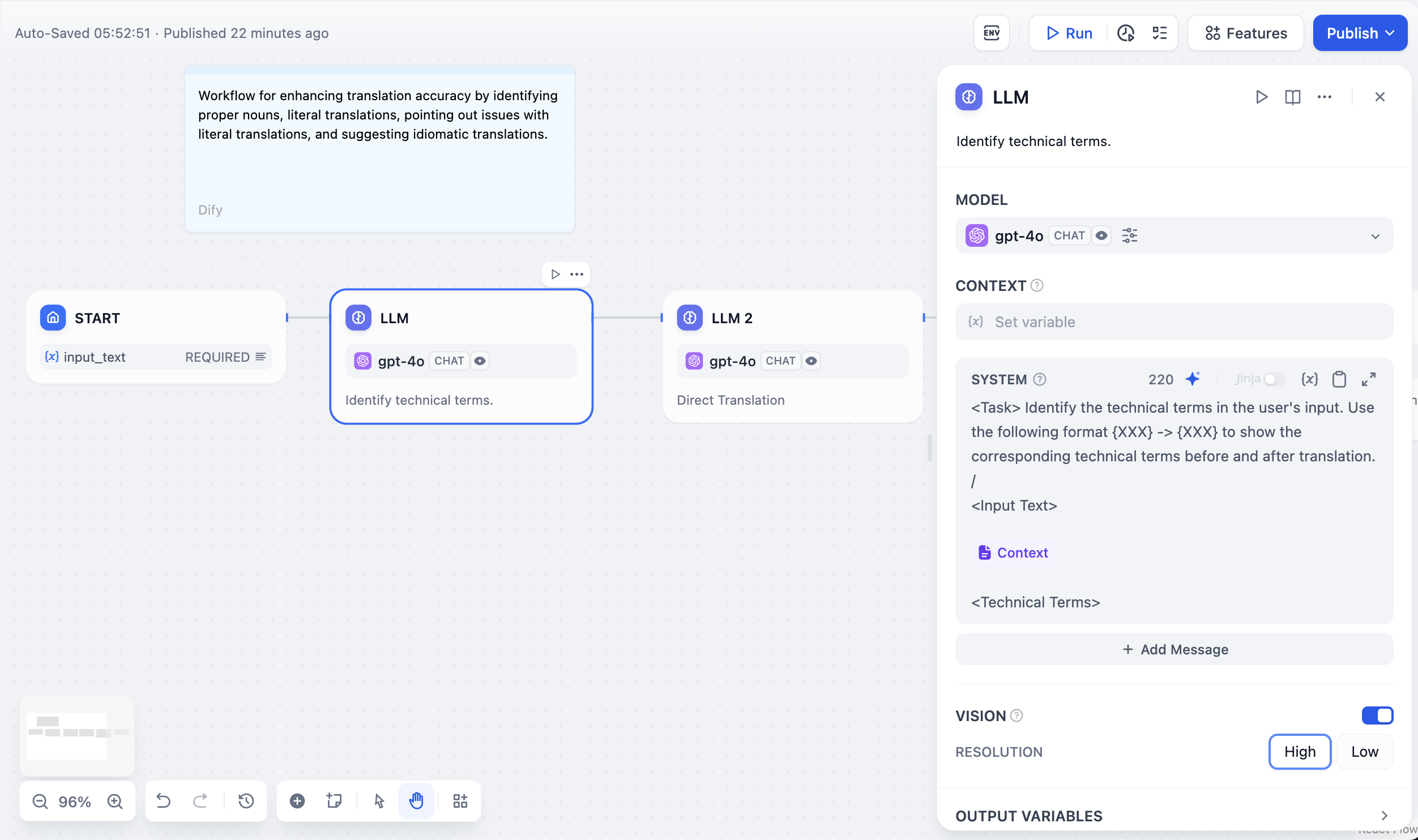
Using Context Variables for RAG Applications
Structured Outputs
Force models to return specific data formats like JSON for programmatic use. Configure through three methods:- Visual Editor
- JSON Schema
- AI Generation
User-friendly interface for simple structures. Add fields with names and types, mark required fields, set descriptions. The editor generates JSON Schema automatically.
Memory and File Processing
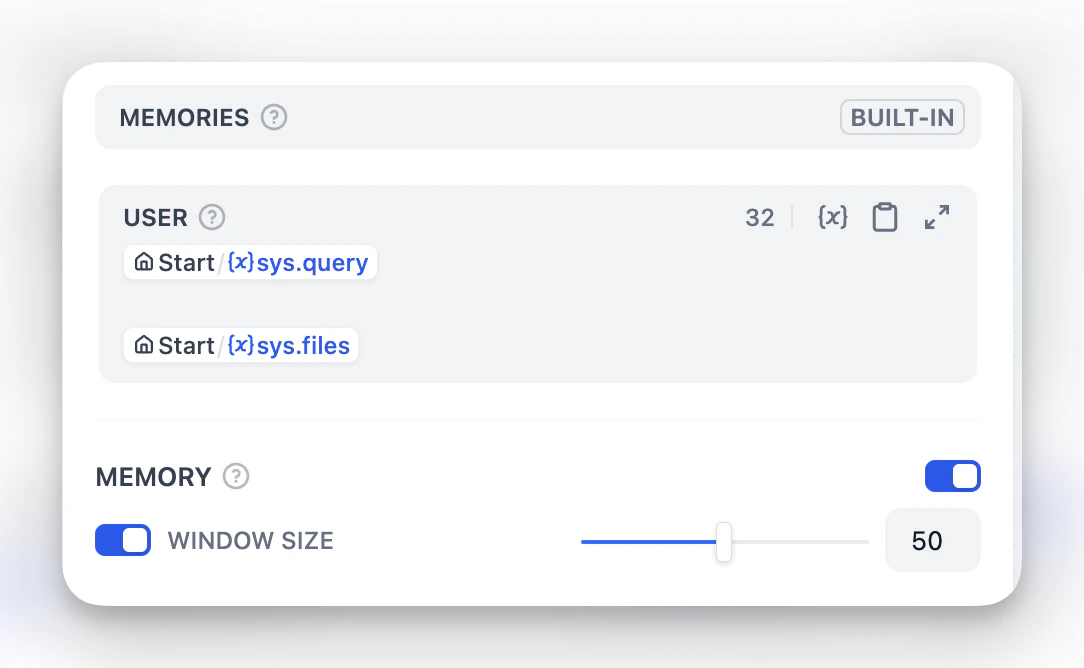
USER template. Memory is node-specific and doesn’t persist between different conversations.
For File Processing, add file variables to prompts for multimodal models. GPT-4V handles images, Claude processes PDFs directly, while other models might need preprocessing.
Vision Configuration
When processing images, you can control the detail level:- High detail - Better accuracy for complex images but uses more tokens
- Low detail - Faster processing with fewer tokens for simple images
userinput.files which automatically picks up files from the User Input node.
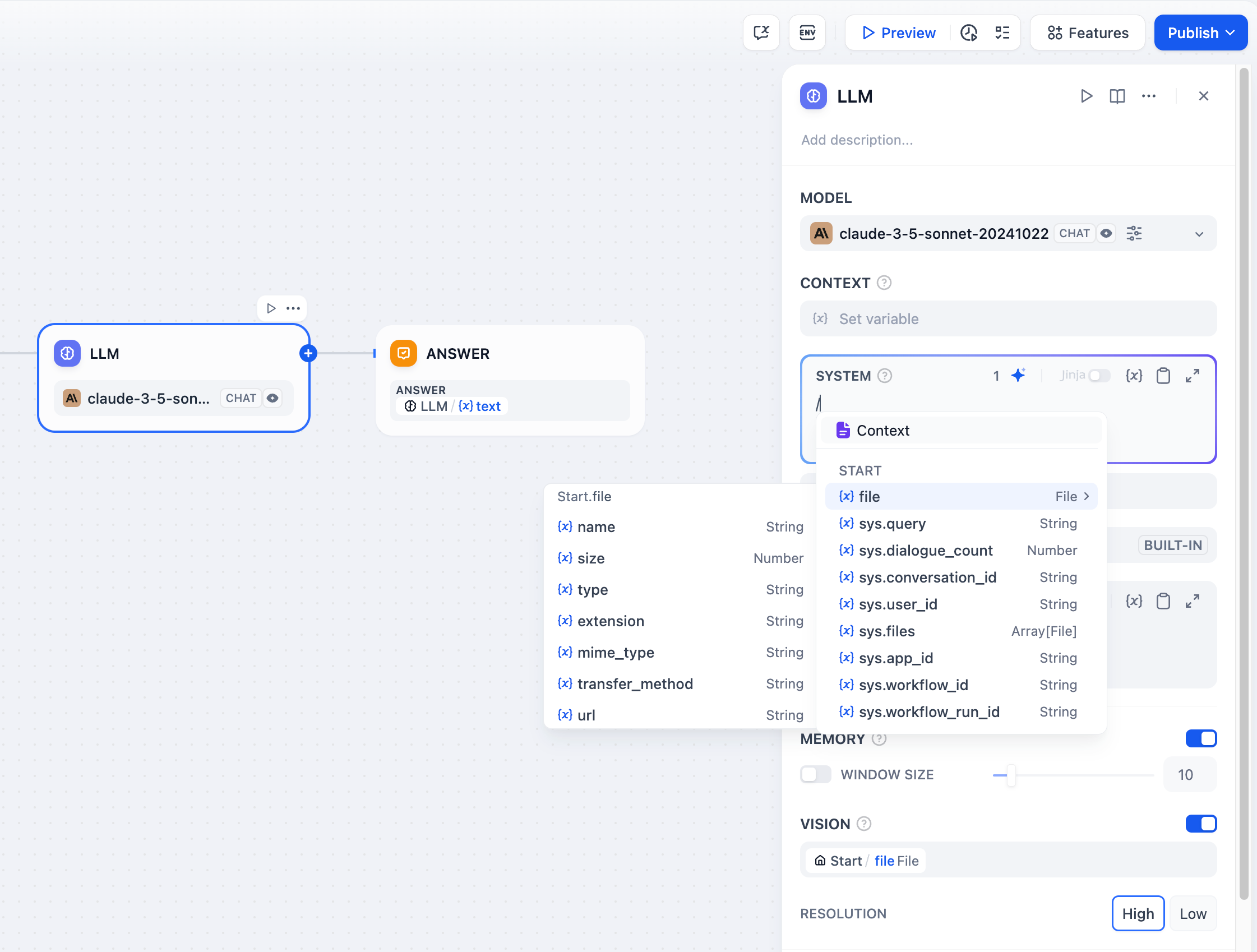
File Processing with Multimodal LLMs
Jinja2 Template Support
LLM prompts support Jinja2 templating for advanced variable handling. When you use Jinja2 mode (edition_type: "jinja2"), you can:
Streaming Output
LLM nodes support streaming output by default. Each text chunk is yielded as aRunStreamChunkEvent, enabling real-time response display. File outputs (images, documents) are processed and saved automatically during streaming.
Separate Reasoning from Responses
Some reasoning models wrap their thinking in<think>...</think> tags inside their response. By default, those tags are included in the text output, so the reasoning flows downstream together with the answer.
Turn on the Enable reasoning tag separation toggle to split them: the text output keeps only the answer, and the thinking moves to a separate reasoning_content output variable. While the toggle is off, reasoning_content stays empty.
In API calls, this toggle appears as the reasoning_format parameter. When the toggle is on, reasoning_format is separated, and streaming API clients receive the reasoning as dedicated reasoning_chunk events, outside the answer stream. For event details, see Send Chat Message and Run Workflow.
This setting affects only models that wrap their reasoning in
<think> tags.