

Select the Index Method
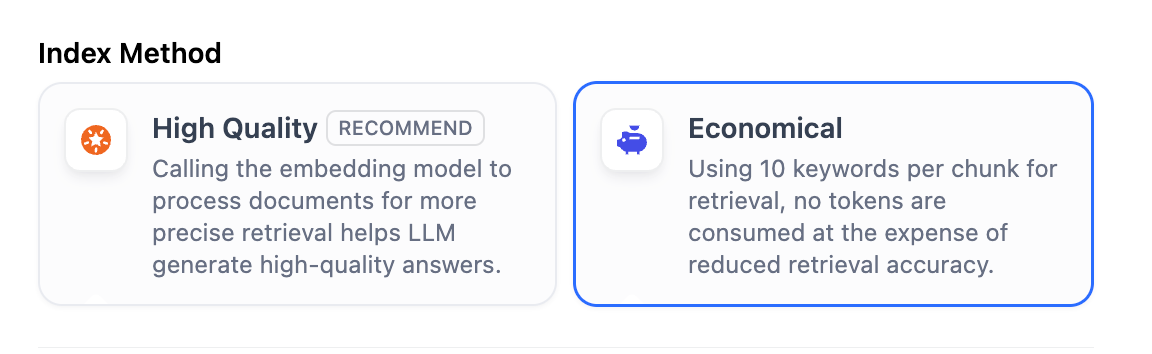
Similar to the search engines use efficient indexing algorithms to match search results most relevant to user queries, the selected index method directly impacts the retrieval efficiency of the LLM and the accuracy of its responses to knowledge base content. The knowledge base offers two index methods: High-Quality and Economical, each with different retrieval setting options.- High Quality
- Economical
Once a knowledge base is created in the High Quality index method, it cannot switch to Economical later.
To enable cross-modal retrieval—retrieving both text and images based on semantic relevance—select a multimodal embedding model (marked with a Vision icon). Images extracted from documents will then be embedded and indexed for retrieval.Knowledge bases using such embedding models are labeled Multimodal on their cards.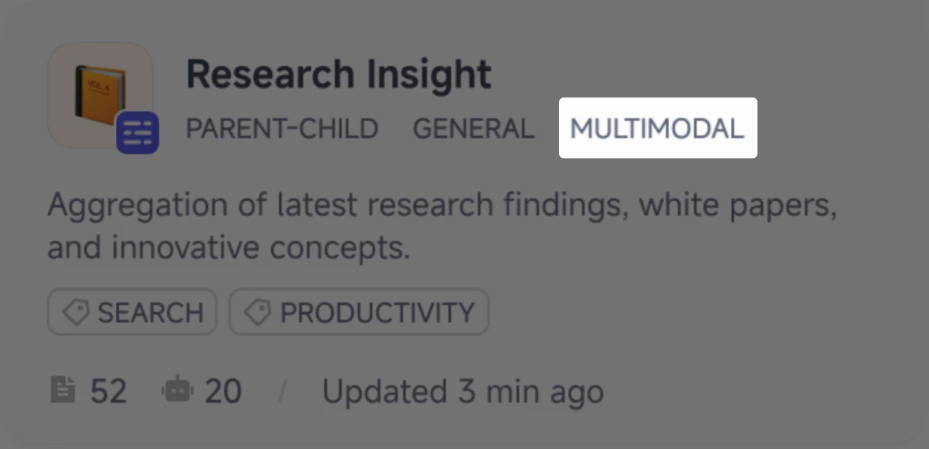
Configure the Retrieval Settings
Once the knowledge base receives a user query, it searches existing documents according to preset retrieval methods and extracts highly relevant content chunks. These chunks provide essential context for the LLM, ultimately affecting the accuracy and credibility of its answers. Common retrieval methods include:- Semantic Retrieval based on vector similarity—where text chunks and queries are converted into vectors and matched via similarity scoring.
- Keyword Matching using an inverted index (a standard search engine technique). Both methods are supported in Dify’s knowledge base.
- High Quality
- Economical
High QualityIn the High-Quality Indexing Method, Dify offers three retrieval settings: Vector Search, Full-Text Search, and Hybrid Search.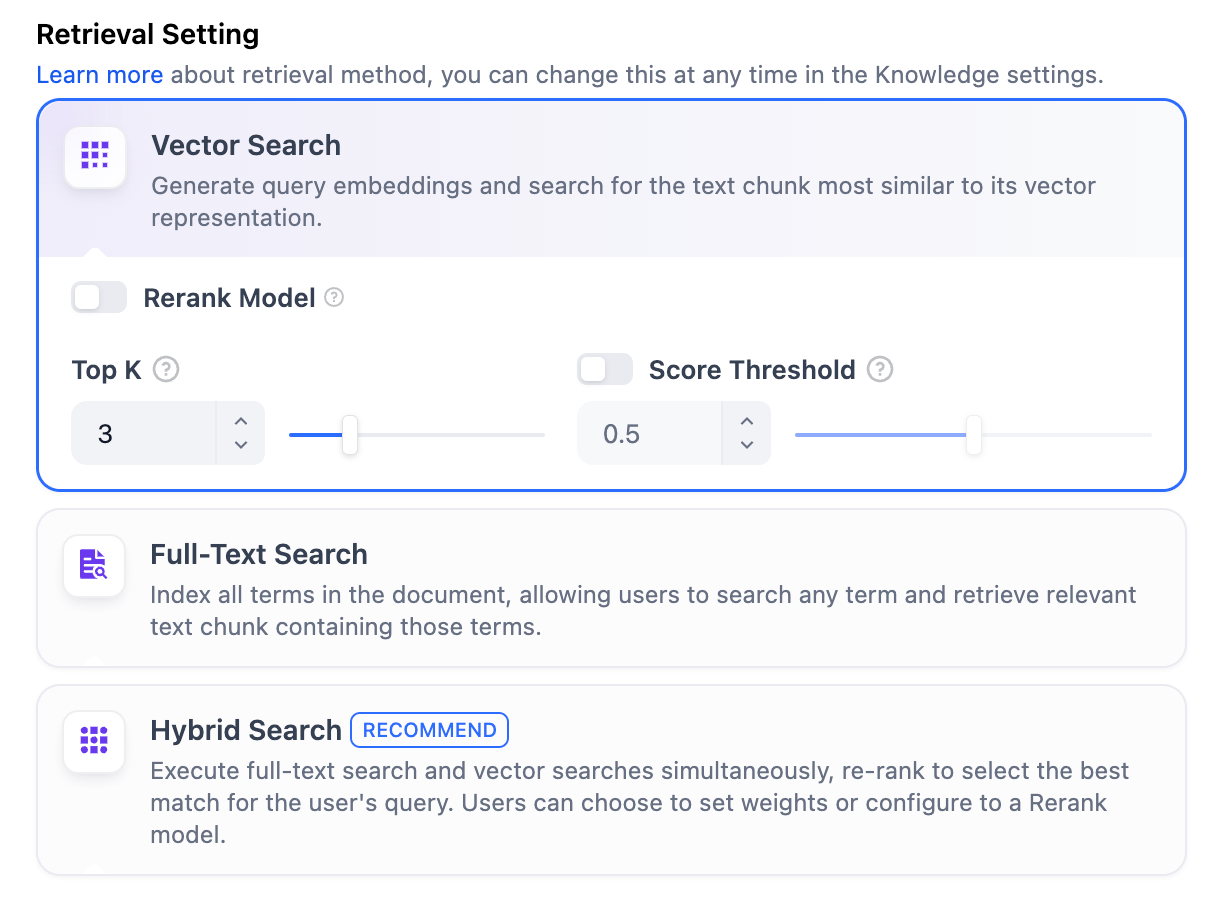 Vector SearchDefinition: Vectorize the user’s question to generate a query vector, then compare it with the corresponding text vectors in the knowledge base to find the nearest chunks.
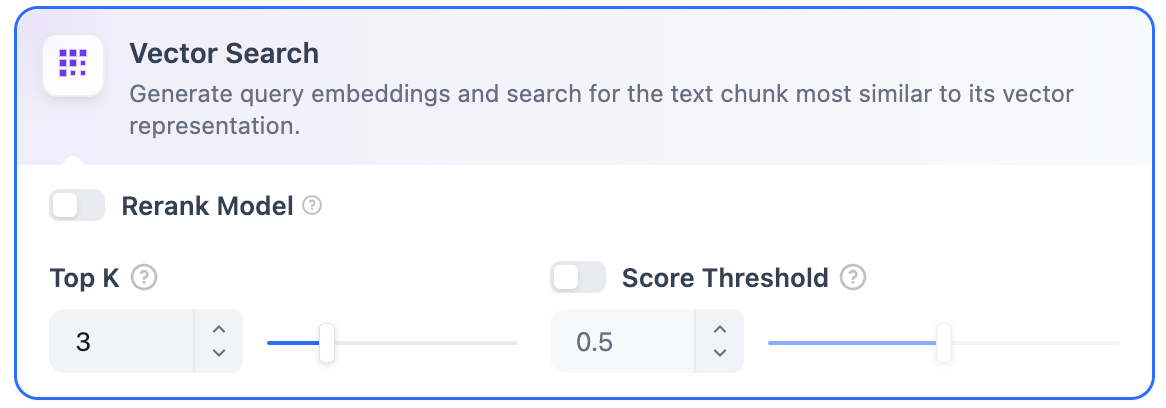 Vector Search Settings:Rerank Model: Disabled by default. When enabled, a third-party Rerank model will sort the text chunks returned by Vector Search to optimize results. This helps the LLM access more precise information and improve output quality. Before enabling this option, go to Integrations > Model Provider and configure the Rerank model’s API key.
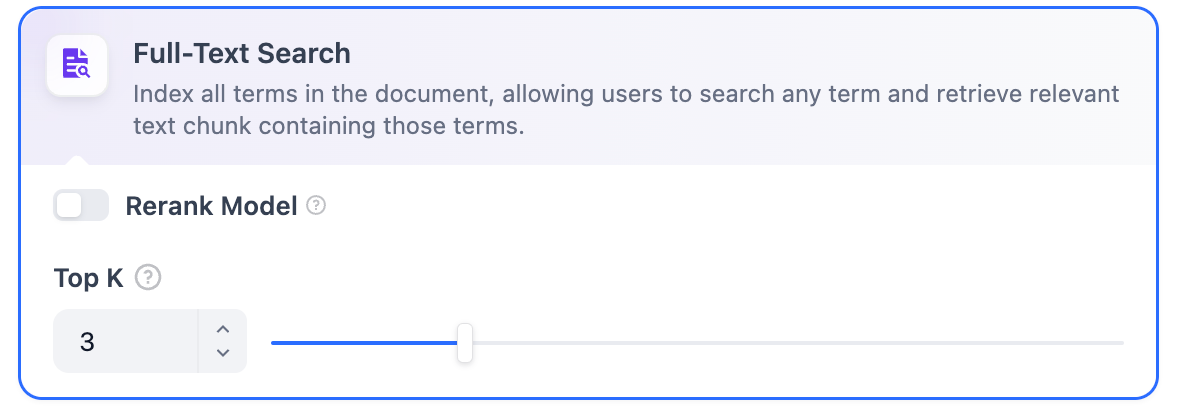 Rerank Model: Disabled by default. When enabled, a third-party Rerank model will sort the text chunks returned by Full-Text Search to optimize results. This helps the LLM access more precise information and improve output quality. Before enabling this option, go to Integrations > Model Provider and configure the Rerank model’s API key.
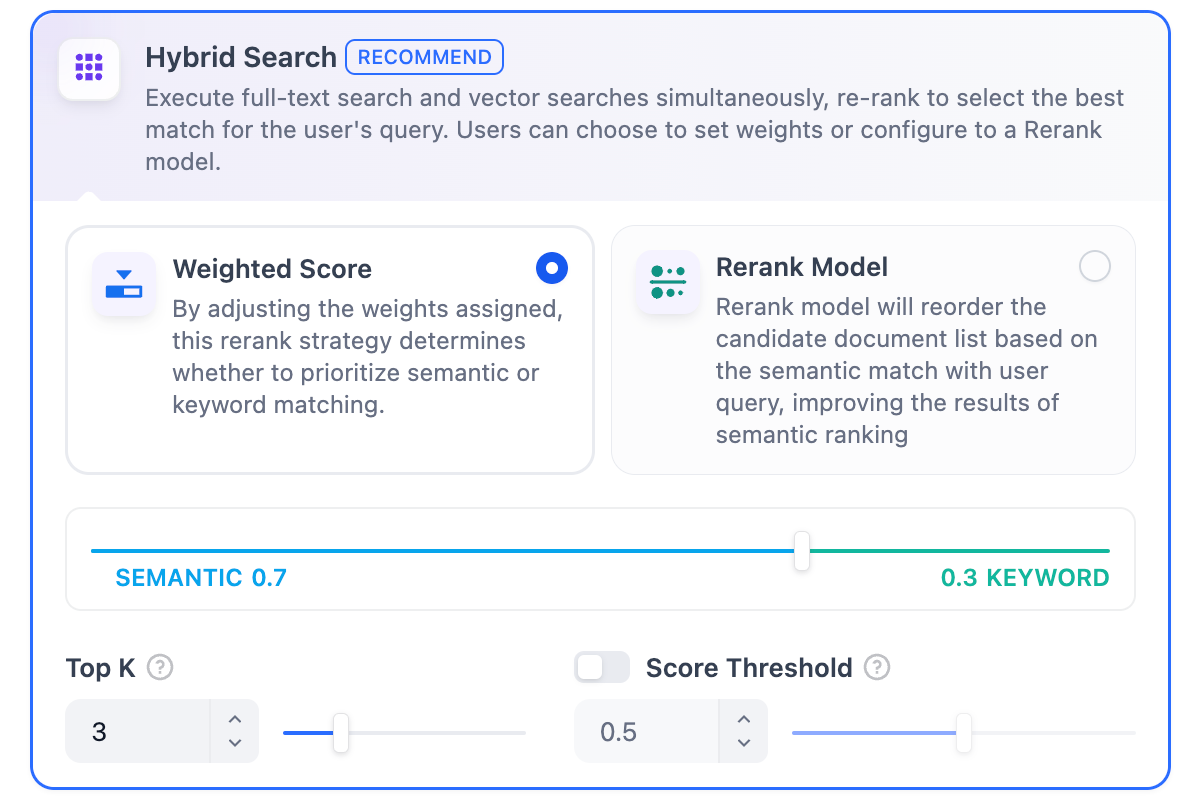 In this mode, you can specify “Weight settings” without needing to configure the Rerank model API, or enable Rerank model for retrieval.
If the selected embedding model is multimodal, select a multimodal rerank model (marked with a Vision icon) as well. Otherwise, retrieved images will be excluded from reranking and the retrieval results.
Enabling this feature will consume tokens from the Rerank model. For more details, refer to the associated model’s pricing page.TopK: Determines how many text chunks, deemed most similar to the user’s query, are retrieved. It also automatically adjusts the number of chunks based on the chosen model’s context window. The default value is 3, and higher numbers will recall more text chunks.Score Threshold: Sets the minimum similarity score required for a chunk to be retrieved. Only chunks exceeding this score are retrieved. The default value is 0.5. Higher thresholds demand greater similarity and thus result in fewer chunks being retrieved.
The TopK and Score configurations are only effective during the Rerank phase. Therefore, to apply either of these settings, it is necessary to add and enable a Rerank model.Full-Text SearchDefinition: Indexing all terms in the document, allowing users to query any terms and return text fragments containing those terms.
If the selected embedding model is multimodal, select a multimodal rerank model (marked with a Vision icon) as well. Otherwise, retrieved images will be excluded from reranking and the retrieval results.
Enabling this feature will consume tokens from the Rerank model. For more details, refer to the associated model’s pricing page.TopK: Determines how many text chunks, deemed most similar to the user’s query, are retrieved. It also automatically adjusts the number of chunks based on the chosen model’s context window. The default value is 3, and higher numbers will recall more text chunks.Score Threshold: Sets the minimum similarity score required for a chunk to be retrieved. Only chunks exceeding this score are retrieved. The default value is 0.5. Higher thresholds demand greater similarity and thus result in fewer chunks being retrieved.
The TopK and Score configurations are only effective during the Rerank phase. Therefore, to apply either of these settings, it is necessary to add and enable a Rerank model.Hybrid SearchDefinition: This process combines full-text search and vector search, performing both simultaneously. It includes a reordering step to select the best-matching results from both search outcomes based on the user’s query.
-
Weight Settings
This feature enables users to set custom weights for semantic priority and keyword priority. Keyword search refers to performing a full-text search within the knowledge base, while semantic search involves vector search within the knowledge base.
- Semantic Value of 1 This activates only the semantic search mode. Utilizing embedding models, even if the exact terms from the query do not appear in the knowledge base, the search can delve deeper by calculating vector distances, thus returning relevant content. Additionally, when dealing with multilingual content, semantic search can capture meaning across different languages, providing more accurate cross-language search results.
- Keyword Value of 1 This activates only the keyword search mode. It performs a full match against the input text in the knowledge base, suitable for scenarios where the user knows the exact information or terminology. This approach consumes fewer computational resources and is ideal for quick searches within a large document knowledge base.
- Custom Keyword and Semantic Weights In addition to enabling only semantic search or keyword search, we provide flexible custom weight settings. You can continuously adjust the weights of the two methods to identify the optimal weight ratio that suits your business scenario. Rerank Model
If the selected embedding model is multimodal, select a multimodal rerank model (marked with a Vision icon) as well. Otherwise, retrieved images will be excluded from reranking and the retrieval results.Enabling this feature will consume tokens from the Rerank model. For more details, refer to the associated model’s pricing page.
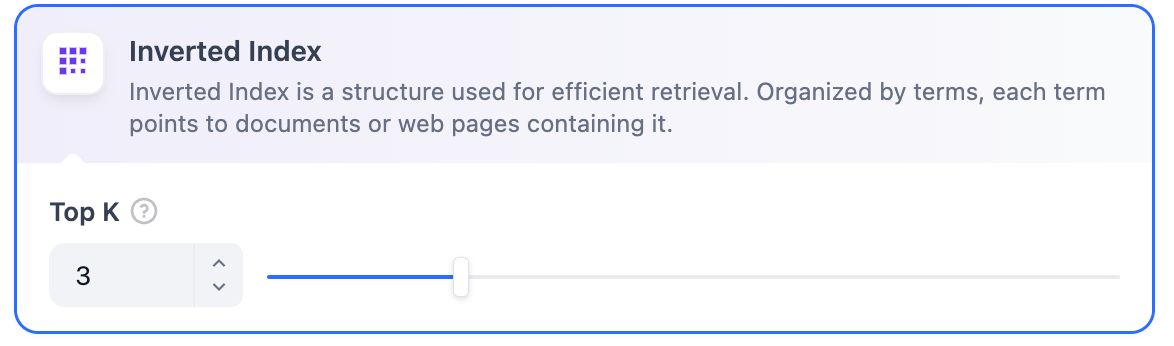
Reference
After specifying the retrieval settings, you can refer to the following documentation to review how keywords match with content chunks in different scenarios.Test Knowledge Retrieval
Learn how to test and cite your knowledge base retrieval