> ## Documentation Index
> Fetch the complete documentation index at: https://docs.dify.ai/llms.txt
> Use this file to discover all available pages before exploring further.
# Plugin Debugging
> Run your in-development plugin locally and attach it to a live Dify workspace for end-to-end testing, no packaging required
Remote debugging is the fastest way to iterate on a plugin. You run the plugin process on your laptop, and Dify treats it as if it were installed in the workspace. Save your edits and restart the process, and the changes take effect immediately.
## Prerequisites
* A Dify workspace where you can access **Plugins** in the top-right corner.
* A scaffolded plugin project (see [CLI](/en/develop-plugin/getting-started/cli) if you haven't created one yet).
* Python 3.12 and the plugin's dependencies installed (`pip install -r requirements.txt`).
## Step 1: Get the Debug URL and Key
Open the **Plugins** page in Dify and click the debug icon (the small bug icon next to **Install Plugin**). A dialog shows the **remote install host:port** and an **API key**.
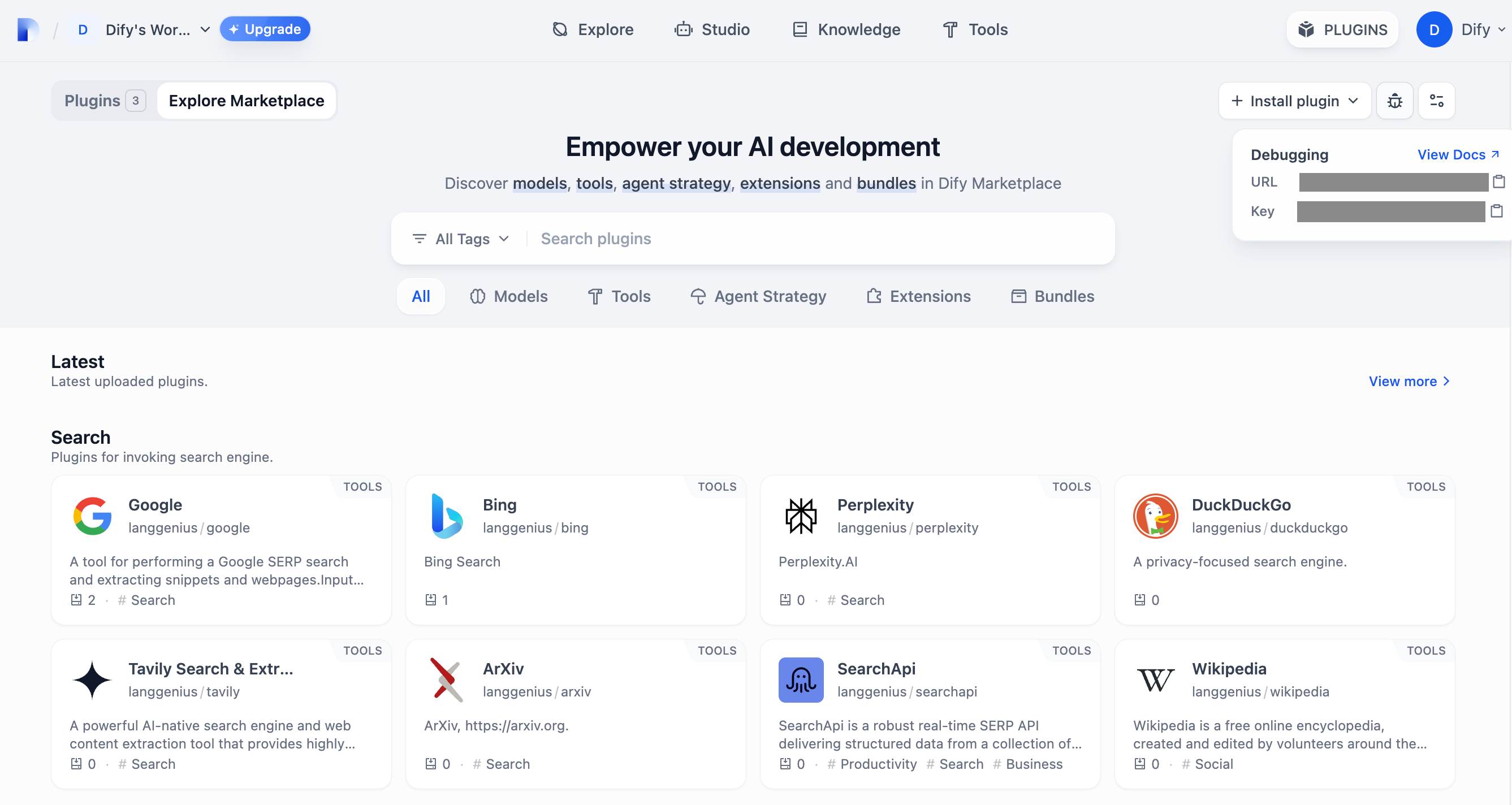
The host is something like `debug-plugin.dify.dev:5003`. The key is unique to your workspace; anyone with the key can attach a plugin, so do not share it.
The host defaults to `127.0.0.1:5003` and is configured by `PLUGIN_REMOTE_INSTALLING_HOST` / `PLUGIN_REMOTE_INSTALLING_PORT` in the plugin daemon's environment. Make sure port `5003` is reachable from your dev machine. If Dify runs in Docker on the same host, use the daemon container's bridge IP (or expose the port).
## Step 2: Configure the Plugin's `.env`
In your plugin project, copy `.env.example` to `.env` and fill in the values:
```bash theme={null}
INSTALL_METHOD=remote
REMOTE_INSTALL_URL=debug-plugin.dify.dev:5003
REMOTE_INSTALL_KEY=********-****-****-****-************
```
`REMOTE_INSTALL_URL` is the combined `host:port` from Step 1, not two separate variables.
## Step 3: Run the Plugin
From the plugin project directory:
```bash theme={null}
pip install -r requirements.txt
python -m main
```
The process stays in the foreground and logs incoming invocations. Edit your code and restart the process to apply changes.
## Step 4: Verify the Install
Go back to the Dify **Plugins** page. The plugin appears in the list, labeled with a debug marker. Other members of the workspace can also see and use it.
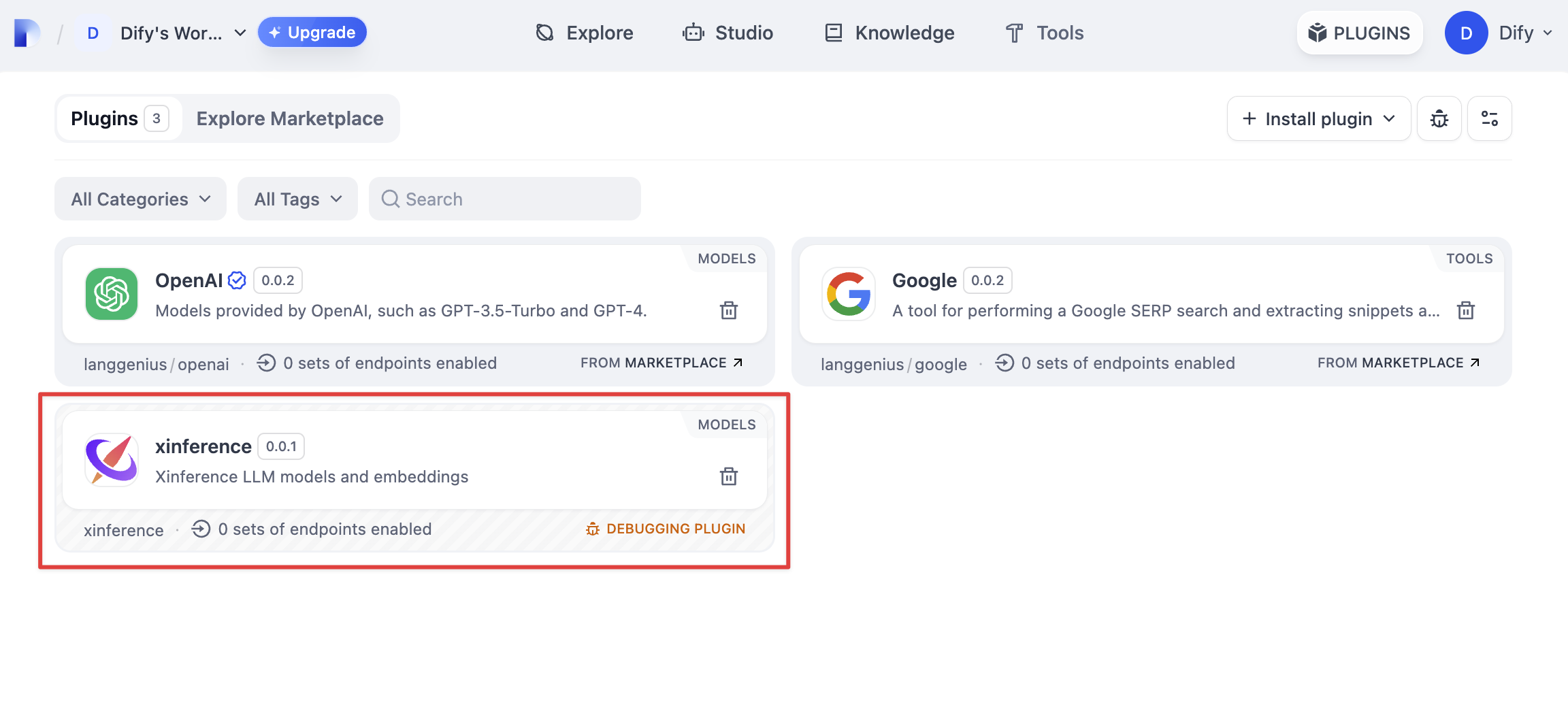
The plugin tile shows a debug indicator and your local terminal logs the first registration handshake. You're attached.
Trigger the plugin as you would any other: call it from a workflow node, run it as a tool inside an Agent, or hit an endpoint URL. Invocations land on your local process and you can attach a debugger.
## Troubleshooting
The daemon is not listening on the address you put in `REMOTE_INSTALL_URL`. On self-hosted setups, confirm the daemon container has `PLUGIN_REMOTE_INSTALLING_ENABLED=true` and that port `5003` is exposed. On cloud, double-check you copied the host:port exactly as shown in the debug dialog.
The most common cause is a stale or wrong `REMOTE_INSTALL_KEY`. Regenerate the key from the debug dialog and rerun `python -m main`. Also confirm the daemon log shows the incoming registration.
The `author` field in `manifest.yaml` or in `provider/*.yaml` doesn't match a value the daemon accepts. Set it to your GitHub handle, then restart.
The plugin process needs to restart after every edit; there's no hot reload. Stop with `Ctrl+C` and rerun `python -m main`.
## Related Resources
* [CLI](/en/develop-plugin/getting-started/cli)—Scaffold a plugin and set up `.env`
* [Plugin Logging](/en/develop-plugin/features-and-specs/plugin-types/plugin-logging)—Emit structured logs from inside your plugin
* [Package as Local File and Share](/en/develop-plugin/publishing/marketplace-listing/release-by-file)—Ship the plugin once debugging is done