> ## Documentation Index
> Fetch the complete documentation index at: https://docs.dify.ai/llms.txt
> Use this file to discover all available pages before exploring further.
# Human Input
> Pause workflows to request human input
The Human Input node pauses workflows at key points to deliver a customizable request form. Recipients can use the form to review information, provide input, and choose from predefined decisions that determine how the workflow proceeds.
By embedding human judgement directly where it matters, you can *balance automated efficiency with human oversight*.
For a workflow design example, see [Example: Content Review Workflow](#example-content-review-workflow).
## Configuration
Configure the following to define how the node requests and processes human input:
* **Delivery method**: How the request form reaches recipients.
* **Form content**: What information recipients will see and what they can interact with.
* **User action**: What decisions recipients can make and how the workflow proceeds accordingly.
* **Timeout strategy**: How long to wait and what happens if no recipient responds.
### Delivery Method
Choose the channel through which the request is delivered. Currently available methods:
* **Web app**: Displays the request form to the WebApp end user. Not available in workflows started by a Trigger.
External clients can drive the WebApp form lifecycle through the Service API. See [API Integration Flow](/en/cloud/use-dify/nodes/hitl-api-integration-flow).
* **Email**: Sends a request link via email to specific workspace members, external email addresses, or every member of the workspace. Anyone with the link can respond, no Dify account required.
The request closes after the first response regardless of delivery method.
### Form Content
Customize the form recipients see and interact with:
* **Format and structure with Markdown**
Use headings, lists, bold text, links, and other Markdown elements to present information clearly.
* **Display dynamic data with variables**
Reference workflow variables to show dynamic content, such as AI-generated text for review or a file someone uploaded at an upstream Human Input node for approval.
In WebApp delivery, the form itself displays to end users. Any variables you reference render their values directly in the form, so **no Answer or Output node is needed before the Human Input node**.
Reasoning models emit their thinking process alongside the final answer. Referencing the `text` output variable shows both by default.
To show only the answer, toggle on **Enable Reasoning Tag Separation** for the corresponding LLM node.
* **Collect input with form fields**
Add fields into the request form to capture different types of input from recipients. Each field becomes a variable for downstream use.
For example, in a blog review workflow, you can pass recipient feedback to a downstream LLM node for content revision.
| Field Type | Description |
| :---------------------- | :--------------------------------------------------------------------------------------------------------------------------------------------------------------------------------------------------------------------------------- |
| Paragraph | Text input. Can start empty, or pre-filled with variables (e.g., LLM output to refine) or static text (examples or default values).
No maximum length, but very long inputs may exceed downstream LLM context windows. |
| Select | Single-choice selection from a list of options. Define options manually, or reference an `array[string]` variable to use its items as options. |
| Single File / File List | Single or multiple file uploads.
Per-file upload limits: 10 MB for images, 15 MB for documents and other files, 50 MB for audio, and 100 MB for video. A File List field accepts up to 10 files. |
Only Paragraph is optional; Select, Single File, and File List are mandatory. The form's action buttons stay disabled until all mandatory fields are filled.
After the recipient responds, the form content with all values filled in is available downstream as the `__rendered_content` variable. File field values render as plain-text placeholders: `[file]` for Single File and `[N files]` for File List.
### User Action
Define the decision buttons that recipients can click, each routing the workflow to a different execution path.
For example, a `Post` branch might lead to nodes that trigger content publishing, while a `Regenerate` branch might loop back to an LLM node to revise the content.
Each button has a display title and an action ID. When a button is clicked, its ID is exposed downstream as `__action_id` and its title (button text) as `__action_value`.
 Use preset button styles to visually distinguish actions.
For example, use a prominent style for key actions like `Approve` and a subtler one for secondary options.
### Timeout Strategy
Configure how long the request stays open before it expires. The default is 3 days.
If no recipient responds before the timeout, the workflow follows the timeout branch from the node. Wire this branch to a fallback path, such as a notification or a retry loop.
If no timeout branch is connected, the workflow ends.
## Example: Content Review Workflow
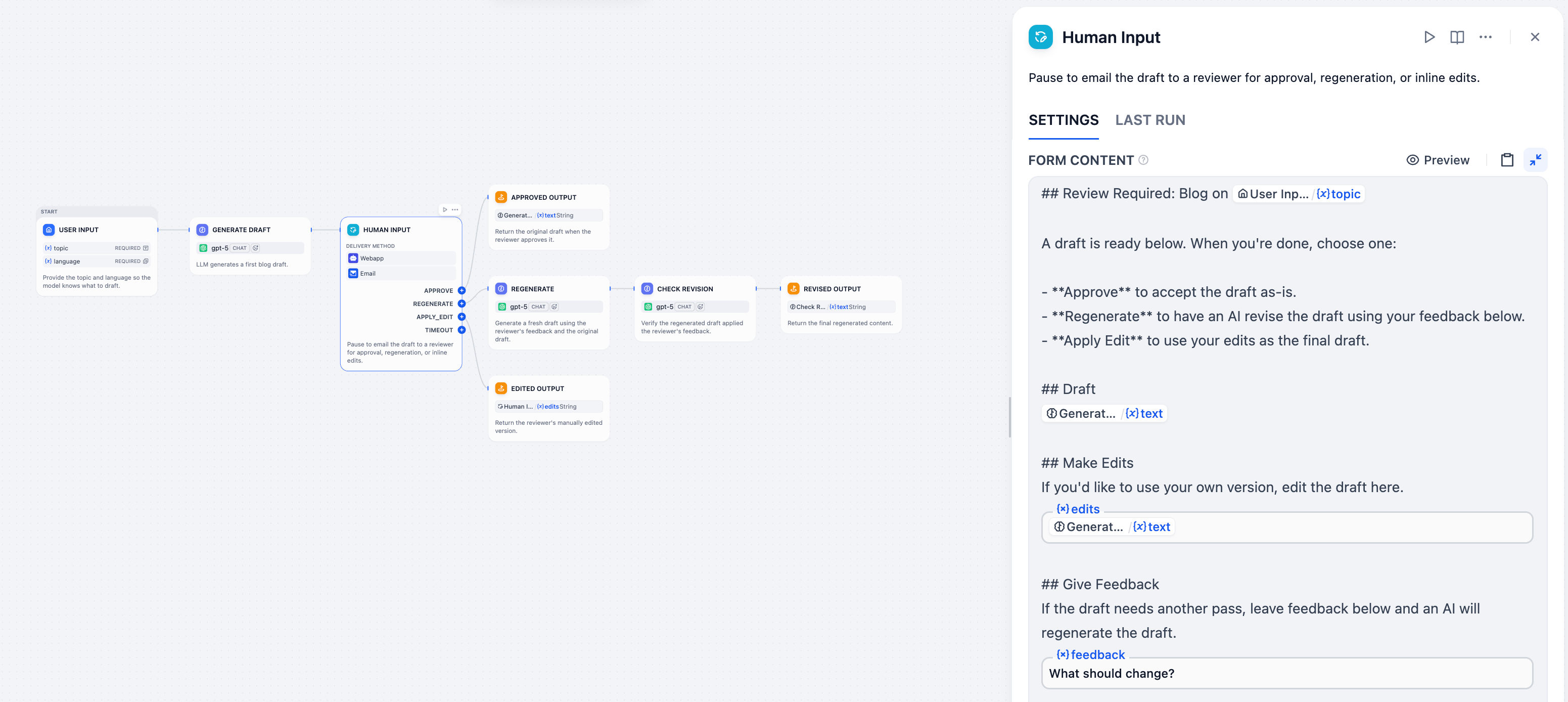
This workflow drafts a blog post from the `topic` and `language` that a workflow initiator inputs, emails the draft to a reviewer, and finalizes the output based on the reviewer's choice.
It is designed around three things the reviewer should be able to do:
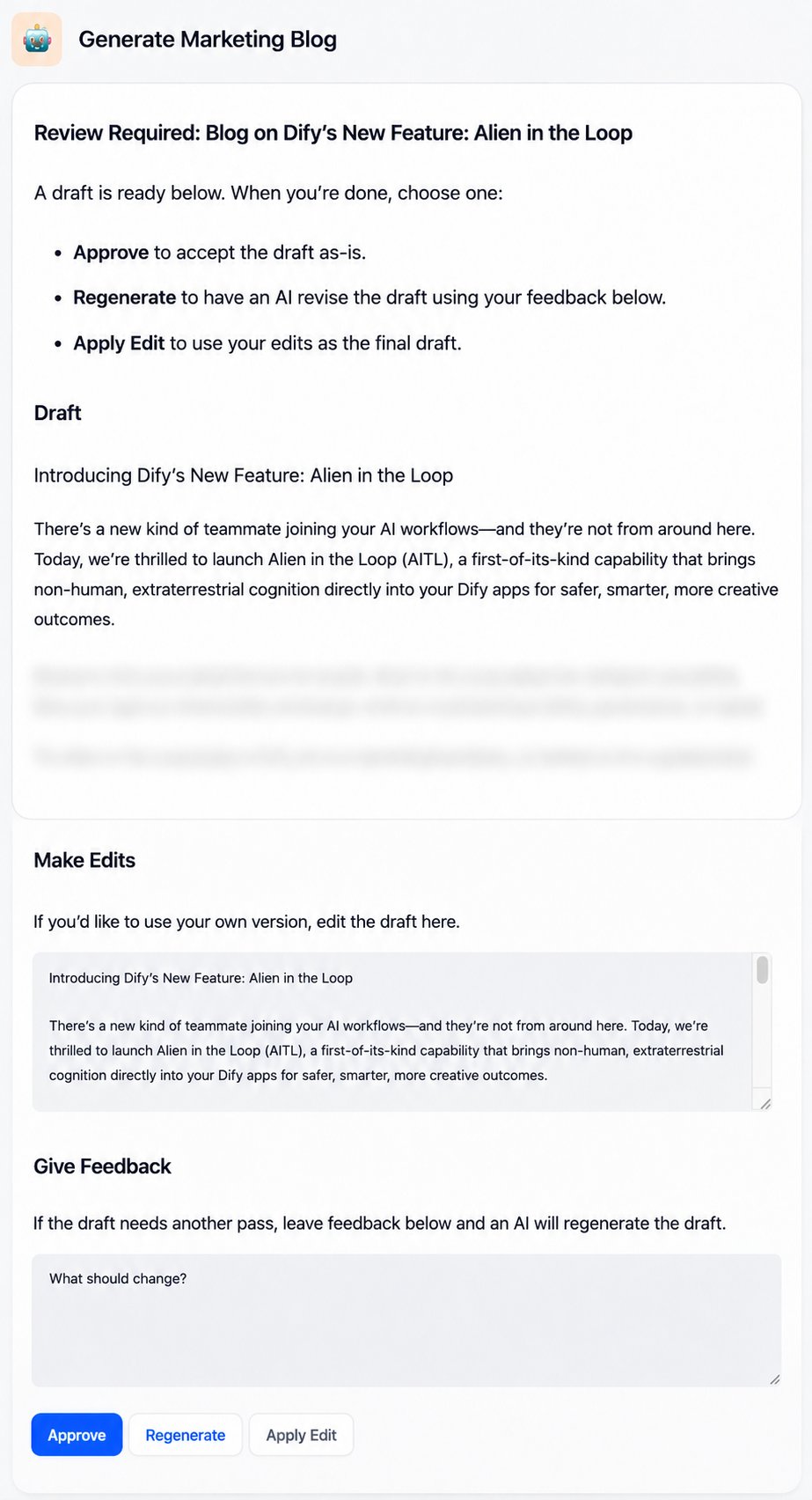
1. **See the AI-generated draft**: Reference the upstream LLM node's `text` variable in the form so the rendered form displays the draft directly.
2. **Edit the draft directly if needed**: Add a Paragraph field named `edits` in the form, pre-filled with the same `text` variable, so the reviewer sees the draft as starting content and can edit in place.
Because blog posts are long, the form's Markdown display (point 1) reads better than a Paragraph field on its own. For shorter content, the pre-filled Paragraph field alone can handle both reading and editing.
3. **Provide feedback for an AI revision**:
1. Add a Paragraph field named `feedback` in the form for the reviewer's feedback.
2. Connect two downstream LLM nodes in sequence:
1. A Regenerate node that takes the original draft `text` and the reviewer's `feedback` to produce a revised draft.
2. A Check Revision node that takes `feedback` and the revised draft to verify whether the revision addresses the feedback. The verified result is what flows downstream.
On the received request form, the reviewer fills the relevant Paragraph fields (or leaves them blank) based on their judgment, then clicks the matching action button. Each action wires to a different output:
* **Approve**: the original draft from the upstream LLM
* **Apply Edit**: the reviewer's edited content from the `edits` field
* **Regenerate**: the revised draft from the downstream LLM pipeline
**System**
```text wrap theme={null}
Write a marketing blog post around the given topic in the specified language.
```
**User**
```text theme={null}
Topic: {{#user_input.topic#}}
Language: {{#user_input.language#}}
```
**System**
```text wrap theme={null}
Regenerate the draft based on user feedback.
```
**User**
```text theme={null}
Draft: {{#generate_draft.text#}}
User Feedback: {{#human_input.feedback#}}
```
**System**
```text wrap theme={null}
Check whether the draft below addresses the user's feedback. Return the draft unchanged if it does; revise it to address the feedback if it doesn't.
```
**User**
```text theme={null}
User Feedback: {{#human_input.feedback#}}
Regenerated Draft: {{#regenerate.text#}}
```
Use preset button styles to visually distinguish actions.
For example, use a prominent style for key actions like `Approve` and a subtler one for secondary options.
### Timeout Strategy
Configure how long the request stays open before it expires. The default is 3 days.
If no recipient responds before the timeout, the workflow follows the timeout branch from the node. Wire this branch to a fallback path, such as a notification or a retry loop.
If no timeout branch is connected, the workflow ends.
## Example: Content Review Workflow
This workflow drafts a blog post from the `topic` and `language` that a workflow initiator inputs, emails the draft to a reviewer, and finalizes the output based on the reviewer's choice.
It is designed around three things the reviewer should be able to do:
1. **See the AI-generated draft**: Reference the upstream LLM node's `text` variable in the form so the rendered form displays the draft directly.
2. **Edit the draft directly if needed**: Add a Paragraph field named `edits` in the form, pre-filled with the same `text` variable, so the reviewer sees the draft as starting content and can edit in place.
Because blog posts are long, the form's Markdown display (point 1) reads better than a Paragraph field on its own. For shorter content, the pre-filled Paragraph field alone can handle both reading and editing.
3. **Provide feedback for an AI revision**:
1. Add a Paragraph field named `feedback` in the form for the reviewer's feedback.
2. Connect two downstream LLM nodes in sequence:
1. A Regenerate node that takes the original draft `text` and the reviewer's `feedback` to produce a revised draft.
2. A Check Revision node that takes `feedback` and the revised draft to verify whether the revision addresses the feedback. The verified result is what flows downstream.
On the received request form, the reviewer fills the relevant Paragraph fields (or leaves them blank) based on their judgment, then clicks the matching action button. Each action wires to a different output:
* **Approve**: the original draft from the upstream LLM
* **Apply Edit**: the reviewer's edited content from the `edits` field
* **Regenerate**: the revised draft from the downstream LLM pipeline
**System**
```text wrap theme={null}
Write a marketing blog post around the given topic in the specified language.
```
**User**
```text theme={null}
Topic: {{#user_input.topic#}}
Language: {{#user_input.language#}}
```
**System**
```text wrap theme={null}
Regenerate the draft based on user feedback.
```
**User**
```text theme={null}
Draft: {{#generate_draft.text#}}
User Feedback: {{#human_input.feedback#}}
```
**System**
```text wrap theme={null}
Check whether the draft below addresses the user's feedback. Return the draft unchanged if it does; revise it to address the feedback if it doesn't.
```
**User**
```text theme={null}
User Feedback: {{#human_input.feedback#}}
Regenerated Draft: {{#regenerate.text#}}
```